

What is Node.js?
Node.js lets you run JavaScript on a server. Many web apps and APIs use it. An API is a way for programs to talk to each other.
cPanel is the control panel for your hosting account. It is a web page with icons for your files, emails and more.
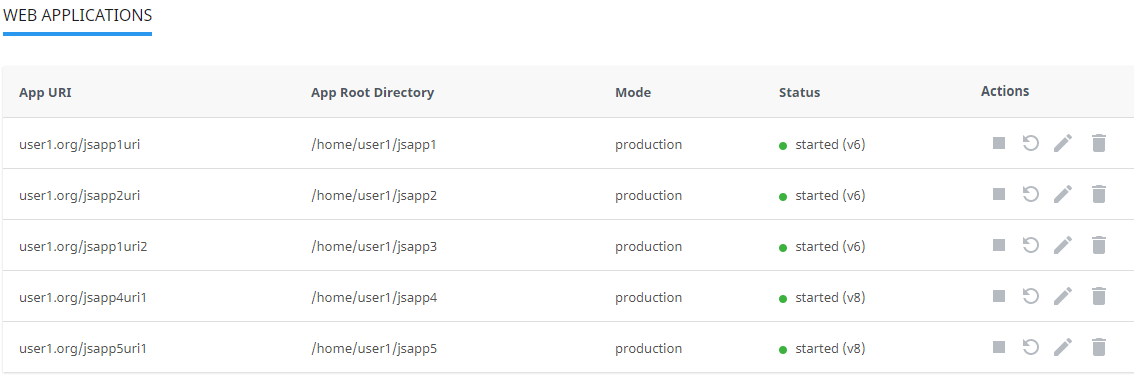
Before you start
- Your account needs the Node.js tool. If you cannot find it in cPanel, ask Hostvento support whether it is on your plan.
- Upload your app files to a folder in your account first, for example
myappin your home folder. Use File Manager in cPanel. - Your app needs a
package.jsonfile. It lists what your app needs to run.
Steps
- Log in to your client area at https://secure.hostvento.com/clientarea.php and open cPanel from your hosting service.
- Find the Software section.
- Click Setup Node.js App.
- Click Create Application.
- Choose a Node.js version from the list. Pick the one your app supports.
- Set Application mode. Use Production for a live site and Development for testing.
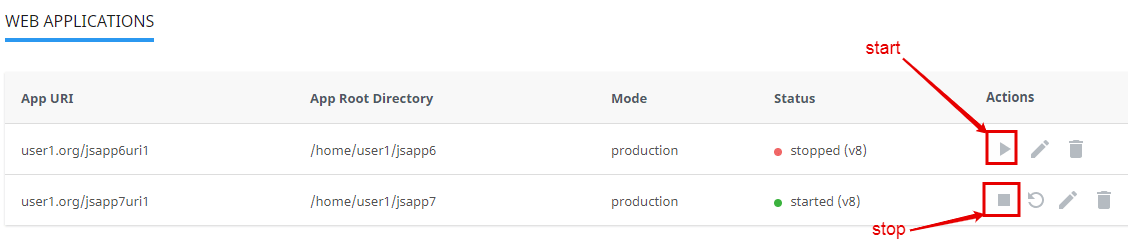
- In Application root, type the folder where your app files are, such as
myapp. - In Application URL, choose the domain or add a path where the app should appear.
- In Application startup file, type the main file name, such as
app.js. - Click Create.
- Click Run NPM Install. This downloads the add-on code your app needs.
- Click Restart to start the app.
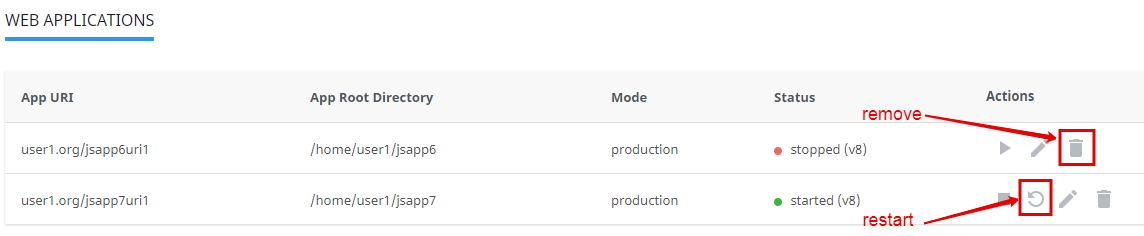
- Open your app's address in a browser to check it.
If it does not work
- Check that the startup file name is spelled right.
- Check that the application root is the correct folder.
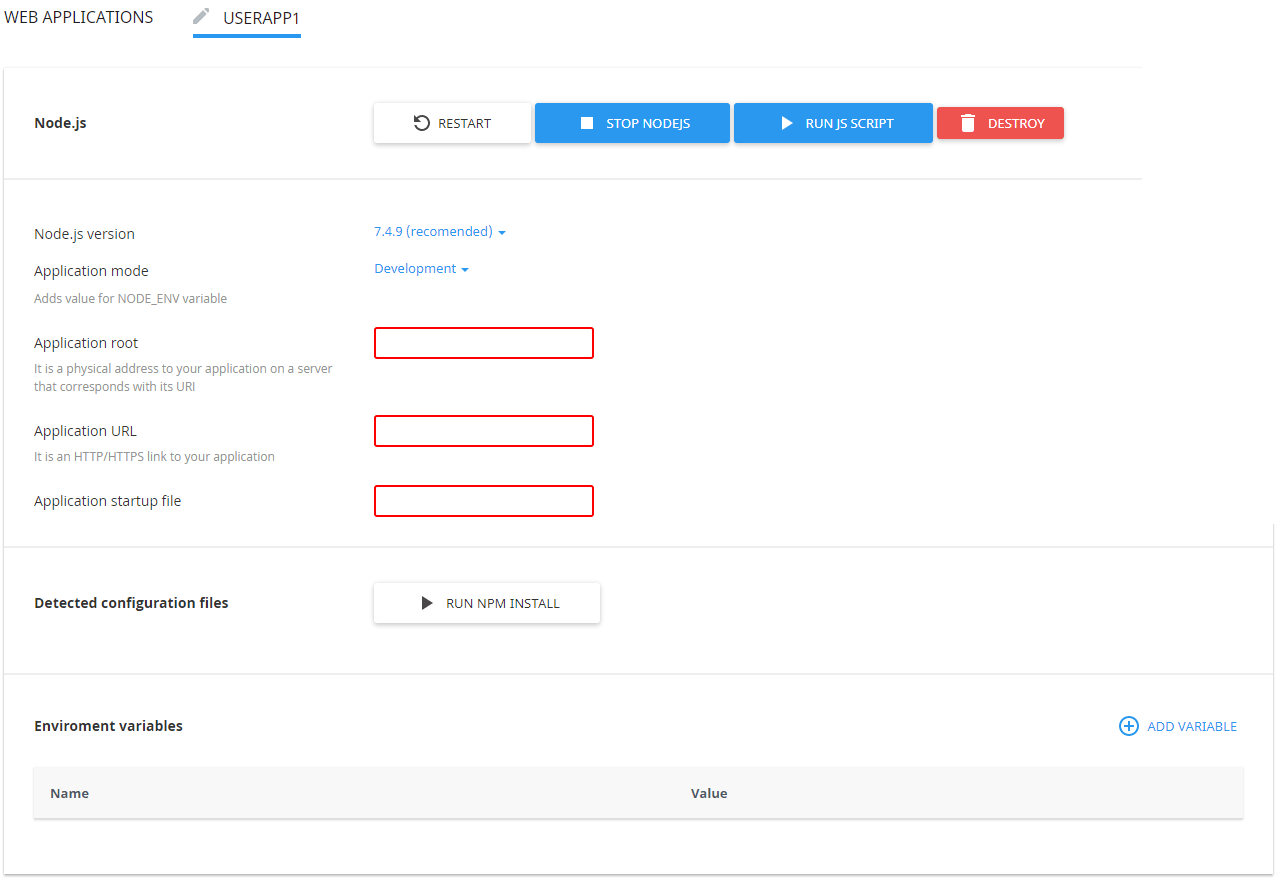
- Run NPM Install again, then restart.
- Look at the error log in cPanel for clues.
Tip: Click Restart every time you change your app's files. The app does not reload by itself.
Quick recap
- Open Setup Node.js App in the Software section of cPanel.
- Pick a version, mode, folder, URL and startup file.
- Run NPM Install, then restart.
- Ask support if the tool is missing.