

What is a DNS resolver?
DNS is like a phone book for the internet. It turns a website name into a number that computers understand. A resolver is the helper that looks up that number for your computer. By default it is usually the one from your internet provider. Some people switch to another resolver to fix lookup problems or to test a site.
Two well-known public resolvers are Google at 8.8.8.8 and Cloudflare at 1.1.1.1.
Windows
- Open Control Panel and choose Network and Internet.
- Click Network and Sharing Center.
- Click Change adapter settings.
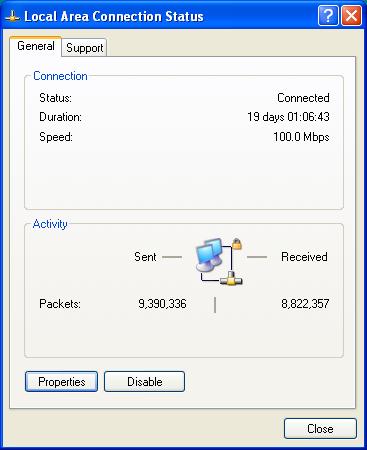
- Right-click your active connection and choose Properties.
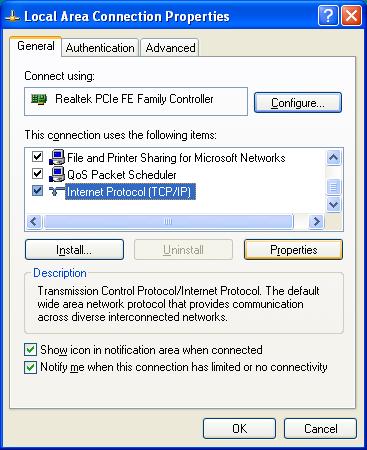
- Select Internet Protocol Version 4 (TCP/IPv4) and click Properties.

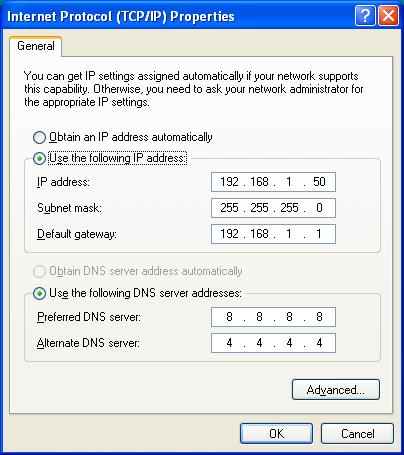
- Choose Use the following DNS server addresses.
- Type a preferred server, such as
8.8.8.8. Type an alternate one, such as8.8.4.4. - Click OK.
Mac
- Open System Settings (or System Preferences) and choose Network.
- Select your connection and click Details or Advanced.
- Open the DNS tab.
- Click the plus button and add a server address.
- Click OK and then Apply.
Linux
Steps differ by system. On many desktops, open network settings, pick your connection and edit the DNS field. On a server, the file /etc/resolv.conf holds the resolvers. You may need root access to edit it.
nameserver 8.8.8.8
nameserver 8.8.4.4
Each line names one resolver the computer will ask.
Check that it works
- Open a Command Prompt or Terminal.
- Run this command:
nslookup example.comIt asks DNS for the number behind a name. The top lines show which server answered.
Clear the old cache
Your computer remembers old answers. On Windows, run this to forget them:
ipconfig /flushdnsQuick recap
- A resolver looks up website numbers for you.
- Change it in your network settings.
- Use a public one like 8.8.8.8 or 1.1.1.1 if you wish.
- Test with nslookup.
- Flush the cache so old answers go away.