

What is FTP?
FTP stands for File Transfer Protocol. It is a way to move files between your computer and your hosting. An FTP client is the program you use. FileZilla is a popular free one. Think of FTP as a delivery truck between your computer and your website.
What you need
- Your FTP host name, user name and password. Find them in your welcome email, or ask Hostvento support.
- An FTP client such as FileZilla.
- A text editor, such as Notepad on Windows or TextEdit on Mac (use plain text mode).
Connect to your hosting
- Open your FTP client.
- Type the host, user name and password.
- Leave the port empty, or use the one in your welcome email.
- Click Quickconnect.
- Your computer files show on the left. Your hosting files show on the right.
Create a new file
- On your computer, open the text editor.
- Type your content, for example a line of text.
- Save it with a name such as
hello.html. Make sure it does not end in.txt. - In the FTP client, open the folder for your site on the right. This is often called
public_html. - Drag your file from the left side to the right side.
- Open
yourdomain.com/hello.htmlin a browser to check it.
Some FTP clients can also create a blank file. Right-click inside the folder and look for Create new file.
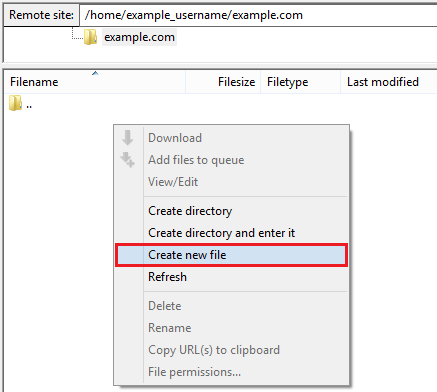
Edit an existing file
- Find the file on the right side.
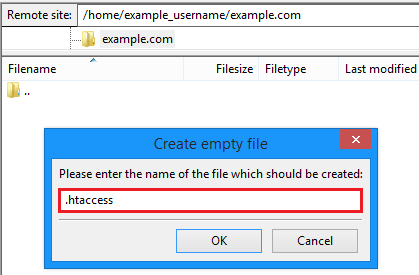
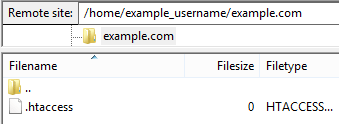
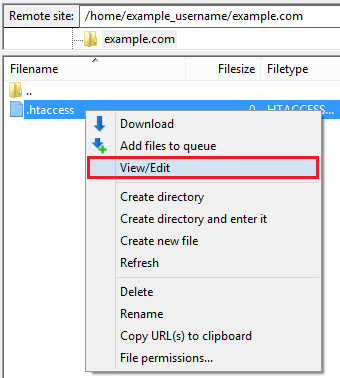
- Right-click it and choose View/Edit.
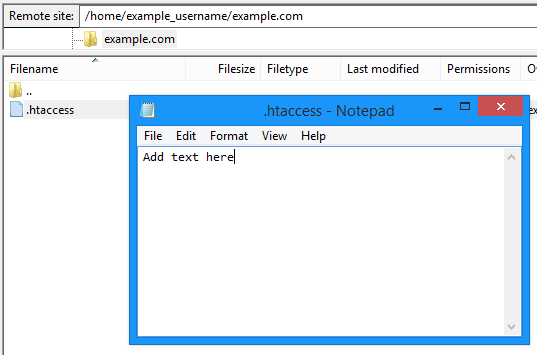
- The file opens in your text editor.
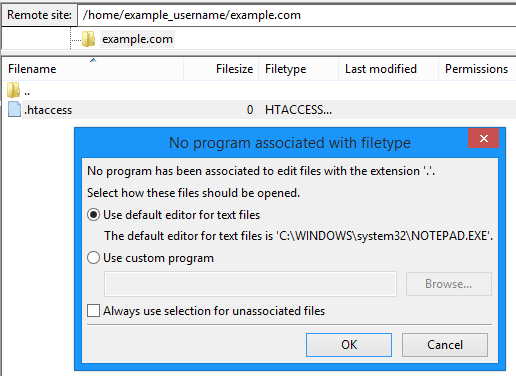
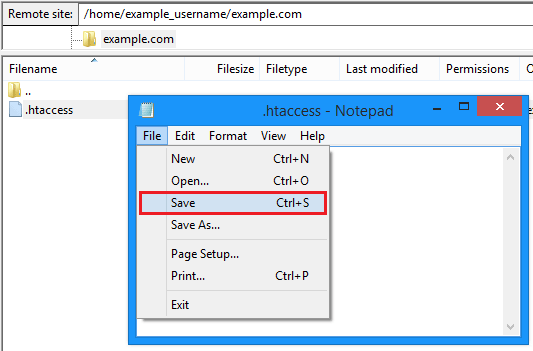
- Make your change and save it.
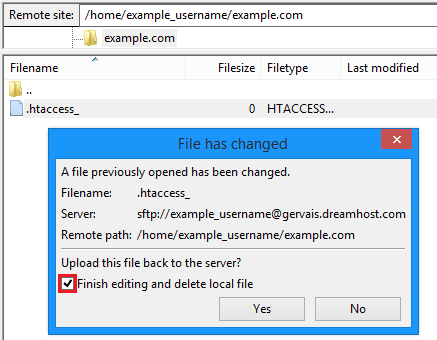
- The FTP client asks if you want to upload the changed file. Click Yes.
- Reload your page in the browser to see the change.
Warning: Editing a file replaces the old version. Before you change an important file, download a copy and keep it. If something breaks, upload the copy back.
Common problems
- Login failed. Check the user name and password, and that you typed the right host.
- Cannot see my changes. Clear your browser cache, and check you edited the right folder.
- Odd characters. Save the file as plain text with UTF-8.
Need help? Open a support ticket.
Quick recap
- FTP moves files between your computer and hosting.
- Connect with your host, user and password.
- Create files on your computer and drag them up.
- Use View/Edit to change a remote file.
- Keep a backup copy before editing.