

Note: You need root access, which is full admin control of the server. VPS and dedicated server customers have it. On shared hosting you cannot do these steps. Ask Hostvento support instead.
What is the selector?
CloudLinux is a server operating system made for hosting. It includes a tool called Python Selector and one called Ruby Selector. They let each user choose a language version and set up an app, without help from the admin. Users get this in their cPanel dashboard. A control panel is a web page where you manage hosting. The end user is the person who owns a hosting account on your server.
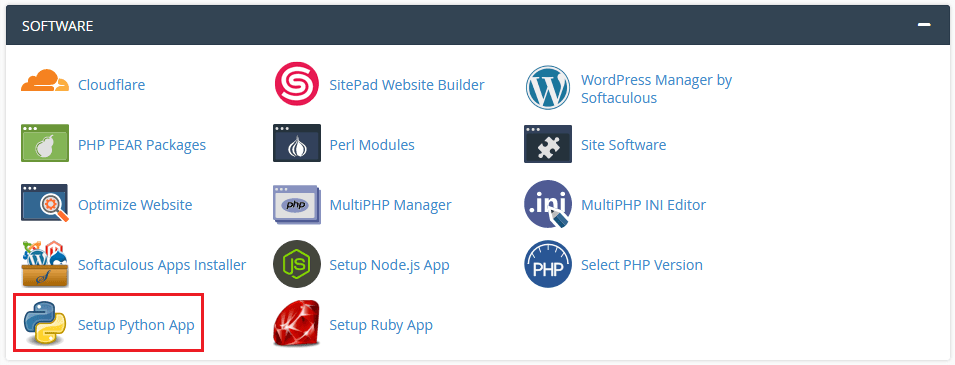
These tools only work on servers that run CloudLinux with the selector tools installed.
Steps for the admin
- Log in to your server over SSH as root. SSH lets you type commands on a server from far away.
- Install the selector packages. On CloudLinux with cPanel, run:

yum install alt-python-virtualenv lvemanager
yum groupinstall alt-python
yum groupinstall alt-ruby
These commands install the manager and the language versions. Package names can differ by version, so check the CloudLinux notes for your release.
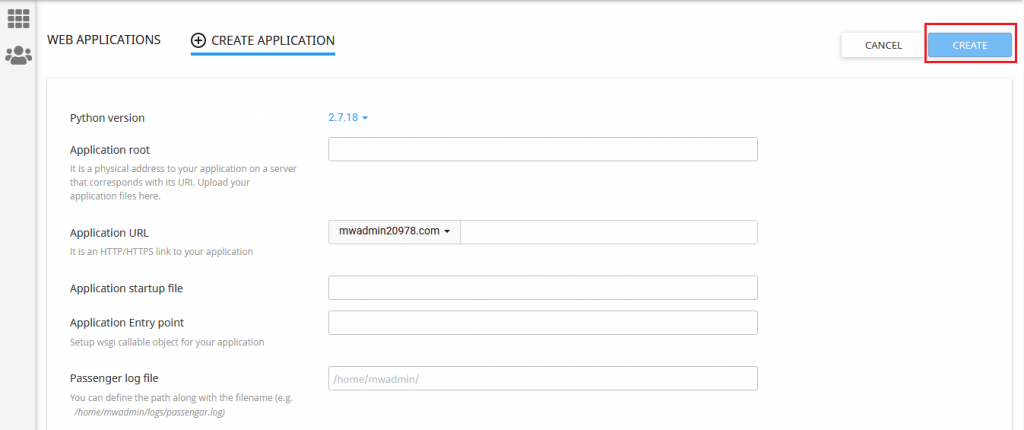
- Log in to WHM, the admin panel, as root.
- Open CloudLinux LVE Manager.
- Open the Options tab and look for the selector settings.
- Open the Python tab. Enable the selector and choose which versions users may pick.
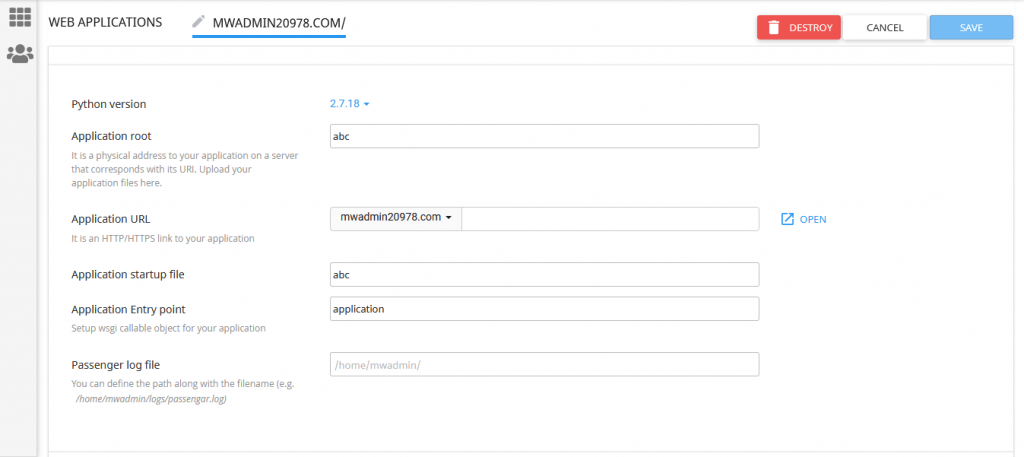
- Open the Ruby tab and do the same.
- Save your changes.
Check it as a user
- Log in to a test user's cPanel.

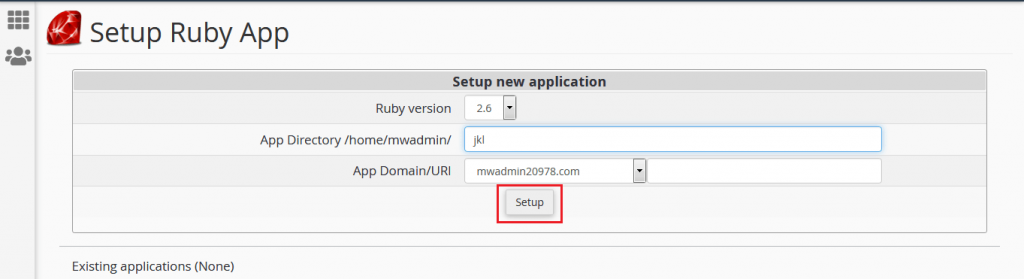
- Look in the Software section for Setup Python App or Setup Ruby App.
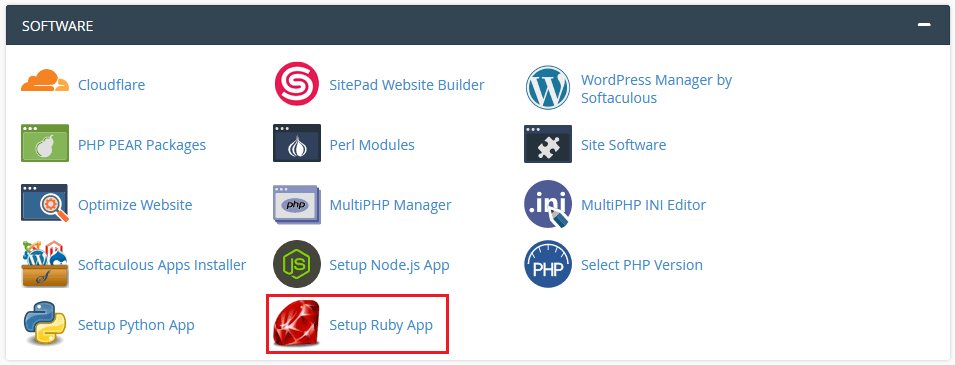
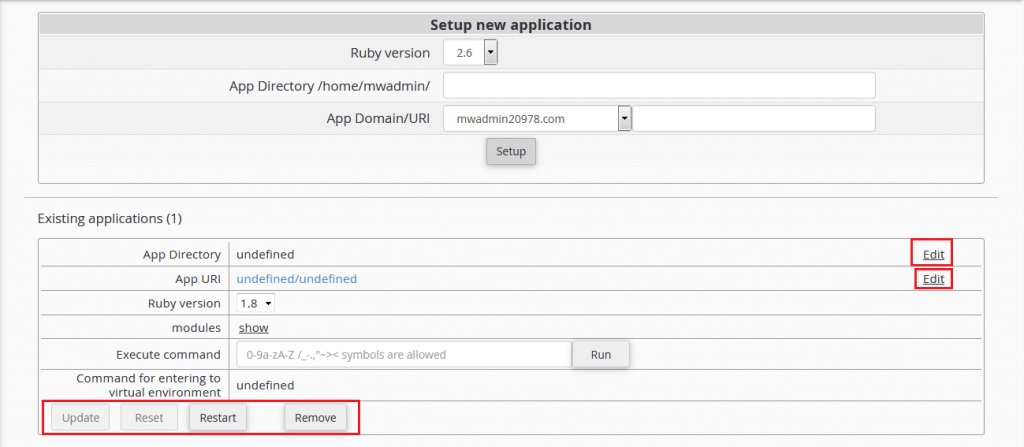
- If you see it, click it. You can now create an application.
If the icon does not appear
- Make sure the user's package or feature list allows it.
- Confirm that the selector is enabled in LVE Manager.
- Log out and in again to refresh the page.
Tip: Menu names change between versions. If you cannot find one, open a support ticket.
Quick recap
- The selectors let users choose Python and Ruby versions.
- They need CloudLinux and root access to set up.
- Enable them in CloudLinux LVE Manager.
- Check by logging in as a test user.
- Shared hosting users should ask support.