

What is a cron job?
A cron job is a task that the server runs on a timer, like an alarm clock that starts a script by itself. Webuzo is a control panel, which is a web dashboard where you manage hosting. Ask Hostvento support if Webuzo is on your plan. Menu names may differ slightly between versions.
How the timing works
A cron job has five time fields, then the command. Each field is a number or a star. A star means "every".
| Field | Meaning | Values |
|---|---|---|
| 1 | Minute | 0 to 59 |
| 2 | Hour | 0 to 23 |
| 3 | Day of month | 1 to 31 |
| 4 | Month | 1 to 12 |
| 5 | Day of week | 0 to 6 (Sunday is 0) |
For example, 30 2 * * * means every day at 2:30 in the morning.
Before you edit
A wrong change can stop an important task, like a backup. Copy down the old line first, so you can put it back.
Steps
- Log in to Webuzo with your user account.
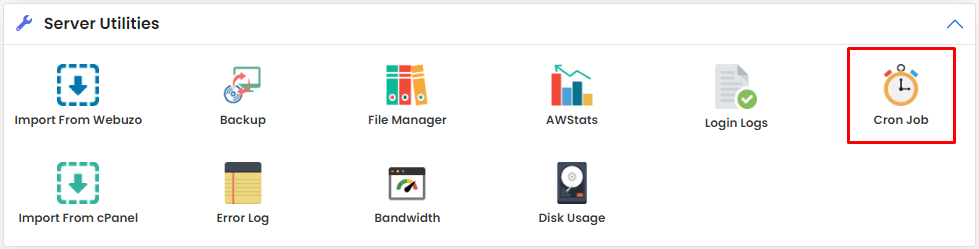
- Open Cron Jobs from the menu. It may sit under Advanced.
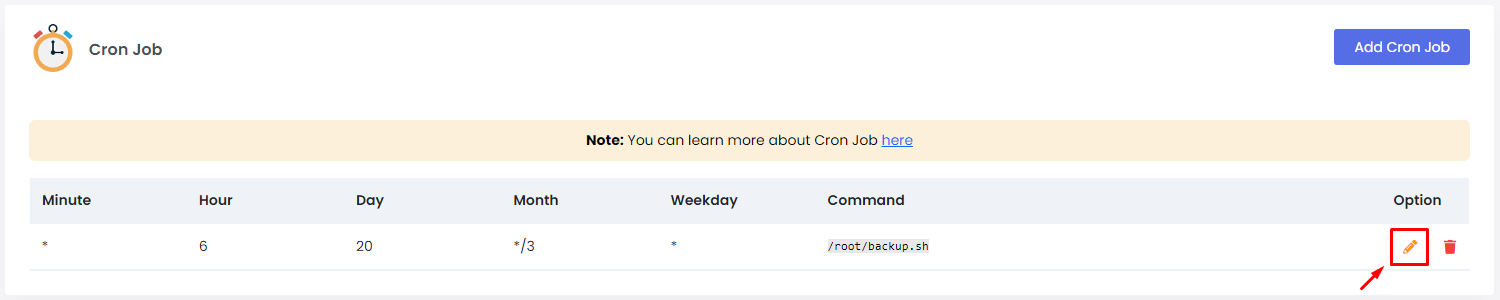
- Find the job in the list.
- Click the edit icon at the end of its row.
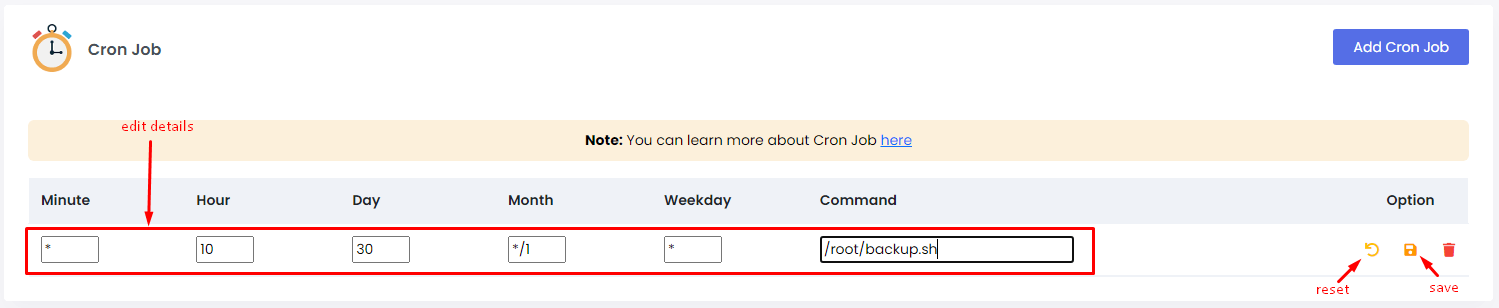
- Change the time fields. Use the drop-down lists or type the numbers.
- Change the command if needed. Use the full path to the script.
- Click Save.
- Check that the list shows the new values.
Check the command works
Test the command alone first. If you have SSH, run it by hand. SSH lets you type commands on a server from afar.
php /home/username/public_html/script.phpThis runs a PHP script once. If it works by hand, it should work in cron. Use your own user name and path.
Editing with SSH
crontab -eThis opens your list of jobs in an editor. Change the line, save and exit.
Cannot find the page? Open a support ticket.
Quick recap
- A cron job has five time fields and a command.
- Open Cron Jobs in Webuzo and click edit.
- Note the old line before changing it.
- Test the command by hand.
- Do not run heavy jobs too often.