

What is mod_deflate?
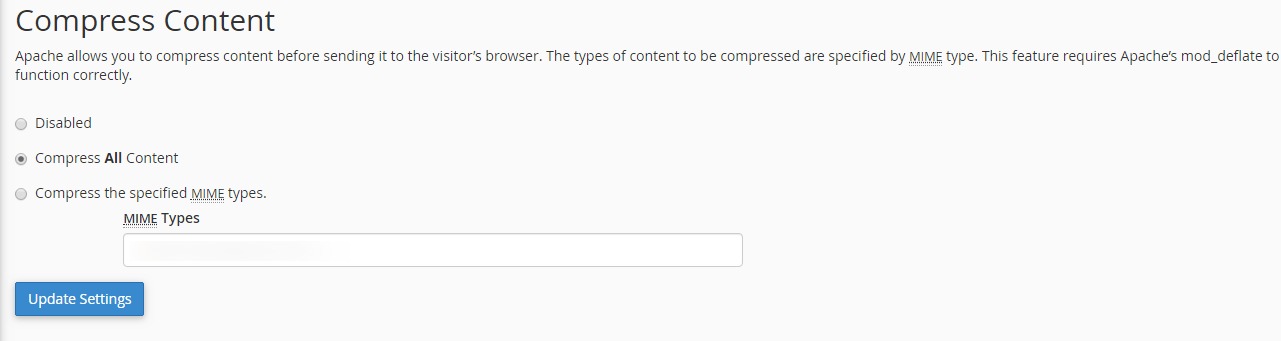
Compression makes files smaller, like squeezing clothes into a vacuum bag. Smaller files travel faster over the internet. The Apache web server has a module, or add-on, called mod_deflate. It compresses text files such as HTML, CSS and JavaScript on the fly. The visitor's browser unpacks them again.
It works only on Apache. Ask Hostvento support whether mod_deflate is on for your plan.
Before you start
You will edit a file called .htaccess. It is a settings file for Apache that sits in your site folder, often public_html. A mistake can break your site. Make a backup copy first.
Steps for shared hosting
- Open your file manager or an FTP program.
- Turn on the option to show hidden files.
- Download a copy of
.htaccessas a backup. - Open the file for editing. Create it if it does not exist.
- Paste these lines at the end:
<IfModule mod_deflate.c>
  AddOutputFilterByType DEFLATE text/html text/plain text/xml text/css
  AddOutputFilterByType DEFLATE application/javascript application/json
  AddOutputFilterByType DEFLATE image/svg+xml
</IfModule>
The first line checks that the module exists. The other lines list which file types to compress. Images such as JPG and PNG are already compressed, so skip them.
- Save the file.
- Test your site to make sure it still loads.
Steps for a VPS or dedicated server
You need root access for this. Root is the admin user with full control of a server.
- Log in over SSH.
- On Ubuntu or Debian, run:
sudo a2enmod deflate
sudo systemctl restart apache2
The first line turns the module on. The second restarts Apache so it takes effect.
- On CentOS-style systems, mod_deflate is usually already loaded. Check with
httpd -M | grep deflate. Then restart withsystemctl restart httpd.
Check that it works
- Search for an online "gzip test" tool.
- Type your site address.
- It tells you whether compression is on.
Quick recap
- mod_deflate compresses pages to load them faster.
- Add the rules to
.htaccesson shared hosting. - VPS owners can enable the module with
a2enmod deflate. - Back up first and test after.