

What is PuTTY?
PuTTY is a free program for connecting to another computer over the internet. It uses SSH, a safe way to type commands on a remote server. PuTTY is best known on Windows, but it also runs on Ubuntu. Ubuntu already has a built-in ssh command, so PuTTY is optional. It is handy if you like a window with saved connections.
Install PuTTY
- Open the terminal. Press Ctrl+Alt+T.
- Update the package list:
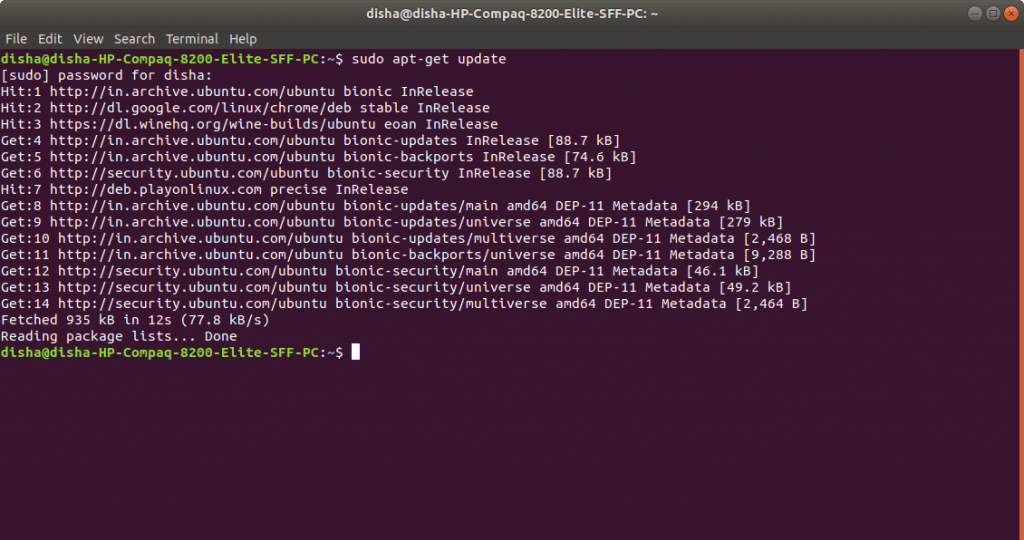
sudo apt updateThis refreshes the list of software you can install.
- Install PuTTY:
sudo apt install putty -yThis installs the PuTTY window program.
- If you also want the key tools, install them:
sudo apt install putty-tools -yThis adds puttygen, a tool for making and converting SSH keys.
- Start PuTTY:
puttyYou can also search for "PuTTY" in the Ubuntu apps menu.
Connect to your server
- In the field Host Name (or IP address), type your server address. You can find it in your welcome email.
- Leave the port as 22, unless your host gave you a different one.
- Make sure Connection type is set to SSH.
- To save this setup, type a name in Saved Sessions and click Save.
- Click Open.
- If a security alert appears the first time, click Accept if you trust the server.
- Type your user name at
login as:and press Enter. - Type your password and press Enter. The screen will show nothing while you type. This is normal.
Now you are in. Type exit to leave.
Use an SSH key (optional)
- In PuTTY, open Connection, then SSH, then Auth.
- Click Browse and pick your private key file. PuTTY may need it in
.ppkformat. - Convert a normal key with:
puttygen id_rsa -o mykey.ppkThis turns your key into the PuTTY format.
Tip: You can skip PuTTY and use the terminal. Type
ssh username@your_server_ip and press Enter.Troubleshooting
- Connection timed out: check the address, the port and your internet.
- Connection refused: SSH may not be on, or the port is different.
- Access denied: check your user name and password.
If SSH is not available on your plan, ask in a support ticket.
Quick recap
- PuTTY is a program for SSH connections.
- Install it with
sudo apt install putty.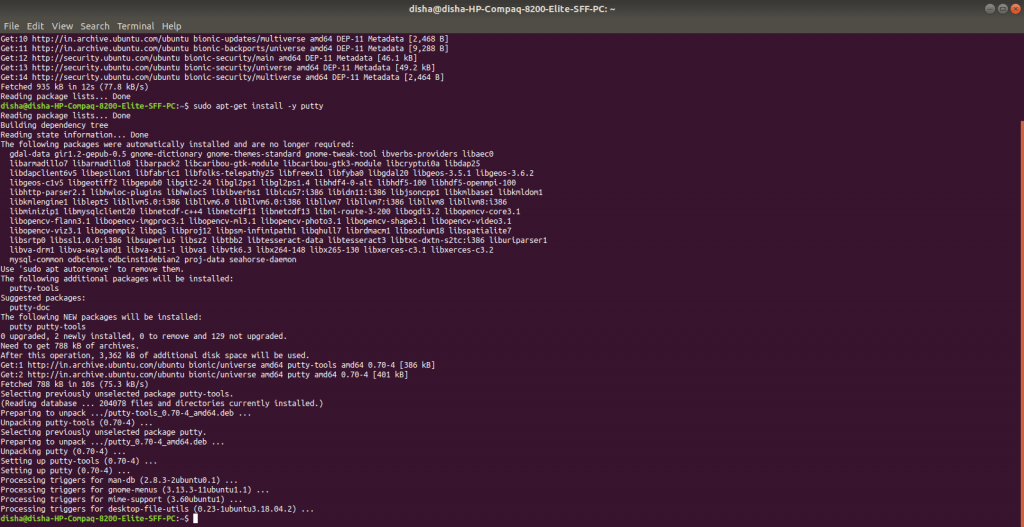
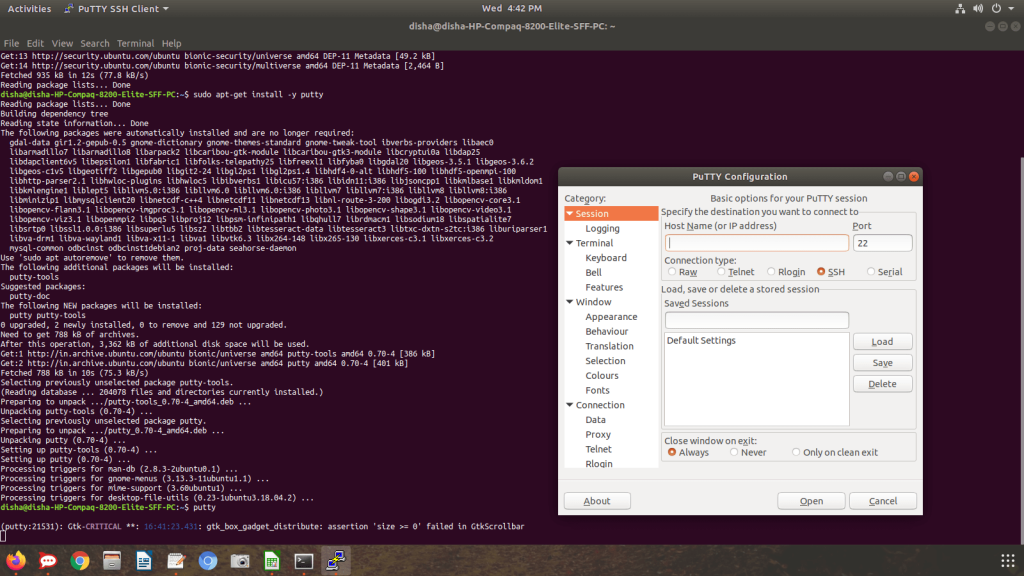
- Enter your host, keep port 22 and click Open.
- The built-in
sshcommand also works.