

What is directory browsing?
A directory is another word for a folder. If a folder has no index.php or index.html file, some servers show a list of everything inside it. Anyone can then open that list and look around. This can reveal plugin names, uploads and other private details. Hackers like such clues.
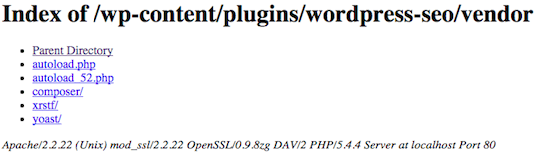
You can test it. Type yourdomain.com/wp-content/uploads/ in your browser. Use your own domain. If you see a list of files, browsing is on.
Method 1: Edit the .htaccess file
The .htaccess file holds rules for your web server. A wrong edit can break your site. Take a backup first.
- Log in to your cPanel. The link is in your welcome email.
- Open File Manager.
- Click Settings at the top right. Tick Show Hidden Files (dotfiles) and save.
- Open the
public_htmlfolder, or the folder where WordPress lives. - Right-click
.htaccessand choose Download. This saves a backup copy on your computer. - Right-click it again and choose Edit.
- Add this line at the very top or bottom:
This line tells the server not to show folder lists.Options -Indexes - Click Save Changes.
- Visit the uploads folder address again. You should now see a "403 Forbidden" message. That is good.
Method 2: Use cPanel Indexes
- In cPanel, open Indexes under the Advanced section.
- Pick the folder you want to protect.
- Choose No Indexing.
- Click Save.
If your site breaks
If you see a 500 error after editing, you made a typing mistake. Open .htaccess again and remove the new line. Or upload your backup copy. Then try again.
Tip: You can also add an empty file named
index.html to a folder. The server will then show that blank page instead of the list.Quick recap
- Directory browsing shows folder contents to visitors.
- Turn it off by adding
Options -Indexesto.htaccess. - You can also use the cPanel Indexes tool.
- Always make a backup before you edit.