

What is an MSSQL database?
A database is an organized store for information, like a very big spreadsheet. Microsoft SQL Server is a program that runs such databases. Websites built with ASP.NET often use it. Moving a database means making a copy on the old server and loading it into the new one.
Ask Hostvento support whether MSSQL is on your plan and how to connect to it.
Warning: Restoring over an existing database replaces its data. Make a backup of both servers first.
What you need
- Login details for the old and new SQL Server.
- SQL Server Management Studio, called SSMS. It is a free Microsoft program with windows and buttons for managing databases.
- A way to move a file between the servers, such as FTP or a file manager.
Step 1: Back up the old database
- Open SSMS and connect to the old server.
- Expand Databases.
- Right-click your database. Choose Tasks, then Back Up.
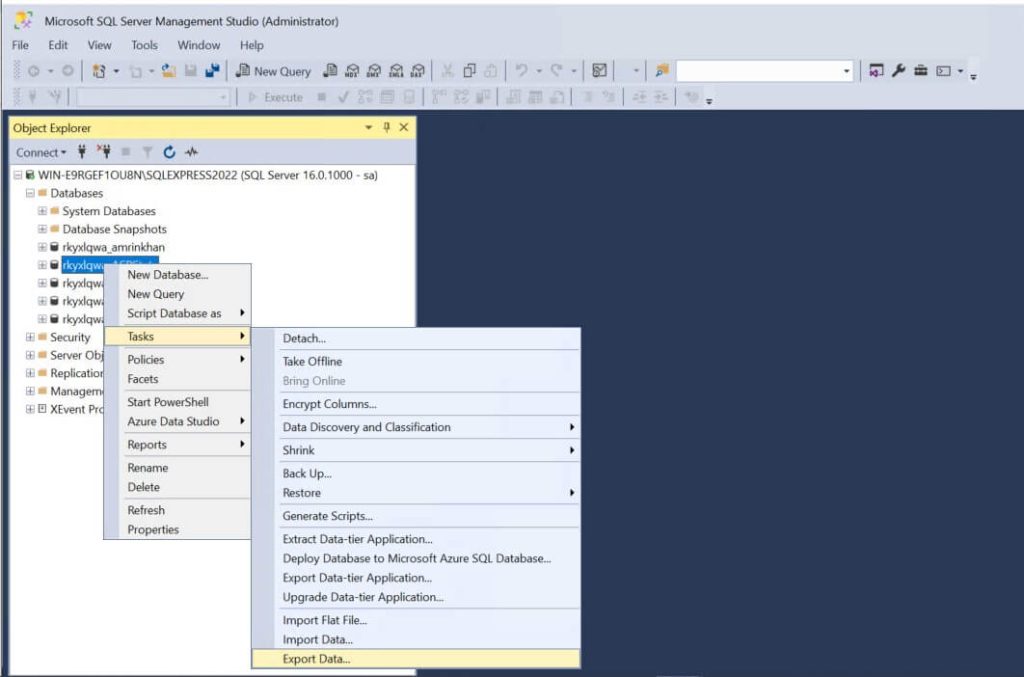
- Set the type to Full.
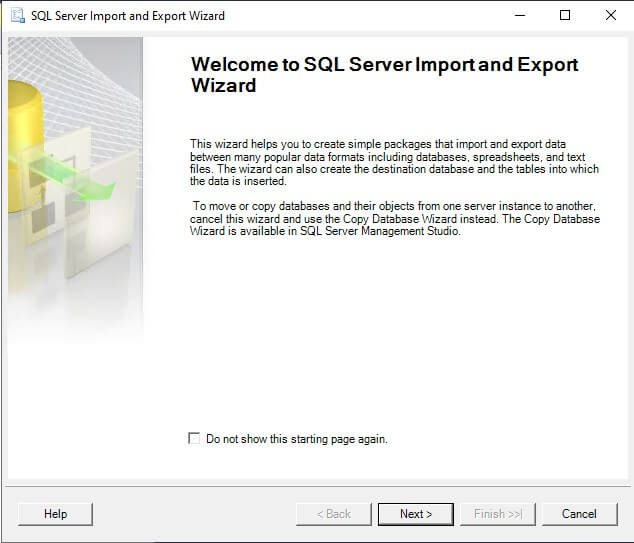
- Under Destination, click Add and choose a file path ending in
.bak. - Click OK and wait for the success message.
Step 2: Move the file
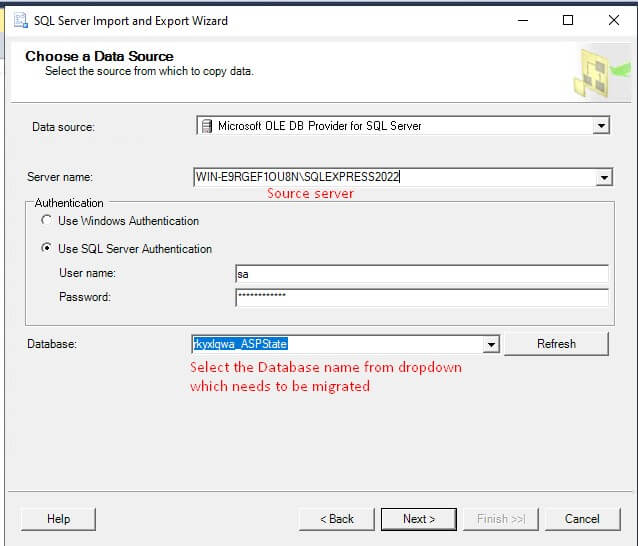
- Copy the
.bakfile to your computer. - Upload it to a place the new server can read. Your hosting details or Hostvento support will tell you where.
Step 3: Restore on the new server
- Connect SSMS to the new server.
- Right-click Databases and choose Restore Database.
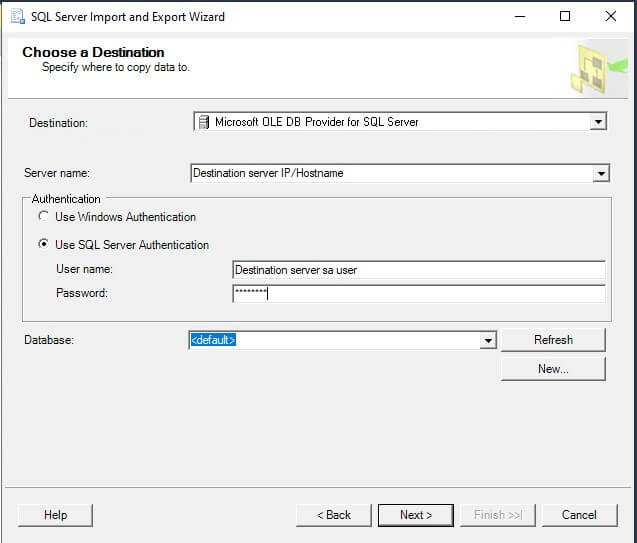
- Pick Device, click the three dots and then Add.
- Select your
.bakfile and click OK. - Type the target database name.
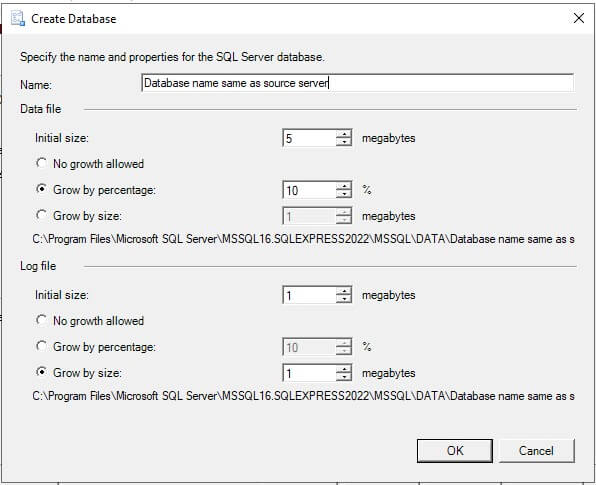
- Click OK to start.
Some shared hosts do not allow a restore from SSMS. Then you can send the file to support or use their import tool.
Step 4: Finish up
- Check that tables and rows are there.
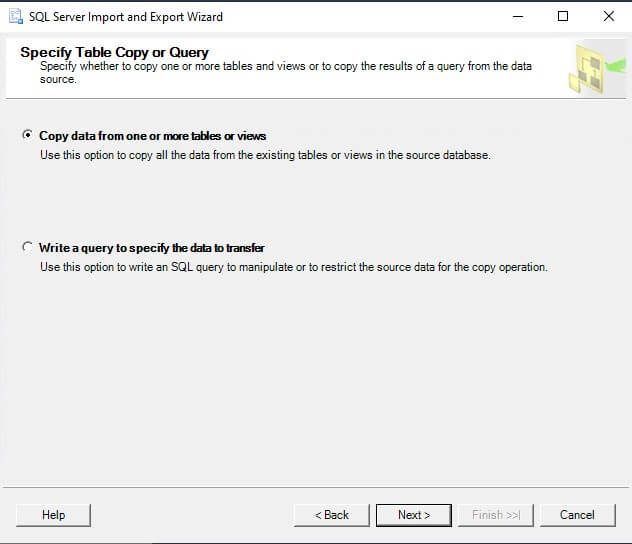
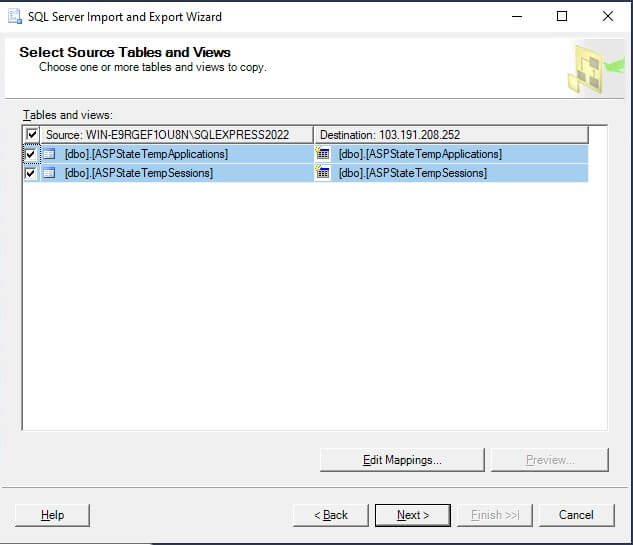
- Re-create database users and passwords. These sometimes do not move across.
- Update the connection string in your site. A connection string is the line of text that tells your site where the database is. It lives in a file such as
web.config.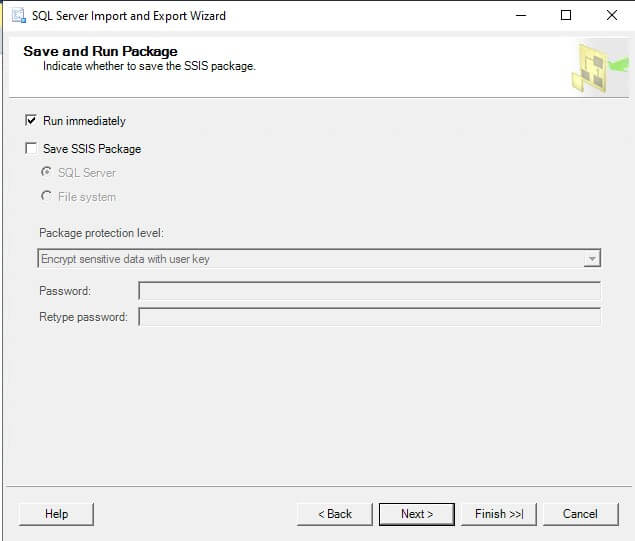
- Test your site.
Quick recap
- Back up the old database to a
.bakfile. - Move the file to the new server.
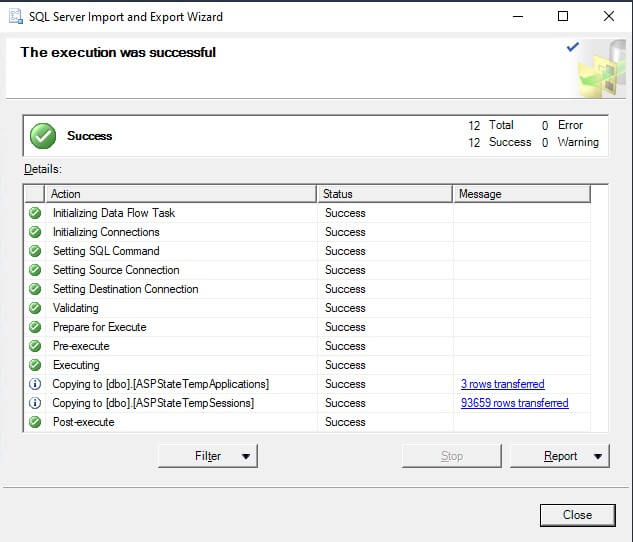
- Restore it with SSMS.
- Fix users and the connection string.
- Test everything before you switch live traffic.