

What is an interpreter?
An interpreter is a program that reads your code and runs it. For Node.js, the interpreter is node. Different apps may need different Node.js versions, like different apps needing different keys.
On hosting with CloudLinux and cPanel, the Node.js Selector gives each app its own version in a private folder. That folder is called a virtual environment. It keeps one app's tools apart from the others.
What is SSH?
SSH is a safe way to type commands on a server from your own computer. You need SSH access turned on for your account. If you cannot connect, ask Hostvento support.
Steps
- Log in to cPanel and open Setup Node.js App.
- Open your app. Near the top you will see a line that starts with
source. It shows the exact command for your app. - Copy that command.
- Open a terminal on your computer and connect:
ssh username@YOUR_SERVER_IPUse the username and server address from your welcome email.
- Paste the copied command. It looks like this:
source /home/username/nodevenv/myapp/18/bin/activate && cd /home/username/myappThis switches to the Node.js version of your app and moves into its folder. The numbers and names in your command will be different.
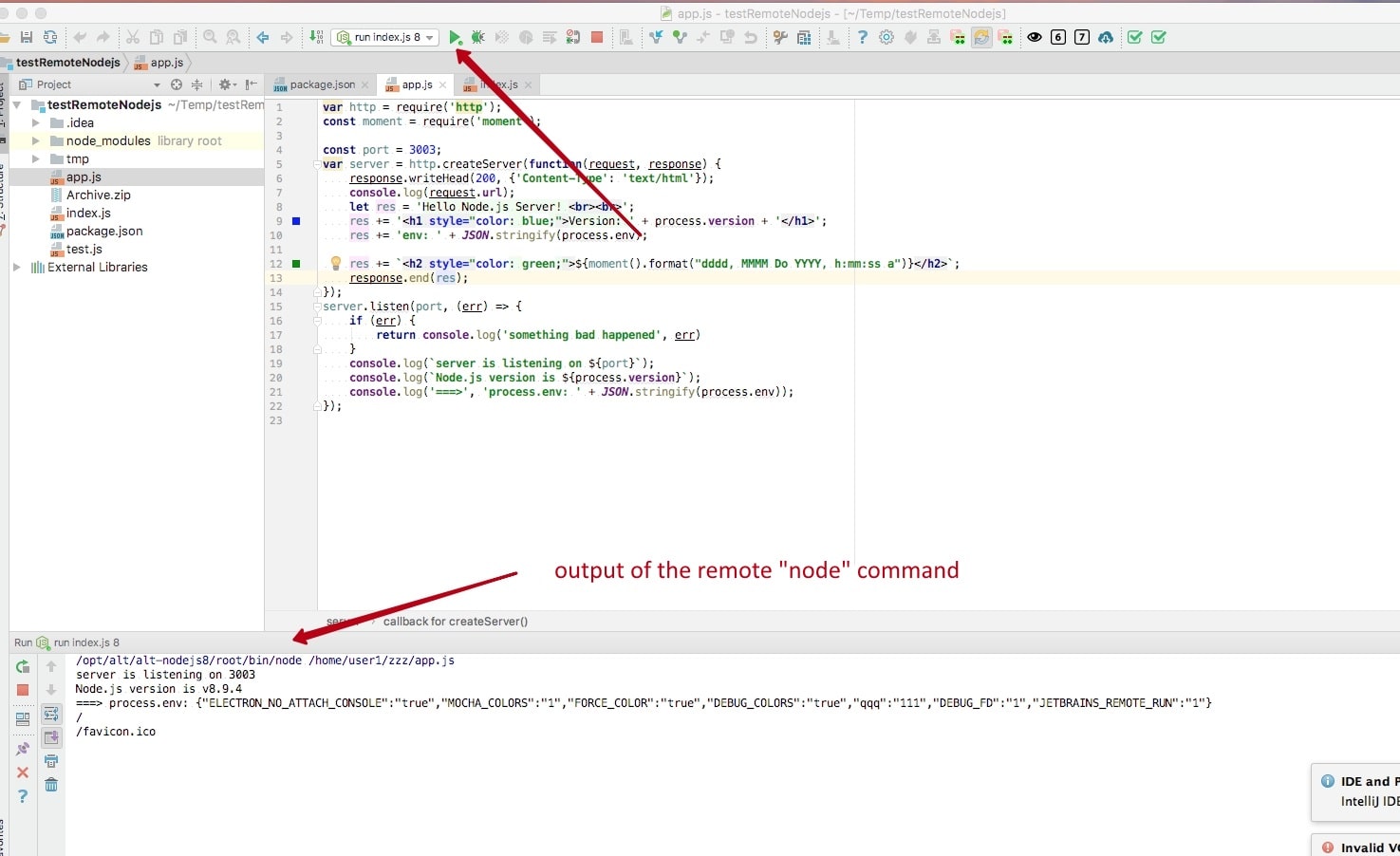
- Check the version:
node -vIt should show the version you picked in cPanel.

- Now run what you need, for example:
npm installThis downloads the packages your app uses.
- Go back to the cPanel page and click Restart so the app uses the changes.
npm install after you have entered the environment. Otherwise it may use the wrong Node.js version.Quick recap
- An interpreter runs your code. For Node.js it is
node. - Copy the
sourcecommand from Setup Node.js App. - Paste it into an SSH session to enter your app's version.
- Restart the app from cPanel after changes.