

What is a connection?
FileZilla is a free program that moves files between your computer and your website using FTP. A connection is one open line to the server. To go faster, FileZilla opens several lines at once, like several checkout lanes.
Some servers allow only a few lanes per person. If you use more, you may see errors like "Too many connections" or "421".
Option 1: Limit a saved site
- Open FileZilla.
- Click File, then Site Manager.
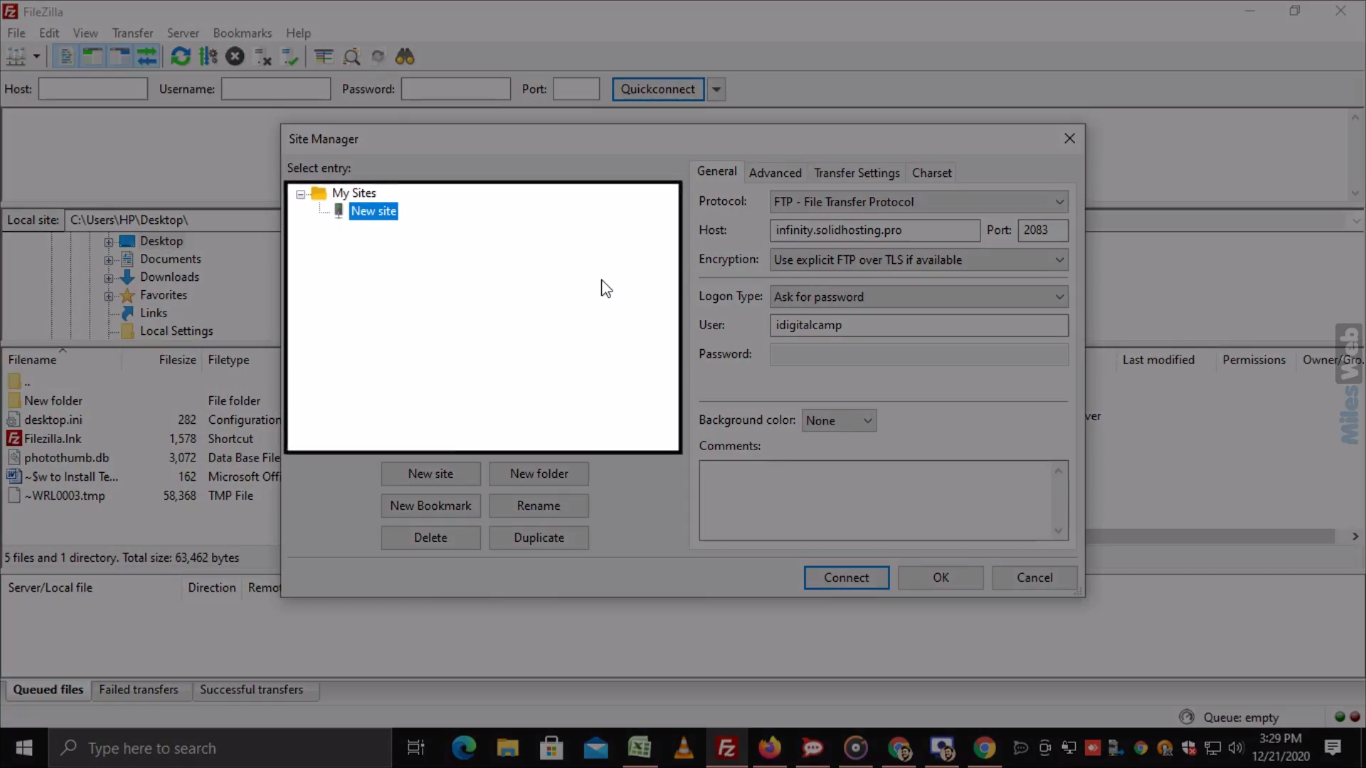
- Choose your site from the list on the left. If it is not there, click New site and fill in the host, user and password from your welcome email.
- Click the Transfer Settings tab.
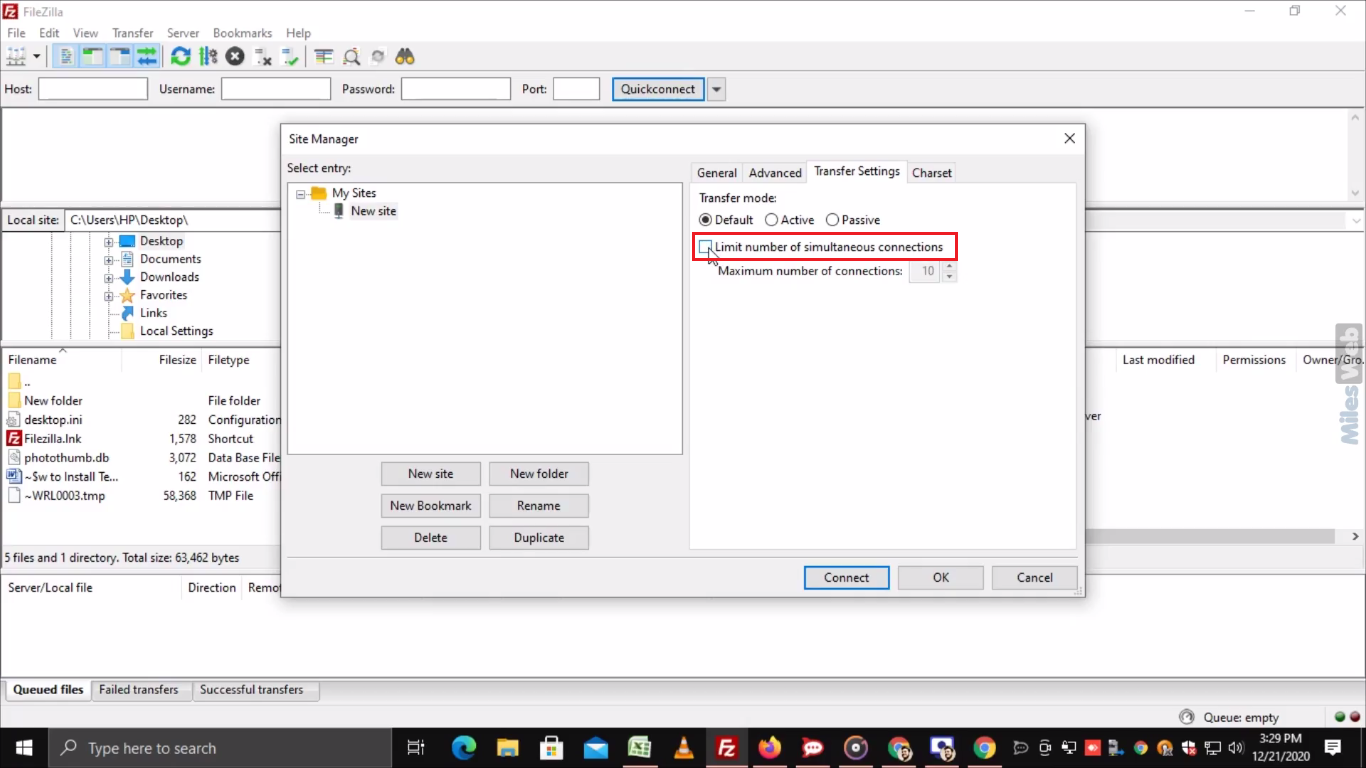
- Tick Limit number of simultaneous connections.
- Set Maximum number of connections to a small number, such as 2. Use 1 if problems continue.
- Click OK.
- Connect again to the site.
Option 2: Lower the number of transfers
This setting applies to all your sites.
- Click Edit, then Settings. On a Mac, click FileZilla then Settings.
- Choose Transfers in the left list.
- Set Maximum simultaneous transfers to a lower number, such as 2.
- Click OK.
Check that it works
- Send a few files at once.
- Look at the queue at the bottom of the window.
- Only the number of files you set should move at a time. The others wait.
Tip: Moving many small files makes lots of connections. Zip them into one file first, upload it, then unzip it in cPanel File Manager if your plan has it.
The exact limit on your plan is set by the server. If errors continue even with 1 connection, ask Hostvento support via https://secure.hostvento.com/submitticket.php.
Quick recap
- Too many connections can make servers refuse you.
- Use Site Manager then Transfer Settings to limit one site.
- Use Settings then Transfers to limit all sites.
- Start with 2 and go lower if needed.