

What is IIS?
A web server is a program that sends web pages to visitors. IIS stands for Internet Information Services. You manage it with a tool called IIS Manager.
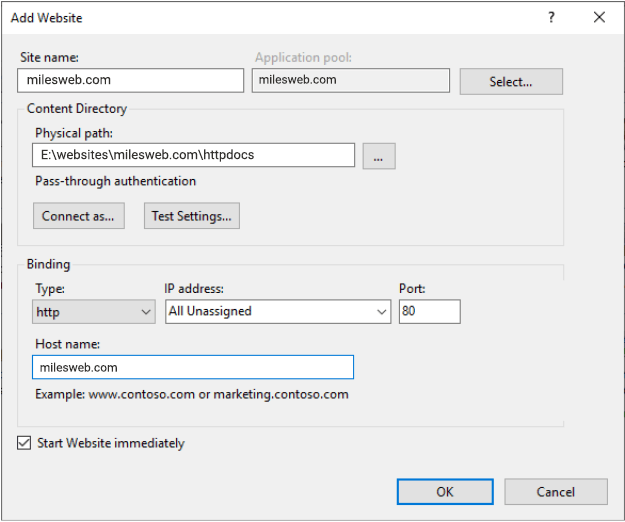
Warning: Some changes can stop your site from loading. Take a backup of your site and its settings first.
Steps
- Keep Windows updated. Open Settings, then Windows Update. Install updates often. Updates close known security holes.
- Install an SSL certificate. SSL is a digital lock that hides data between visitor and site. In IIS Manager, click your site, then Bindings, then add an https binding with your certificate.
- Redirect http to https. Install the URL Rewrite add-on, then add a rule that sends all plain http visitors to https.
- Remove what you do not use. In Server Manager, open Manage, then Remove Roles and Features. Fewer features mean fewer ways in.
- Turn off directory browsing. In IIS Manager, open Directory Browsing for your site and click Disable. This stops visitors from seeing a list of your files.
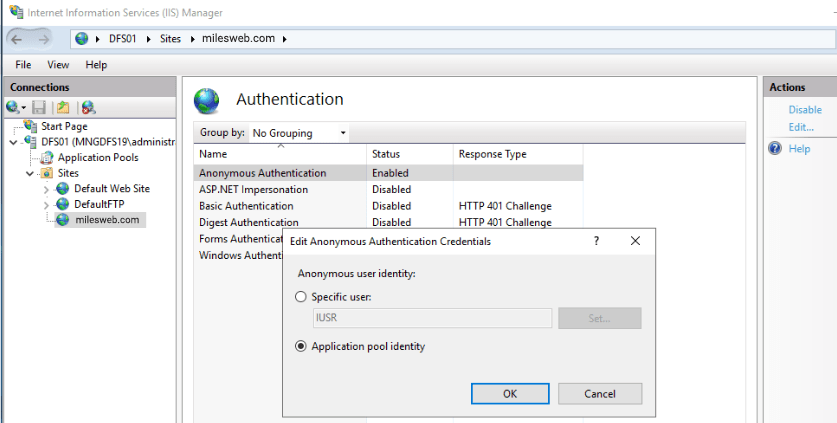
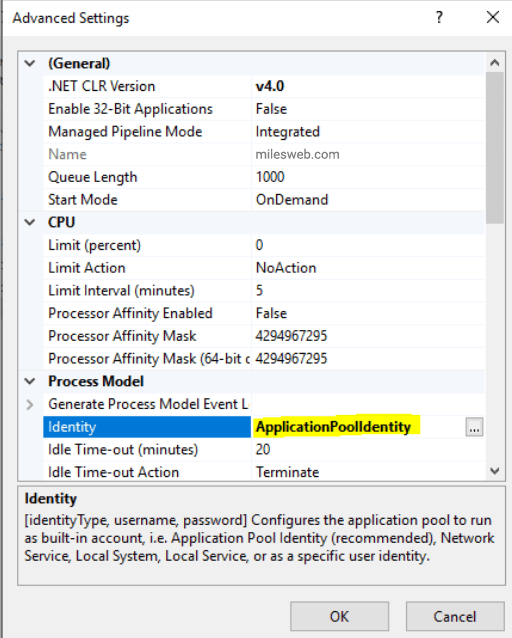
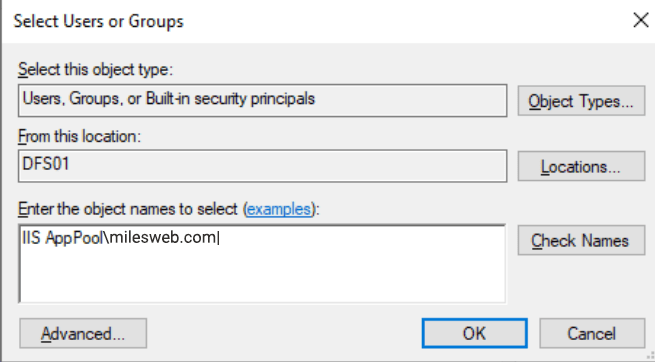
- Use separate application pools. An application pool is a private workspace for a site. Give each site its own pool, so one hacked site cannot easily touch another.
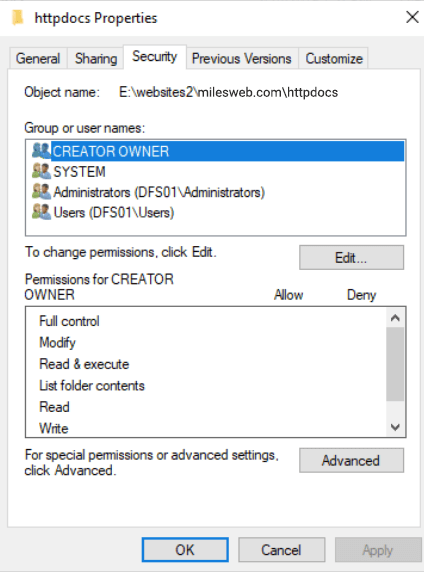
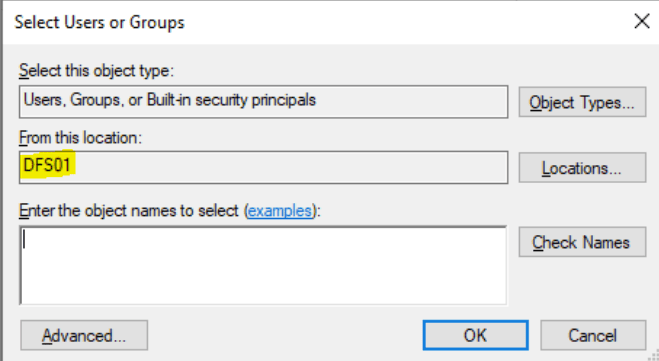
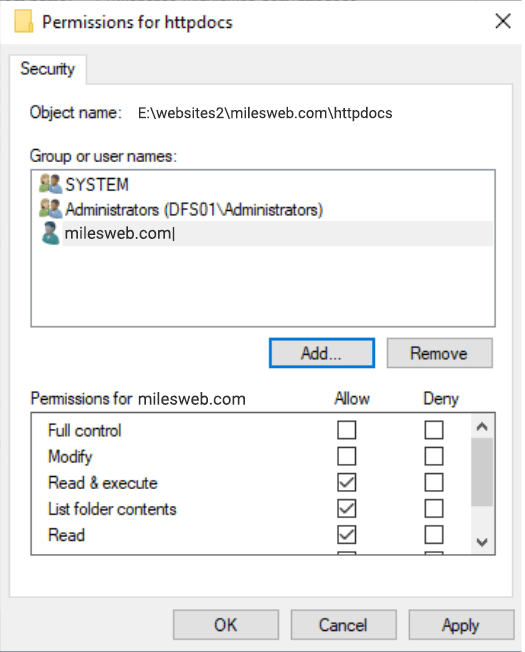
- Limit file permissions. Give the pool identity only the rights it needs. Allow write access only to folders that must save files, such as uploads.
- Hide server details. Remove the
X-Powered-Byheader in HTTP Response Headers. Less information helps attackers less.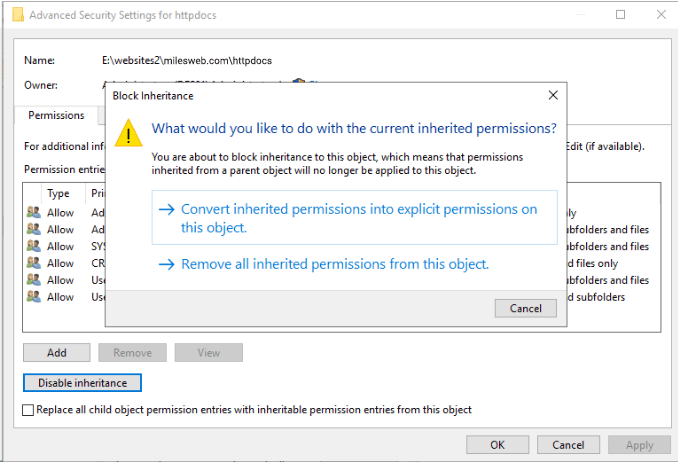
- Use request filtering. Open Request Filtering. Block file types you never serve, and set a sensible upload size limit.
- Turn on logging. Open Logging for your site and keep it enabled. Read the logs to spot strange visits.
- Use strong passwords for admin accounts. Turn on the Windows firewall and open only the ports you need.
Tip: Menu names differ a little between Windows Server versions, but the ideas are the same. Not sure about a step? Ask Hostvento support.
Quick recap
- Update Windows and IIS regularly.
- Use SSL and redirect to https.
- Turn off directory browsing and remove unused features.
- Give each site its own application pool and minimal permissions.
- Keep logs on and use strong passwords.
- Back up before changing settings.