

What is a database backup?
A database is where your website keeps its data, such as posts, users and orders. A backup is a spare copy. If something breaks, you can use the copy to fix it.
cPanel is the control panel for your hosting account. It has a tool called Backup that can save one database on its own. This is faster than saving the whole account.
Download a database backup
- Log in to cPanel.
- Open Backup. It is in the Files section.
- Scroll down to Download a MySQL Database Backup.
- Click the name of your database.
- Your browser saves a file. It is usually named after the database and ends in
.gz.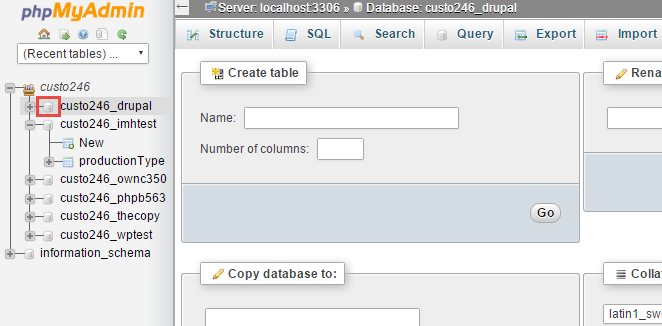
- Move the file to a safe place, such as your computer or cloud storage.
The .gz file is compressed, which means squeezed to take less space. Do not open or rename it.
Tip: Make a backup before big changes, like updating a plugin or changing themes. Do it regularly too.
Restore a database backup
Warning: A restore replaces the current data in that database. Download a fresh backup first.
- Go back to the Backup page.
- Find Restore a MySQL Database Backup.
- Click Choose File.
- Pick your
.gzbackup file. - Click Upload.
The database name in the file must match the name of an existing database. Create it first if it is missing, using MySQL Databases.
Other choices
- The same page can download a full account backup. This holds all your files and databases.
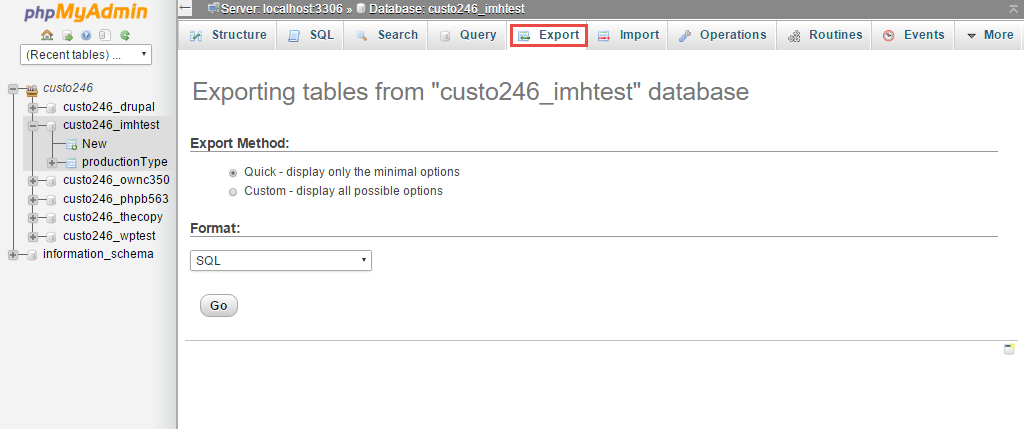
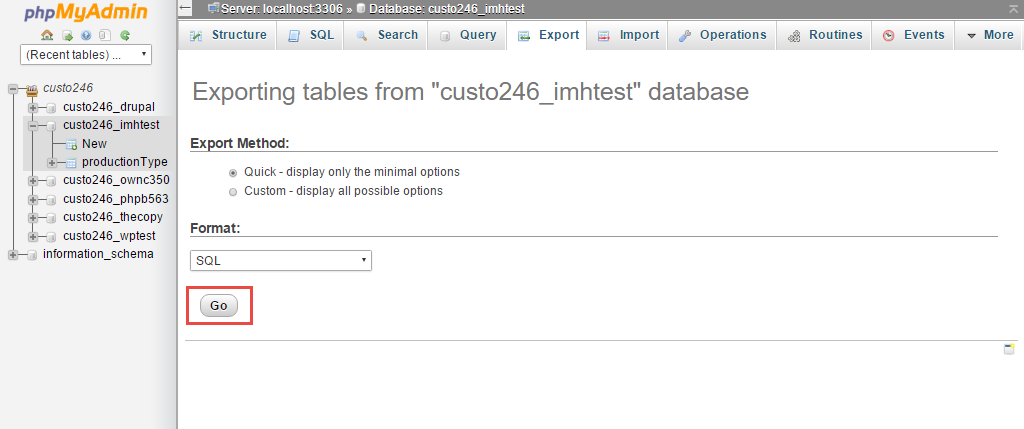
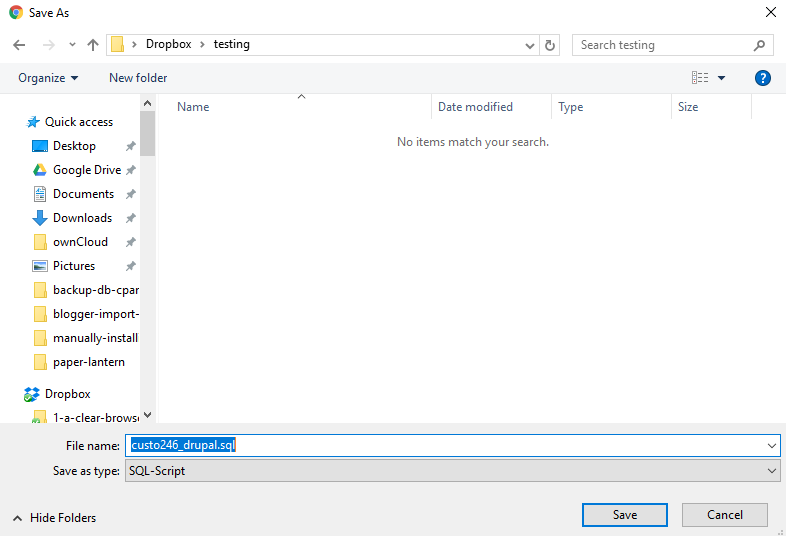
- You can also save a database using the Export tab in phpMyAdmin.
- Your plan may have automatic backups too. Ask Hostvento support what is on your plan.
If the restore fails, open a support ticket.
Quick recap
- Open Backup in cPanel and click your database under the MySQL download list.
- Keep the downloaded file safe and do not rename it.
- Restore with Restore a MySQL Database Backup.
- Restoring replaces current data, so back up first.