

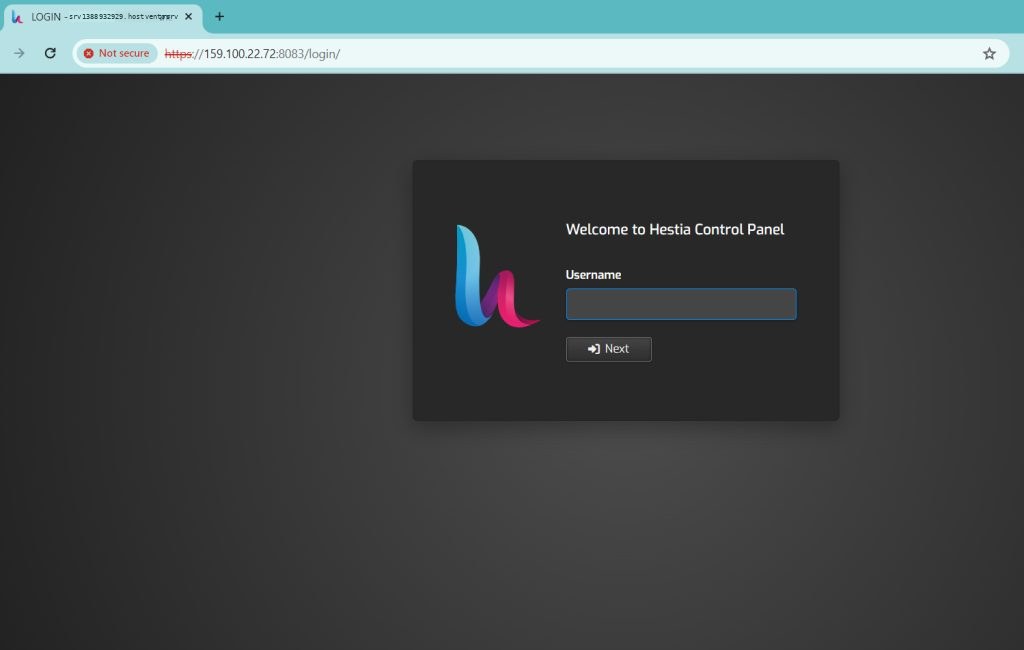
Step 1: Log in to HestiaCP
Open the panel in your browser with the VPS IP and the default Hestia port, 8083:
https://your-vps-ip:8083/Enter your username and password.
Step 2: Add the domain
- Go to the Web section.
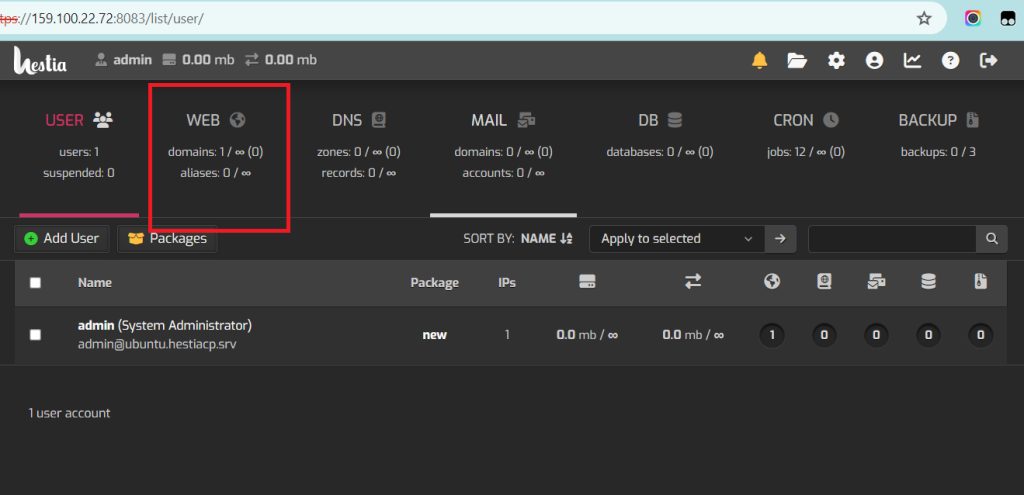
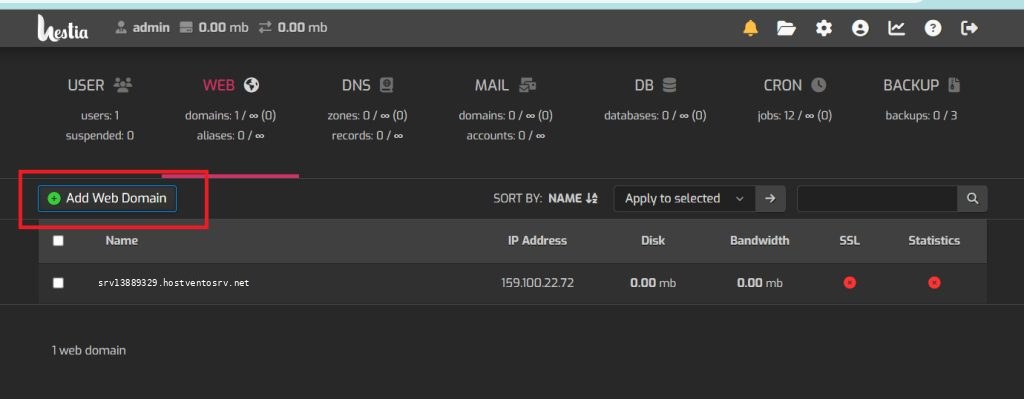
- Click Add Web Domain.
- Enter your domain name. Choose options like DNS Support and Mail Support if you want HestiaCP to host DNS and email for this domain.
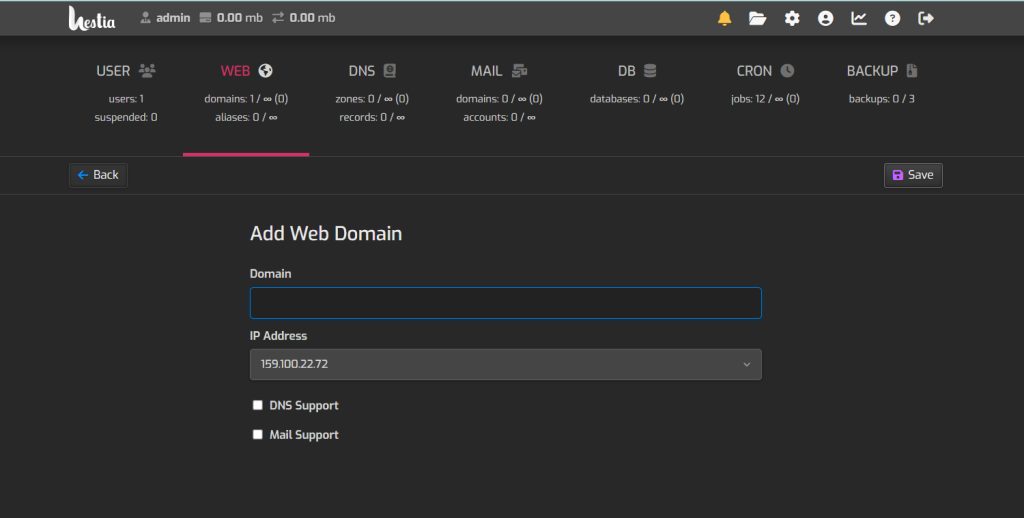
- Click Save.
Step 3: Update the DNS
At your domain registrar or DNS provider, create an A record that points to the IP address of your VPS. Create it for @ and also for www.
If you use HestiaCP DNS, set the nameservers of the domain to the ones you created in Hestia.
Step 4: Wait for propagation
DNS changes can take a few hours and sometimes up to 48 hours to reach everywhere.
Step 5: Test
When the change has spread, open your domain in a browser. You should see the default HestiaCP page or your site.
Tip: Use an online DNS checker to see if your A record already shows the VPS IP.
Quick recap
- Web > Add Web Domain > Save.
- Create an A record to the VPS IP and wait for propagation.