
What is 304 Not Modified
HTTP status code 304 is the reply a server sends when the page or file has not changed since the browser last got it. The browser then uses its stored (cached) copy. No content is sent again, so the page loads faster and uses less bandwidth.
Normally you do not need to fix anything. Only if you see old content on a site that you changed, or the page does not load as it should, look at the following methods.
HTTP status codes in short
The codes are in five groups:
- 1xx information.
- 2xx success (200 OK).
- 3xx redirection (301, 302, 304).
- 4xx client errors (403 Forbidden, 404 Not Found).
- 5xx server errors (500, 503).
Why 304 helps
- Pages load faster.
- The server and the network are less loaded.
- Search engines do not need to download unchanged pages again and can use their crawl budget on new or updated content.
It becomes a problem if the cache is wrong, and visitors keep seeing old content.
5 methods to fix problems with 304
1. Clear the browser cache
- Click the three dots (Customize and control Google Chrome).
- Go to History, then Clear browsing data.
- Select a time range, and choose All time.
- Tick Browsing history, Cookies and other site data and Cached images and files.
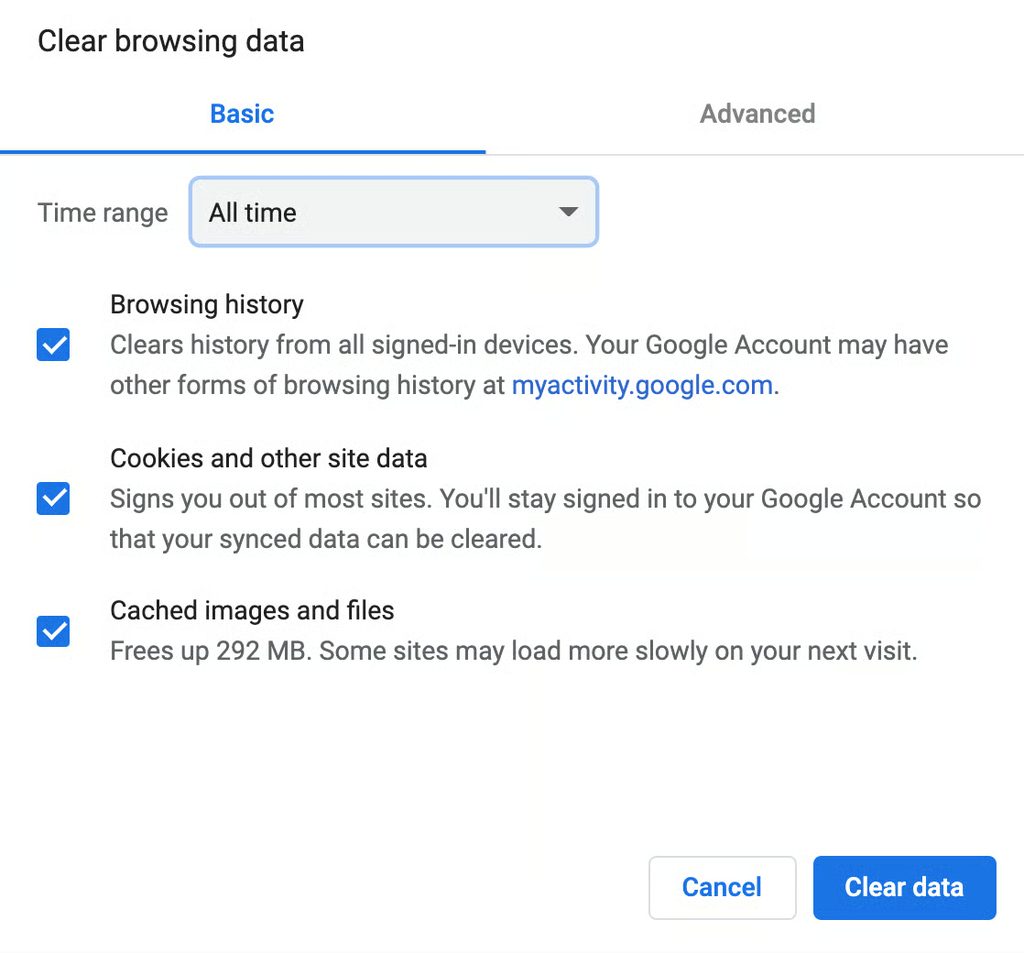
- Click Clear data.
The steps are similar in other browsers. Also try a hard refresh with Ctrl+Shift+R.
2. Flush the DNS cache
Your operating system stores DNS records. Bad entries can cause connection problems.
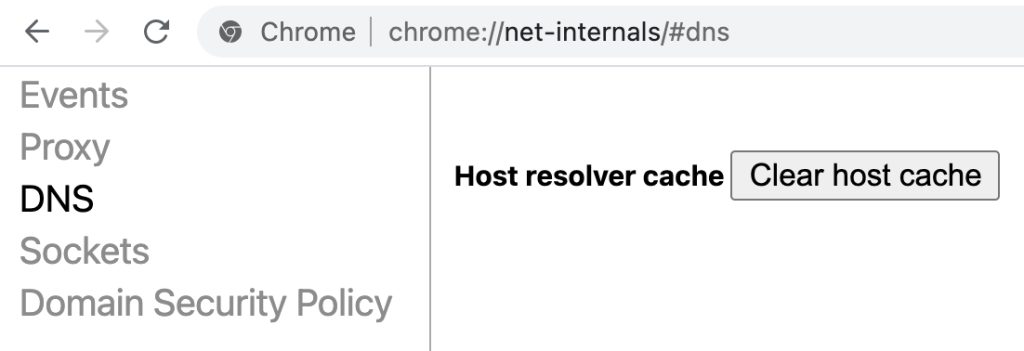
In Chrome open chrome://net-internals/#dns and click Clear host cache.
On Windows open Command Prompt and run:
ipconfig /flushdnsYou see a message that the cache was flushed. On macOS and Linux, use the command for your system, for example sudo resolvectl flush-caches.
3. Check the rules in .htaccess
On an Apache server, the problem may be in the redirect or cache rules.
- Log in to the File Manager of your hosting.
- Open
public_html. - Rename
.htaccessto.htaccess_disabled. - Test the site. If the problem is gone, the file has the cause.
- Rename it back, and review the rules (look for wrong
ExpiresByType,Headerand redirect rules).
On Nginx, check the expires and add_header lines in the server block.
4. Run a malware scan
Malware on the device can change request headers. In Chrome on Windows:
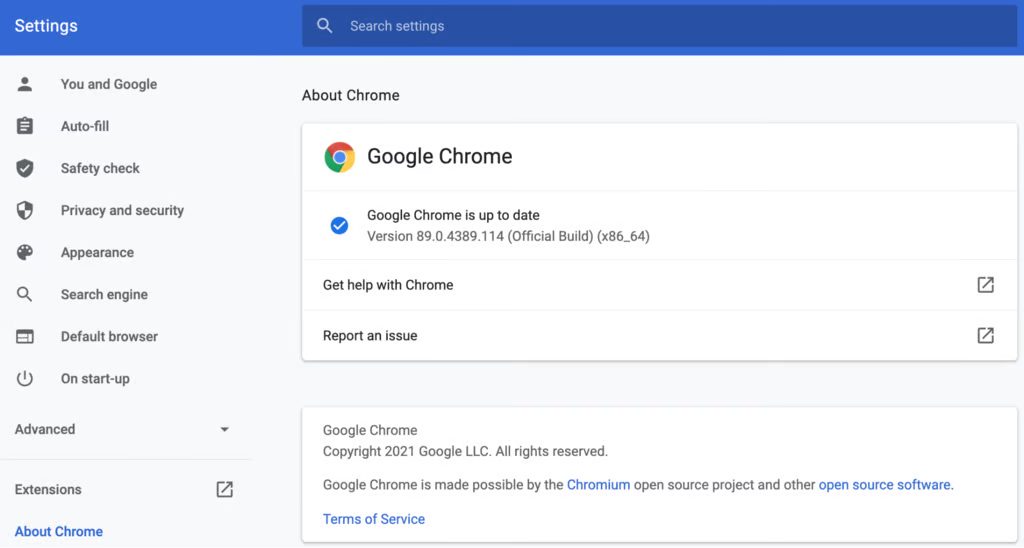
- Open Settings > About Chrome and update the browser.
- Open
chrome://settings/cleanupand click Find.
For other systems, use trusted antivirus software.
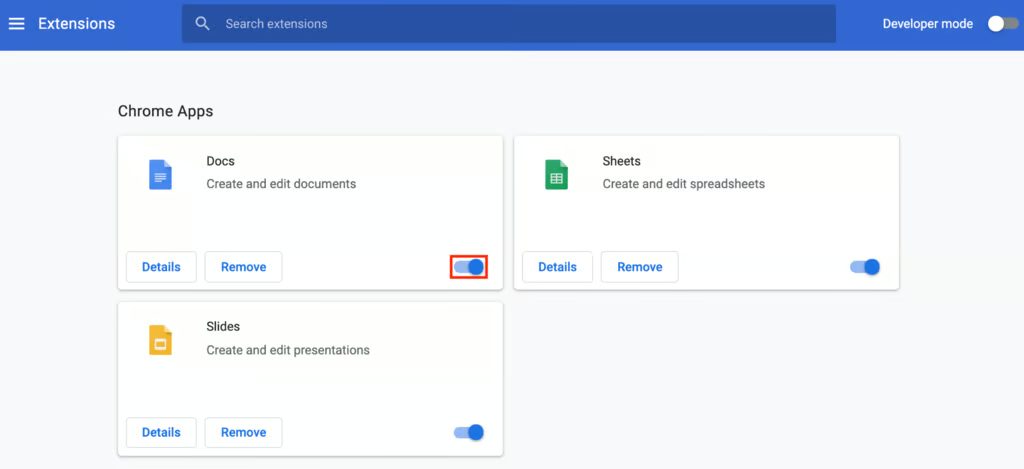
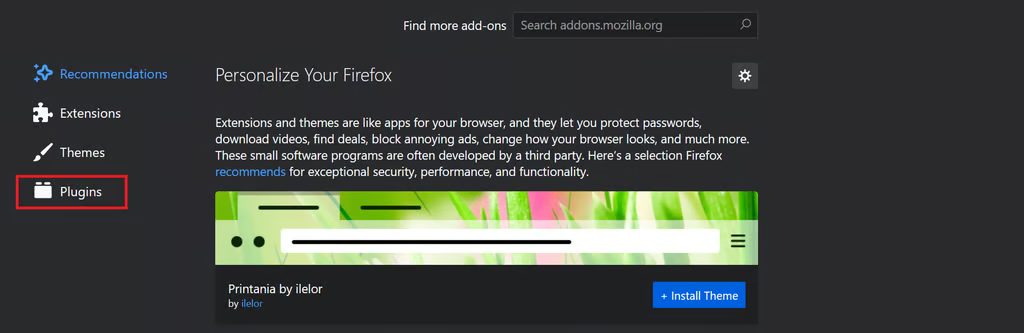
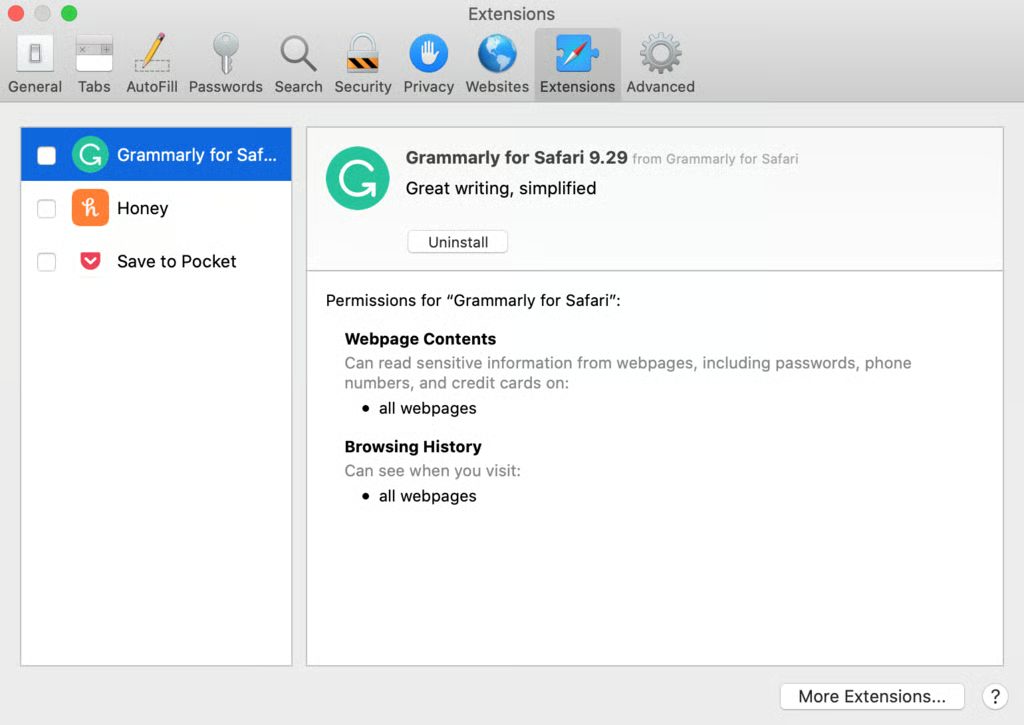
5. Disable browser extensions
Extensions can change requests and responses. Turn them off, then reload the page. Switch them on one by one to find the cause.
For site owners
- Set the right
Cache-Control,ETagandLast-Modifiedheaders. - Clear the server, plugin and CDN caches after you change the site.
- Use file names with versions (like
style.css?v=2) so that browsers load new files.
Quick recap
- 304 means "use your cached copy". It is normal and helpful.
- If you see old content, clear the browser, DNS and server caches.