

What do these words mean?
Remote Desktop lets you control another Windows computer from your own, as if you sat in front of it. A port is like a numbered door on a computer. Each service uses one door. Remote Desktop normally uses door number 3389.
Bad bots knock on door 3389 all day. Moving to another door is a small extra layer of safety. It is not a full defense, so keep strong passwords too.
Warning: If you set this wrong, you can lock yourself out. Keep a second way into the machine, such as a console from your provider. Write down your new port number. Also open the new port in the firewall before you restart.
Steps
- Log in to the Windows computer or server.
- Press the Windows key, type
regeditand press Enter. This opens the Registry Editor, a tool for deep Windows settings.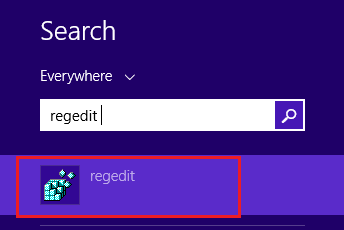
- Click Yes if Windows asks for permission.
- In the left pane, go to:
HKEY_LOCAL_MACHINE\SYSTEM\CurrentControlSet\Control\Terminal Server\WinStations\RDP-Tcp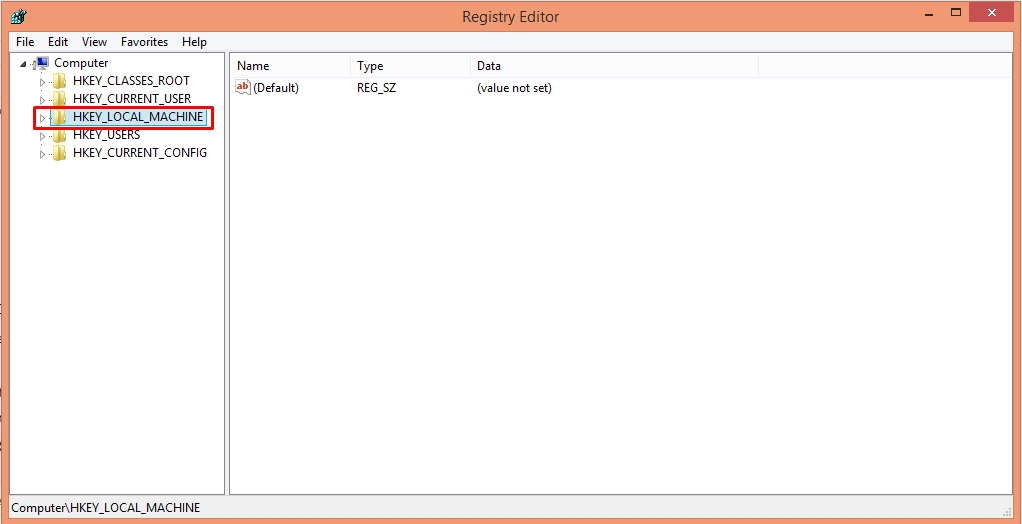
- In the right pane, double-click PortNumber.
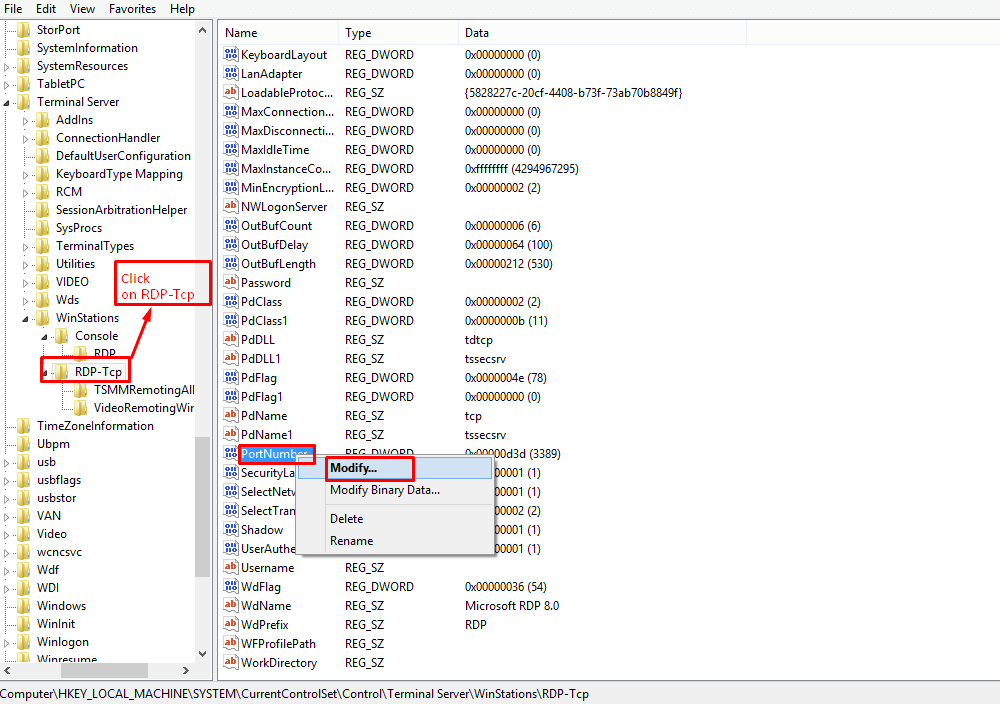
- Choose Decimal as the base.
- Type your new port, for example 40000. Pick a number between 1025 and 65535 that nothing else uses.
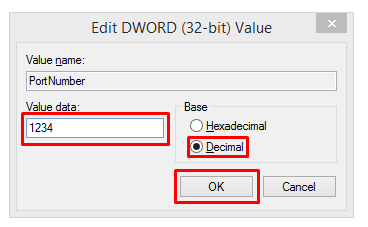
- Click OK and close the Registry Editor.
Open the new port in the firewall
- Open Windows Defender Firewall with Advanced Security.
- Click Inbound Rules, then New Rule.
- Choose Port, then TCP, and enter your new port number.
- Choose Allow the connection.
- Give the rule a name such as "RDP new port" and finish.
If your hosting provider has a network firewall in front of your server, allow the port there too.
Restart and connect
- Restart the computer, or restart the Remote Desktop Services service.
- On your own computer, open Remote Desktop Connection.
- Type the address followed by a colon and the port, like
203.0.113.10:40000. - Click Connect.
Quick recap
- The default Remote Desktop port is 3389.
- Change PortNumber in the registry, using Decimal.
- Allow the new port in the firewall first.
- Restart, then connect with address:port.