

What is php.ini?
PHP is the language many websites, like WordPress, are built with. The php.ini file holds PHP's settings. It works like a control board with switches and numbers.
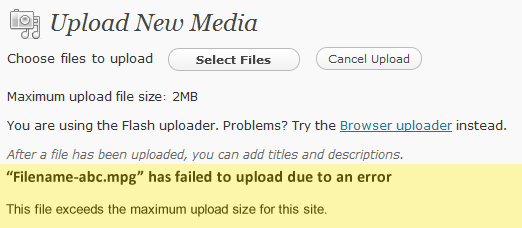
By default, PHP limits how large an uploaded file can be. If you try to upload a bigger file, you get an error such as "exceeds the maximum upload size".
The settings you need
| Setting | What it does |
|---|---|
upload_max_filesize | The biggest single file allowed. |
post_max_size | The biggest total amount of data sent in one go. Keep it equal to or larger than the first value. |
max_execution_time | How many seconds a script may run. Big uploads need more time. |
memory_limit | How much memory a script may use. |
Warning: Back up php.ini before you change it. Download a copy first. A typing mistake can cause errors on your site.
Steps
- Log in to your hosting control panel.
- Open File Manager and go to your website folder, usually
public_html. - Look for a file named
php.ini. If there is none, click + File and create one. - Download a copy as your backup.
- Right-click the file and choose Edit.
- Find the lines below. If they are missing, add them. Change the numbers to fit your need.
The letter M means megabytes. A megabyte is a unit of file size.upload_max_filesize = 64M post_max_size = 64M max_execution_time = 300 memory_limit = 256M - Click Save Changes.
- Wait a few minutes, then try your upload again.
Check the new limit
Create a phpinfo page and look for upload_max_filesize. It should show your new number.
If nothing changed
- Some hosting plans set limits through the control panel. Look for MultiPHP INI Editor or Select PHP Version and its options.
- Your plan may cap the maximum. Ask Hostvento support what is allowed.
- Make sure you edited the php.ini in the right folder.
Quick recap
- Edit
upload_max_filesizeandpost_max_sizein php.ini. - Keep post_max_size at least as large as the upload size.
- Back up first, then save.
- Test the upload again.