

What are SSH and PuTTY?
SSH is a safe way to control a remote computer by typing commands. Your hosting server is such a remote computer. PuTTY is a free Windows program that opens an SSH connection. Think of it as a window into your server.
What you need
- PuTTY, downloaded from its official website.
- Your server address or hostname. Find it in your welcome email.
- Your username and password.
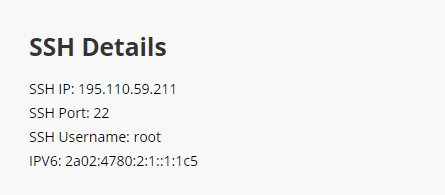
- The SSH port. It is often 22, but your welcome email or Hostvento support can confirm it.
- SSH access turned on for your plan. If it is not, ask Hostvento support.
Steps
- Open PuTTY.
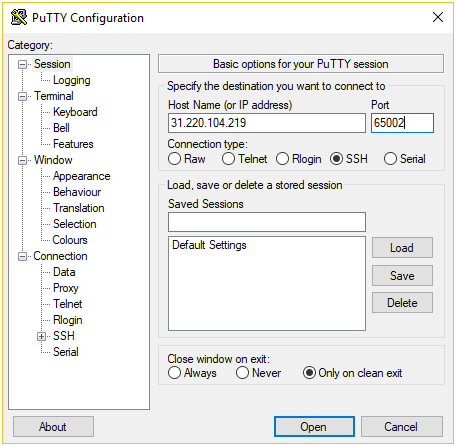
- In the Host Name (or IP address) box, type your server address.
- In the Port box, type the SSH port.
- Make sure SSH is selected as the connection type.
- Optional: type a name in Saved Sessions and click Save. Next time you can just load it.
- Click Open.
- A security alert may appear the first time. It asks if you trust the server. Click Accept if the address is yours.
- A black window opens. At
login as:, type your username and press Enter.
- Type your password and press Enter. The screen shows nothing while you type. This is normal.
- When you see a prompt that ends with
$or#, you are connected.
Try a few safe commands
pwdThis shows the folder you are in.

lsThis lists the files in that folder.
exitThis closes the connection.
If it does not connect
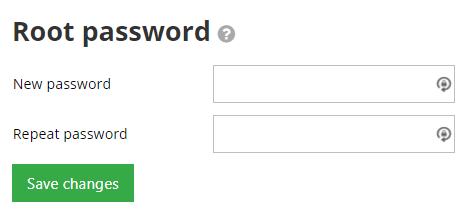
- Check the address, port, username and password.
- Your own firewall or internet provider may block the port.
- Your IP address may be blocked on the server after many wrong passwords. Ask support to check.
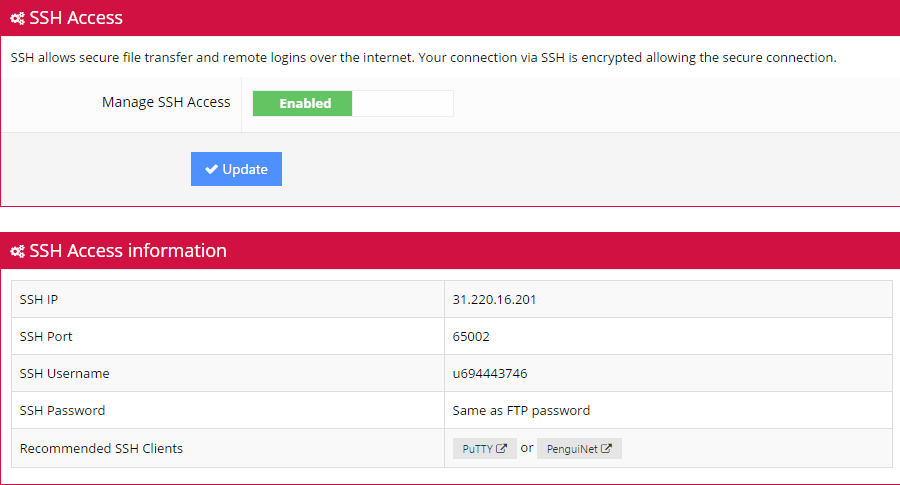
- Make sure SSH is enabled for your account.
Tip: Commands can change or delete things for good. Take a backup before running a command you do not understand.
Quick recap
- PuTTY connects you to your server using SSH.
- Enter the host, port and choose SSH, then click Open.
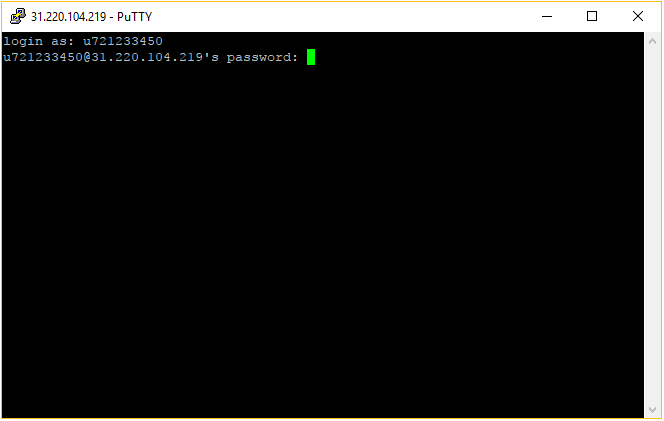
- Log in with your username and password.
- Type
exitto leave. - Ask support if SSH is not enabled.