

What is a support ticket?
A ticket is a message to the support team. Each one gets its own number. This helps the team keep track of your problem until it is solved. It is like taking a number at a bakery counter.
Before you start
Gather these things. They help support fix your issue faster.
- Your domain name, if the problem is about a website.
- What you were trying to do.
- The exact error message, if you saw one.
- A screenshot of the problem. A screenshot is a picture of your screen.
Steps
- Open https://secure.hostvento.com/clientarea.php and log in.
- Click the Support menu.
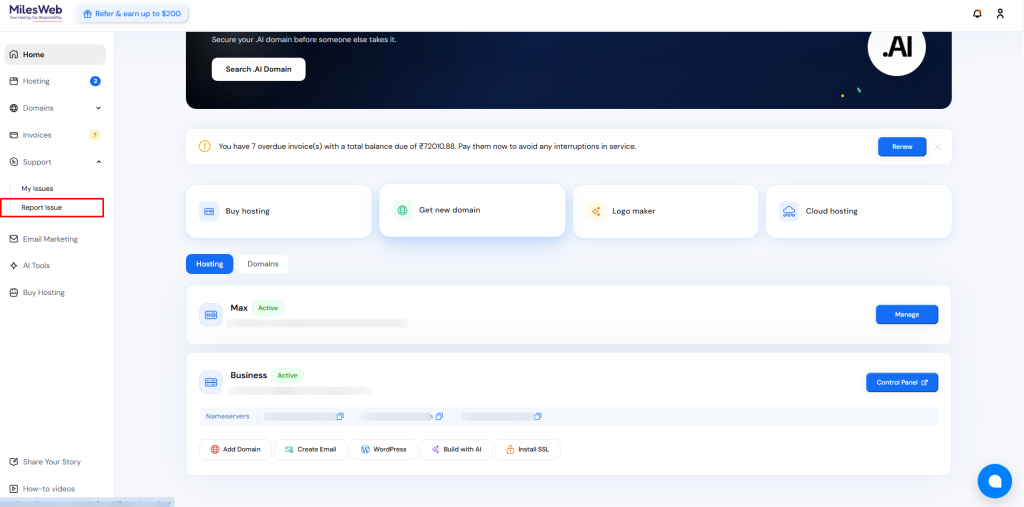
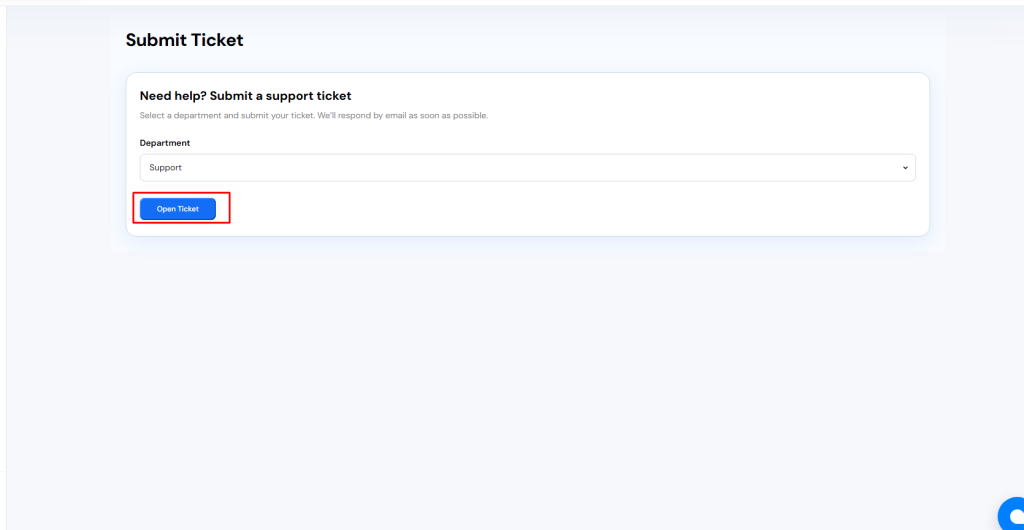
- Click Open Ticket. You can also go straight to the ticket page.
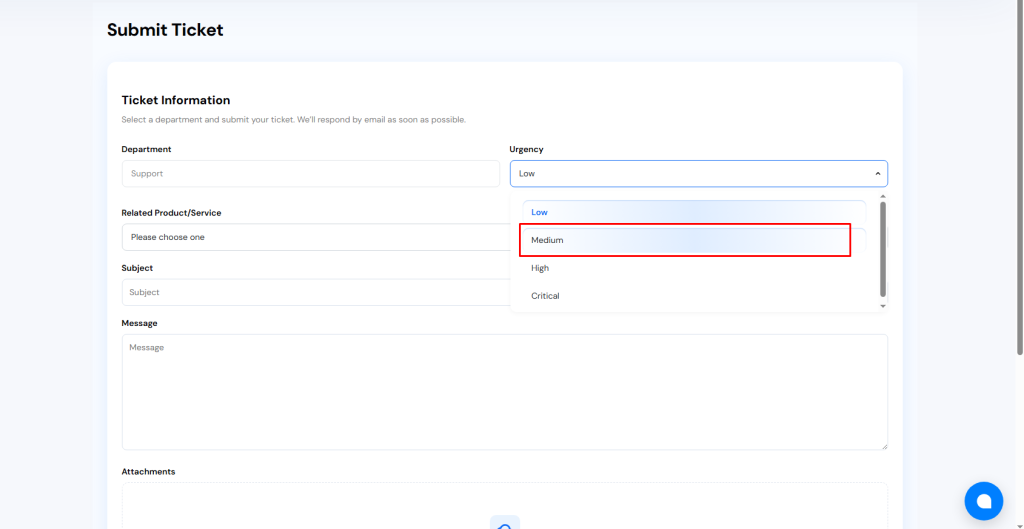
- Choose the right department. For example, pick the one for technical help or billing, depending on your problem.
- Check that your name and email are correct.
- Type a short subject. Example: "Email not sending on mydomain.com".
- If the form has a list of related services, pick the one with the problem.
- Describe the problem in the message box. Write what happened, when it began, and what you already tried.
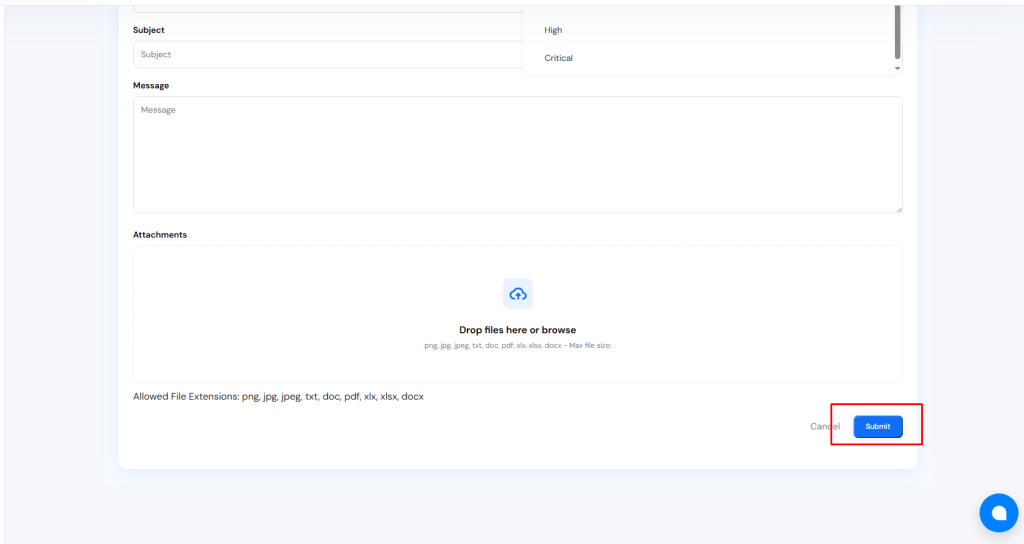
- Click Attach Files or Choose File if you want to add a screenshot.
- Click Submit.
You will see a ticket number. A confirmation email is also sent to you.
Checking your ticket later
- Log in to the client area.
- Click Support and then My Tickets.
- Click the ticket to read replies or add more details.
Tip: Never write your password in a ticket. If support needs access, they will tell you a safe way to share it.
Quick recap
- Log in and go to Support then Open Ticket.
- Choose a department and write a clear subject.
- Describe the problem and attach a screenshot if useful.
- Click Submit and note your ticket number.
- Follow up under My Tickets.