

What is SitePad?
A website builder lets you make a site by clicking and dragging pieces, like building with blocks. SitePad is one such builder. It is a third-party tool, so it may not be on every plan. Ask Hostvento support whether SitePad is available on your hosting plan and how to open it. Some control panels list it as an app or icon.
Before you start
- Plan your pages. A small site might have Home, About, Services and Contact.
- Collect your logo, photos and text.
- Make sure your domain points to your hosting.
Steps
- Log in to your hosting control panel.
- Find SitePad or the website builder icon. Open it.
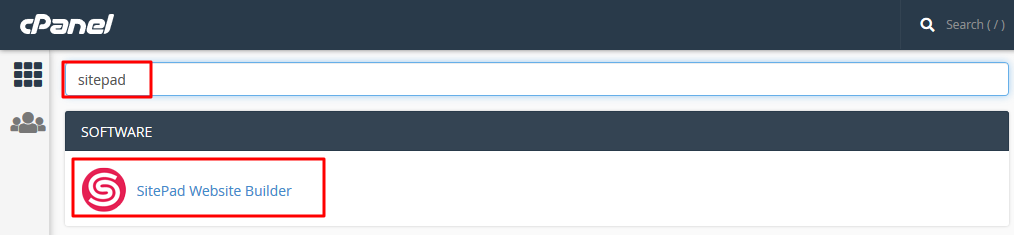
- Pick your domain if it asks where to build.
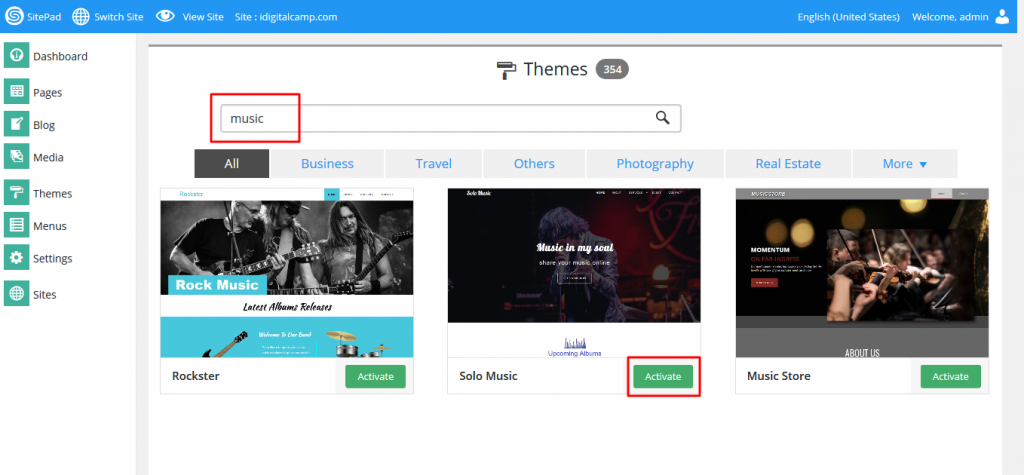
- Choose a theme. A theme is a ready-made look for your pages.
- Click the theme to open it in the editor.
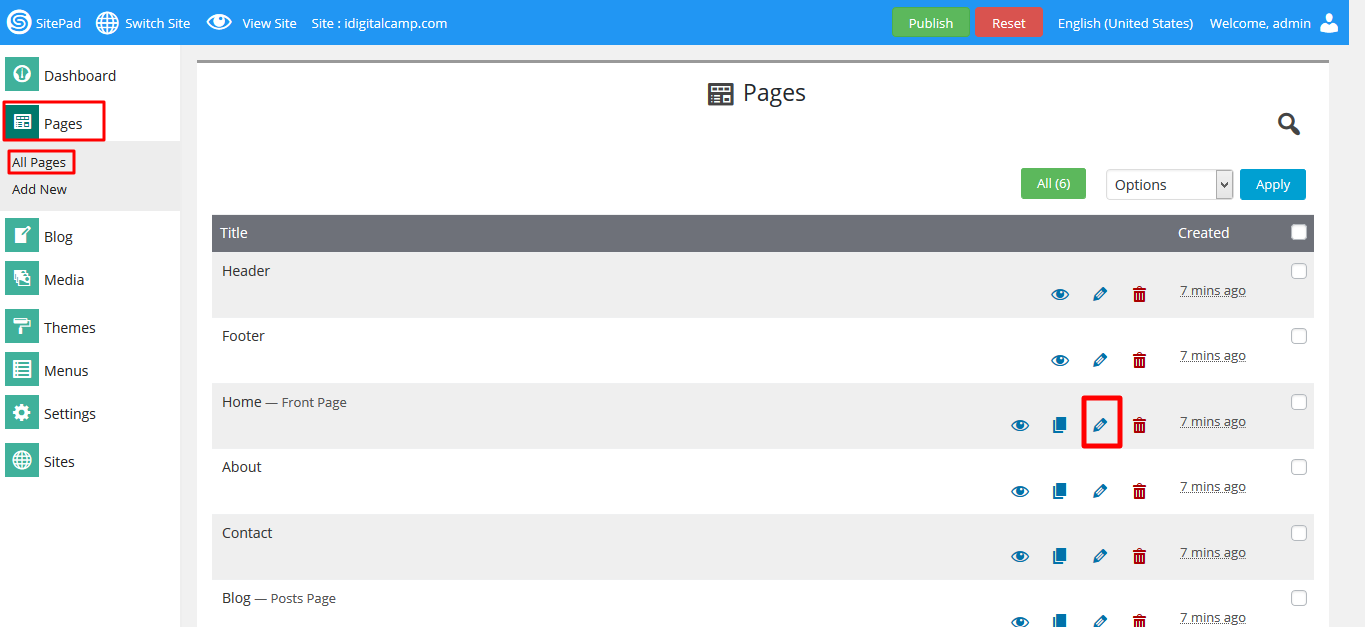
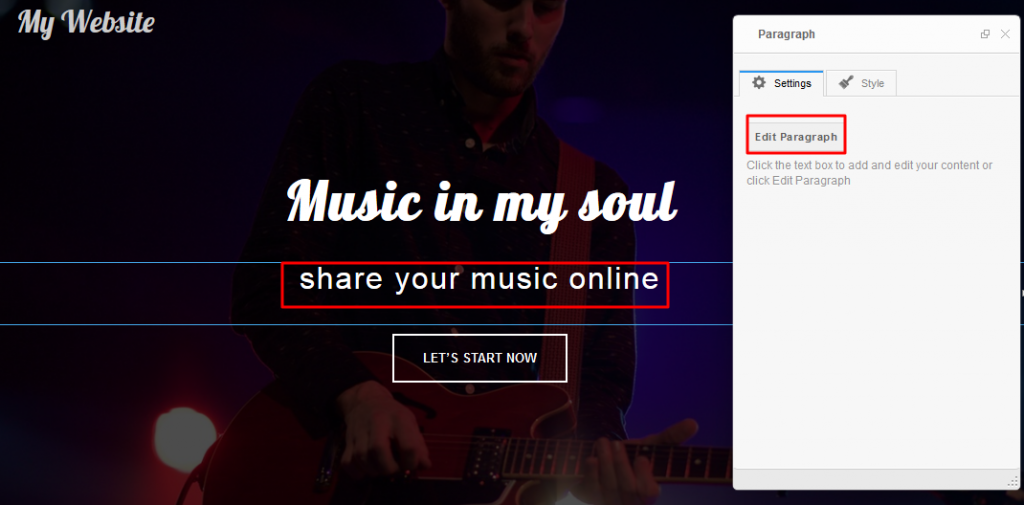
- Click any text on the page and type your own words.
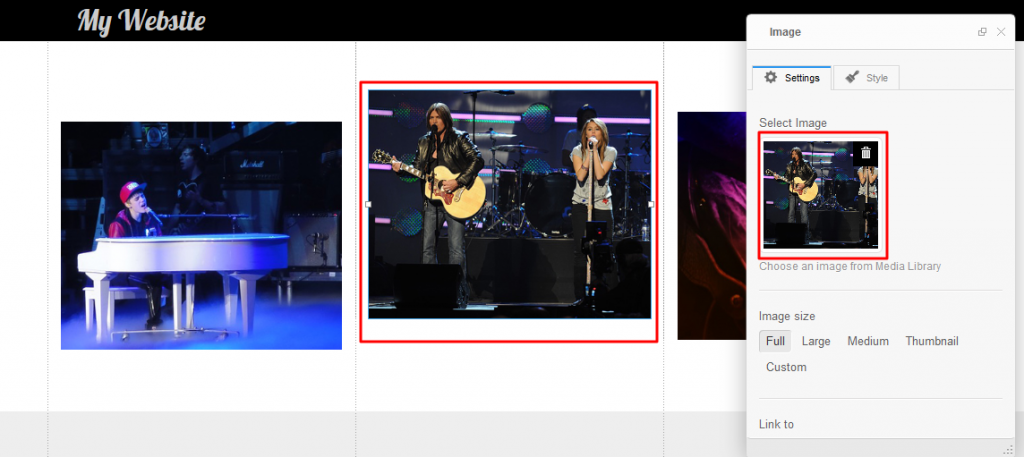
- Click any picture to swap it for your own. Upload it from your computer.
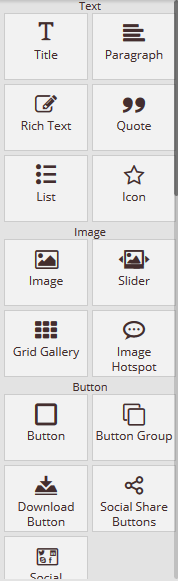
- Open the widget list on the side. A widget is a ready block, such as a button, map or contact form. Drag one onto the page.
- Use the page menu to add new pages and give each a clear name.
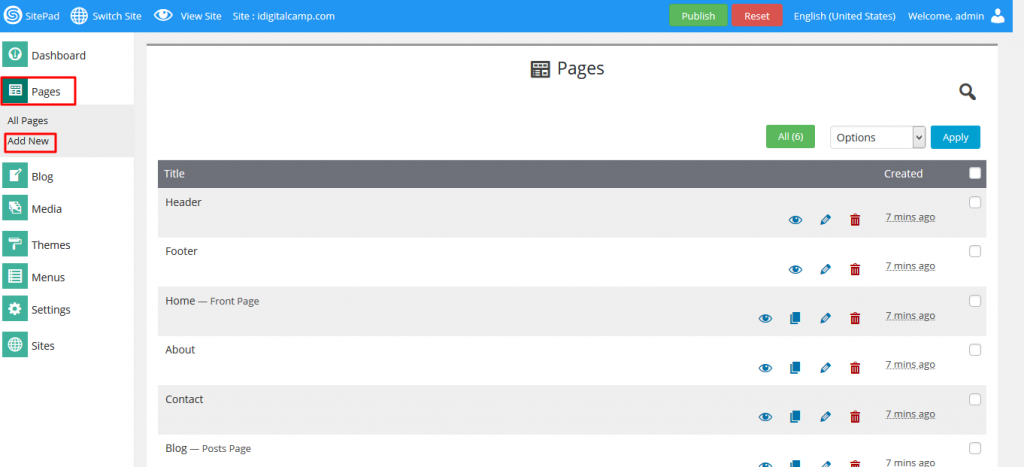
- Edit the menu so visitors can reach every page.
- Click the Preview button to see how your site looks on a computer and a phone.
- When you are happy, click Publish or Save and Publish.
Warning: Publishing can replace files already in your website folder. If you already have a site there, take a backup first.
Check your site
Open your domain in a browser. If you see the old page, clear your browser cache and try again.
Tips for a good first site
- Use short text and large, clear pictures.
- Keep the same colors and fonts on every page.
- Add your contact details on a Contact page.
Quick recap
- SitePad is a drag-and-drop builder. Ask support if your plan includes it.
- Pick a theme, then change text and pictures.
- Add pages and widgets.
- Preview, then publish.
