

What curl and a user agent are
curl (Client URL) is a command-line tool that moves data to or from a server. A user agent is a text string that a browser or tool sends with each request to say what it is. For example:
Mozilla/5.0 (Windows NT 10.0; Win64; x64) AppleWebKit/537.36 (KHTML, like Gecko) Chrome/96.0.4664.110 Safari/537.36Why change it
- To test how your web app behaves for different browsers and devices.
- To check pages that show different content to bots or to mobile users.
- To fix access to a service that only answers some clients.
Note: Use this only on sites you own, or where the terms of the site allow it. Do not use a fake user agent to get around a site's rules.
Set it with -A
curl -A "UserAgentString" URLExample: test how a page looks to the Google crawler:
curl -A "Mozilla/5.0 (compatible; Googlebot/2.1; +http://www.google.com/bot.html)" https://www.example.com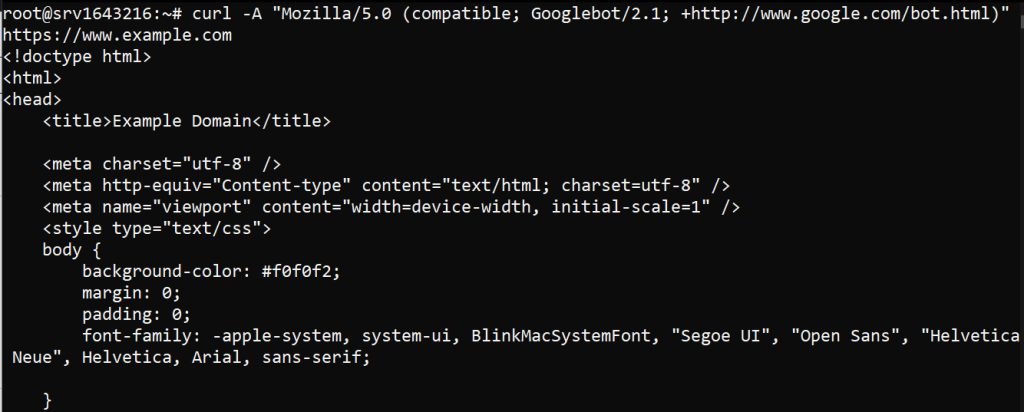
You can also use the long option --user-agent, or the header option -H "User-Agent: ...".
In a Bash script
#!/bin/bash
URL="https://www.example.com"
USER_AGENT="Mozilla/5.0 (Windows NT 10.0; Win64; x64) AppleWebKit/537.36 (KHTML, like Gecko) Chrome/96.0.4664.110 Safari/537.36"
curl -A "$USER_AGENT" "$URL"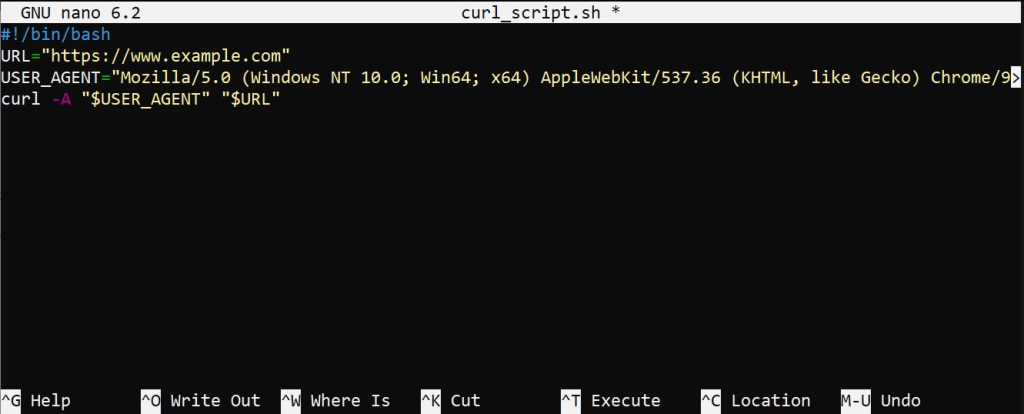
Save it in a config file
Create a file named .curlrc in your home folder and add:
user-agent = "Mozilla/5.0 (Windows NT 10.0; Win64; x64) AppleWebKit/537.36 (KHTML, like Gecko) Chrome/96.0.4664.110 Safari/537.36"
From now on, every curl call uses it, unless you give -A on the command line.
Test several user agents
This script requests the same page with three different user agents, and waits 5 seconds between requests:
#!/bin/bash
URL="https://www.example.com"
USER_AGENTS=("Mozilla/5.0 (Windows NT 10.0; Win64; x64) AppleWebKit/537.36 (KHTML, like Gecko) Chrome/96.0.4664.110 Safari/537.36"
             "Mozilla/5.0 (Macintosh; Intel Mac OS X 10_15_7) AppleWebKit/605.1.15 (KHTML, like Gecko) Version/14.0.3 Safari/605.1.15"
             "Mozilla/5.0 (iPhone; CPU iPhone OS 14_3 like Mac OS X) AppleWebKit/605.1.15 (KHTML, like Gecko) Version/14.0 Mobile/15E148 Safari/604.1")
for USER_AGENT in "${USER_AGENTS[@]}"; do
  echo "Using User Agent: $USER_AGENT"
  curl -A "$USER_AGENT" "$URL"
  sleep 5
done
More headers
Sometimes one header is not enough. Add more with -H:
curl -A "Mozilla/5.0 (Windows NT 10.0; Win64; x64) AppleWebKit/537.36 (KHTML, like Gecko) Chrome/96.0.4664.110 Safari/537.36" \
     -H "Accept-Language: en-US,en;q=0.9" \
     -H "Accept-Encoding: gzip, deflate, br" \
     -H "Connection: keep-alive" \
     https://www.example.com
Cookies
Read and write cookies with -b and -c:
curl -A "Mozilla/5.0 (Windows NT 10.0; Win64; x64) AppleWebKit/537.36 (KHTML, like Gecko) Chrome/96.0.4664.110 Safari/537.36" \
     -b cookies.txt -c new_cookies.txt \
     https://www.example.com
Good habits
- Do not use random or fake user agents that may look suspicious.
- Follow the terms of service of every site, and respect
robots.txt. - Keep a short pause between requests so you do not overload the server.
Quick recap
curl -A "string" URLsets the user agent.- Save it in
.curlrcto use it every time. - Add
-Hfor more headers and-b/-cfor cookies.