

Note: This guide needs root access. VPS and dedicated server customers have it.
What is this about?
SSH is a safe way to type commands on a remote server. The root user is the all-powerful admin account. It can change or delete anything.
Attackers know every server has a root user, so they try to guess its password all day. If you turn off direct root login, they have to guess a username too. You then log in as a normal user and become root only when needed.
Warning: Do this in the right order. Make another user first and confirm it works. If you skip that, you can lock yourself out of your own server.
Steps
- Connect to your server with SSH as root.
- Create a new user. Replace
myadminwith a name you like.
Follow the prompts to set a strong password.adduser myadmin - Give the user admin rights. On Ubuntu or Debian, run:
On CentOS, AlmaLinux and Rocky Linux, run:usermod -aG sudo myadmin
This lets the user run admin commands withusermod -aG wheel myadminsudo. - Open a second terminal window. Log in as the new user and run
sudo whoami. If it printsroot, the new user works. Keep your first window open. - Back in the first window, back up the SSH settings file.
cp /etc/ssh/sshd_config /etc/ssh/sshd_config.bak - Open the file.
nano /etc/ssh/sshd_config - Find the line
PermitRootLogin. Change it so it reads:
If the line starts withPermitRootLogin no#, remove the#. - Save the file. In nano, press Ctrl+O, Enter, then Ctrl+X.
- Test the settings.
No output means no mistakes.sshd -t - Restart SSH.
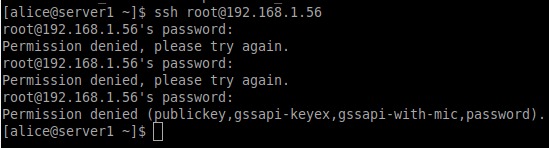
On Ubuntu the service may be namedsystemctl restart sshdssh. - In a new window, try to log in as root. It should be refused.
- Log in as your new user to confirm it still works.
If you get locked out
Use the console in your server's control area, or ask Hostvento support. Then restore the backup file.
Quick recap
- Create a new admin user first and test it.
- Back up
sshd_config. - Set
PermitRootLogin no. - Test with
sshd -t, then restart SSH. - Keep one session open until you confirm everything works.