

What does embed mean?
To embed something means to place it inside your page, like putting a picture frame on a wall. Google Forms is a free tool to make surveys, sign-up sheets and contact forms. An embedded form looks like part of your site.
Step 1: Make your form public
- Sign in to Google Forms with your Google account.
- Open the form you want to share.
- Click the Send button at the top right.
- If the form is limited to certain people, open the sharing settings and allow anyone with the link to respond. If you do not, visitors will see a sign-in screen.
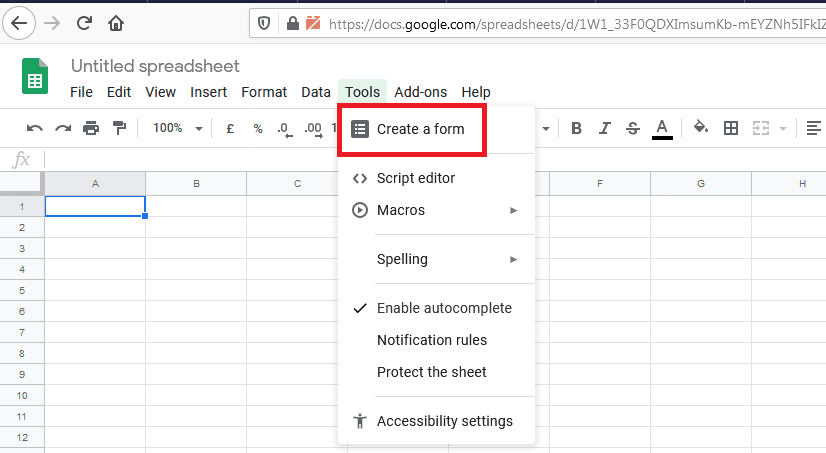
Step 2: Copy the embed code
- In the Send form window, click the <> tab. It is the embed option.

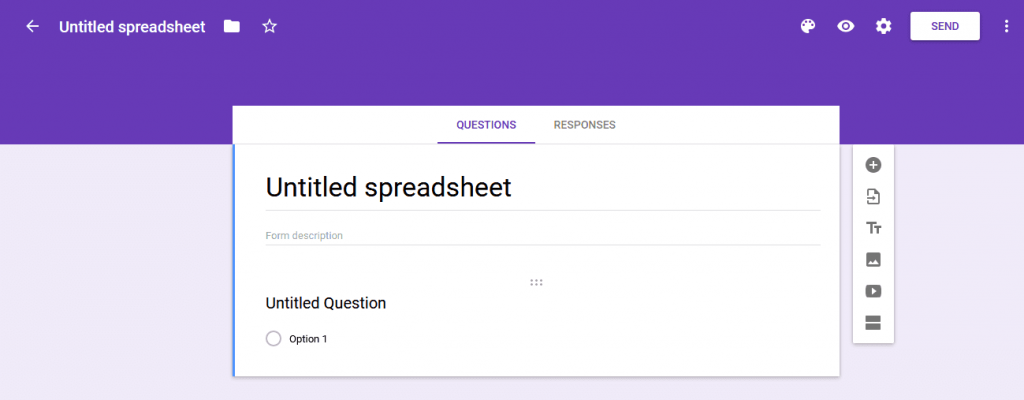
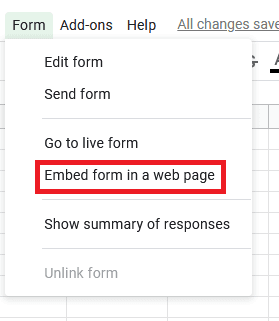
- Change the Width and Height if you want. A taller height means less scrolling inside the frame.
- Click Copy.
The code starts with <iframe. An iframe is a window inside a page that shows another page.
Step 3: Paste it into your page
For a plain HTML page:
- Log in to your hosting control panel and open File Manager.
- Open the page file, such as
contact.html, in the editor. Make a backup copy first. - Paste the code where you want the form to appear, inside the
<body>area. - Click Save Changes.
For WordPress:
- Edit the page you want.
- Add a Custom HTML block.
- Paste the code in the block.
- Click Update.
Check the result
Open the page in a browser. Test on a phone too. If the form looks cut off, make the width bigger or set it to 100%.
Tip: Answers go to your Google Form, not your hosting account. Look at the Responses tab in Google Forms to read them.
Quick recap
- Allow anyone to respond to the form.
- In Send, use the embed tab and copy the iframe code.
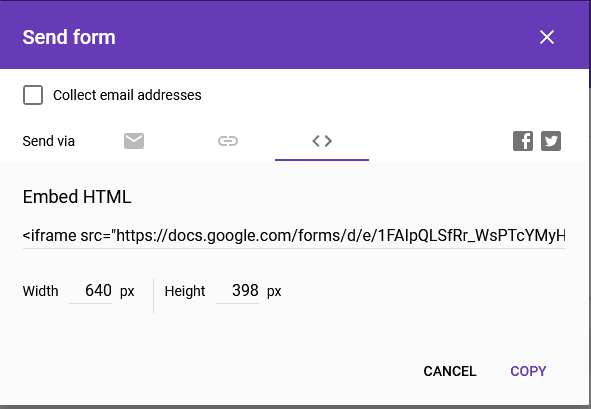
- Paste it into your page and save.
- Test on a computer and a phone.