

What is npm and its cache?
npm is a tool that downloads JavaScript packages for Node.js projects. A package is a bundle of ready-made code you can reuse. When npm downloads a package, it keeps a copy on your computer. That saved copy is the cache. Next time, npm can reuse it and skip the download. Sometimes a copy gets broken. Then installs fail or act oddly. Clearing the cache gives npm a clean start.
Steps
- Open a terminal. A terminal is a window where you type commands. On a hosting server, log in with SSH first.
- Find where the cache is stored.
This prints a folder path. On Linux it is oftennpm config get cache~/.npm. - Check that the cache is healthy.
This looks for bad files and removes what is not needed. Often this is enough.npm cache verify - If problems stay, clear the whole cache.
npm asks you to usenpm cache clean --force--forceas a safety step, because a good cache saves time.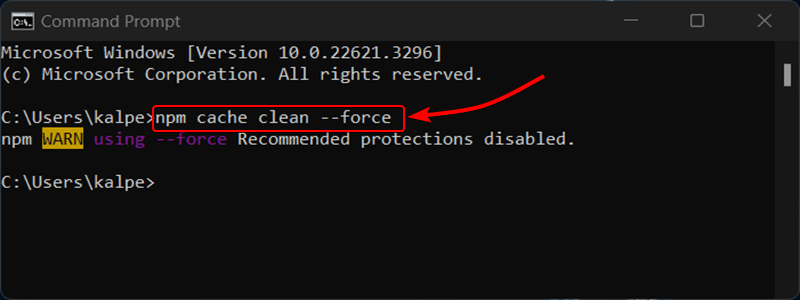
- Run your install again.
npm install
If it still fails
Delete the project's installed packages and its lock file, then install again. Take a copy of package-lock.json first.
- Go to your project folder.
- Remove the packages folder.
This deletes therm -rf node_modulesnode_modulesfolder. It is safe, becausenpm installbuilds it again. - Run
npm install.
Check your versions
Old Node.js or npm versions cause many errors. Check them like this.
node -v
npm -v
These print the two version numbers. If yours are very old, ask Hostvento support whether you can upgrade on your plan.
Tip: The older command
npm cache clean without --force no longer works in modern npm. Use the forced form.Quick recap
- The npm cache stores downloaded packages.
- Run
npm cache verifyfirst.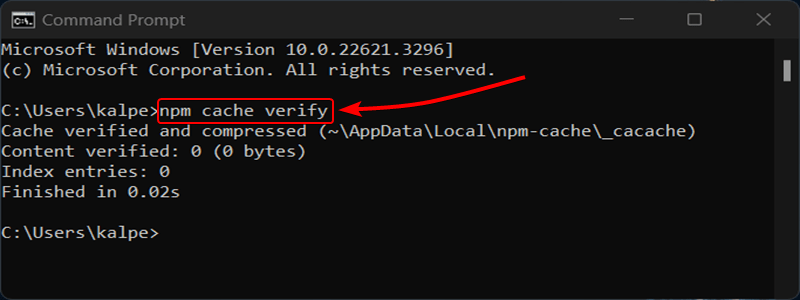
- Use
npm cache clean --forceto wipe it. - Then run
npm installagain.