

What are cookies and cache?
The cache is a store of saved page parts, such as pictures and style files. Your browser keeps them so pages load faster. Sometimes it shows an old copy after a site changes. Cookies are tiny notes that websites save on your device. They remember things like your login. Clearing cookies logs you out of most sites.
Quick shortcut
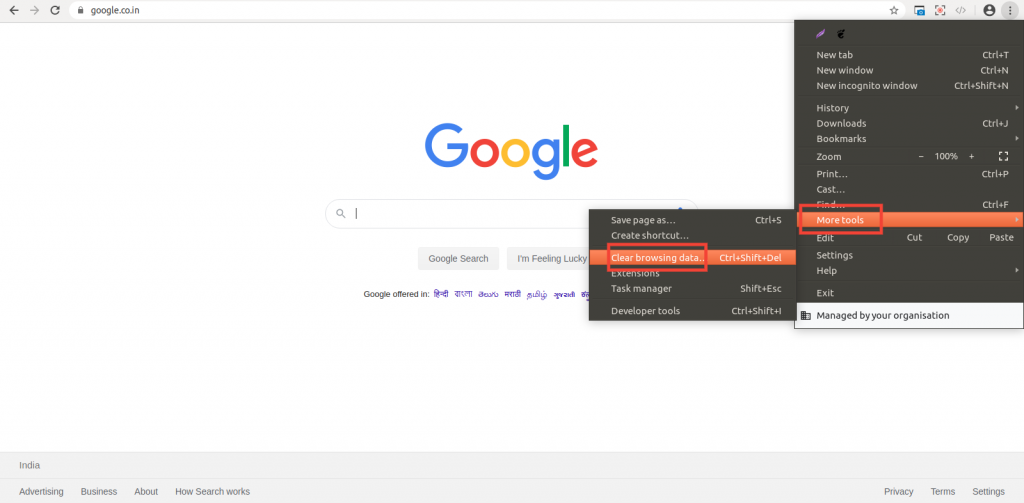
In Chrome, Firefox and Edge on Windows or Linux, press Ctrl+Shift+Delete. On a Mac, Chrome and Firefox use Cmd+Shift+Delete. This opens the clear data window.
Google Chrome
- Click the three dots at the top right.
- Click Settings.
- Click Privacy and security.
- Click Delete browsing data.
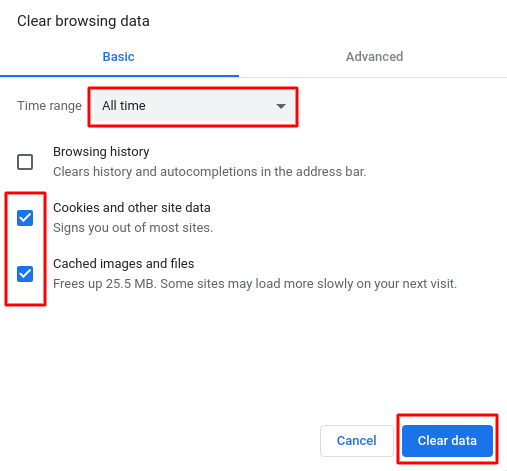
- Choose a Time range, such as All time.
- Tick Cookies and other site data and Cached images and files.
- Click Delete data.
Mozilla Firefox
- Click the menu button with three lines.
- Click Settings.
- Click Privacy & Security.
- Find Cookies and Site Data and click Clear Data.
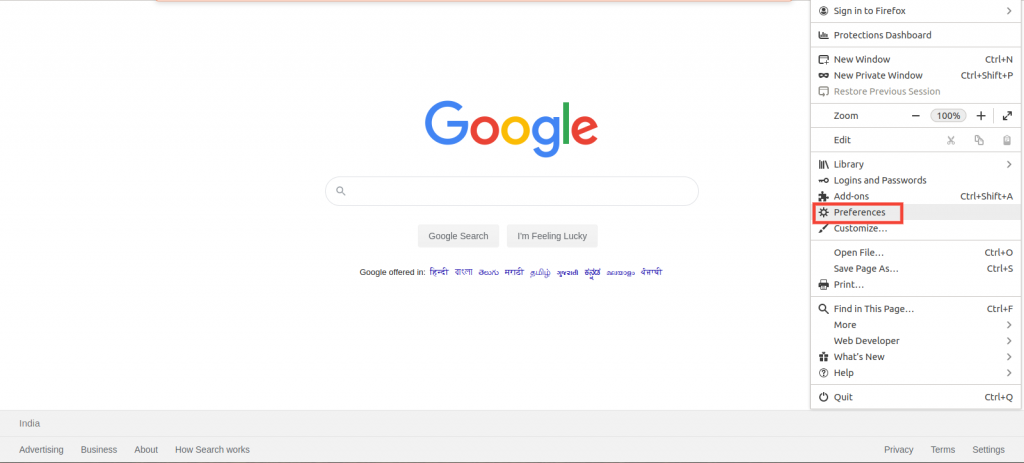
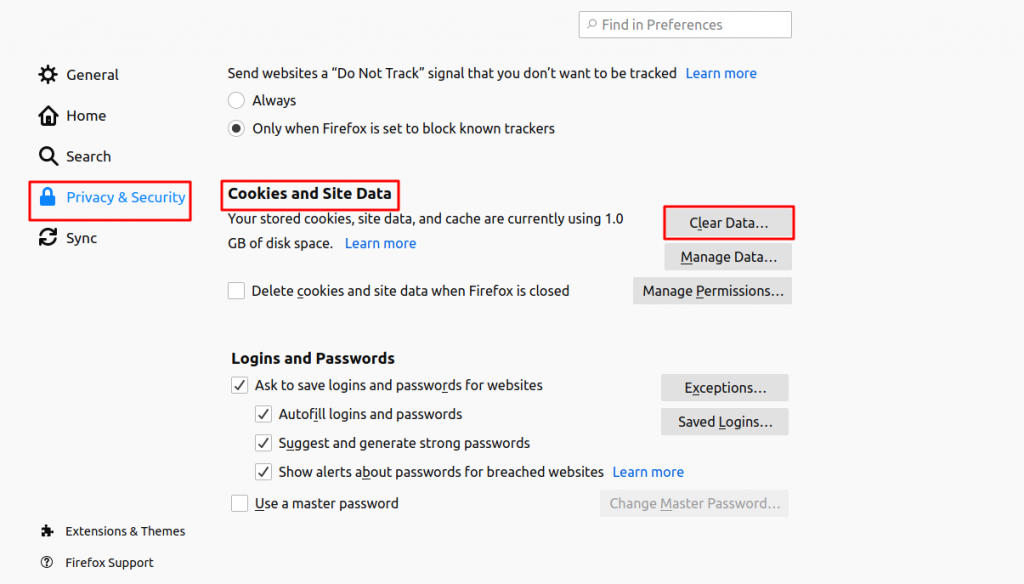
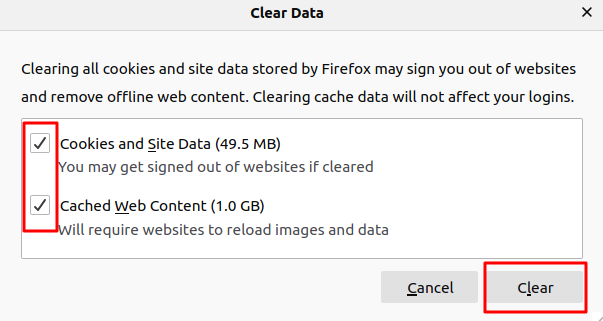
- Tick both boxes and click Clear.
Microsoft Edge
- Click the three dots at the top right.
- Click Settings.
- Click Privacy, search, and services.
- Under Clear browsing data, click Choose what to clear.
- Tick the cookies and cache boxes, then click Clear now.
Safari on Mac
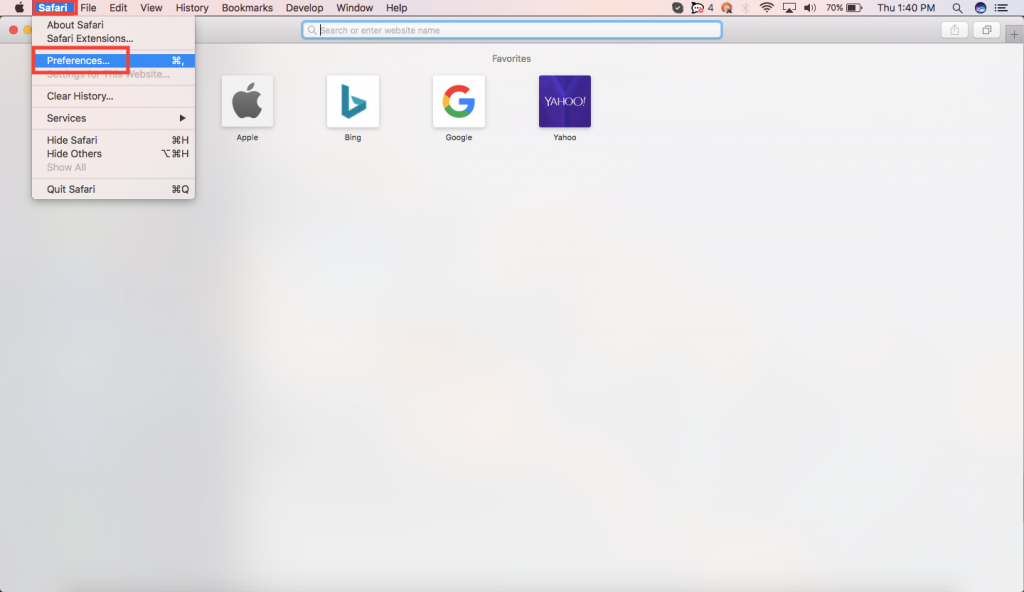
- Click Safari in the menu bar, then Settings.
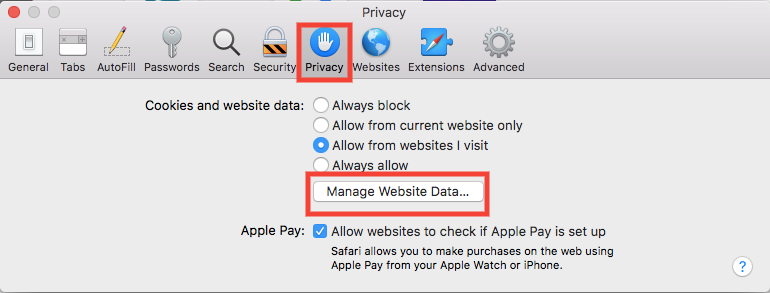
- Click Privacy, then Manage Website Data.
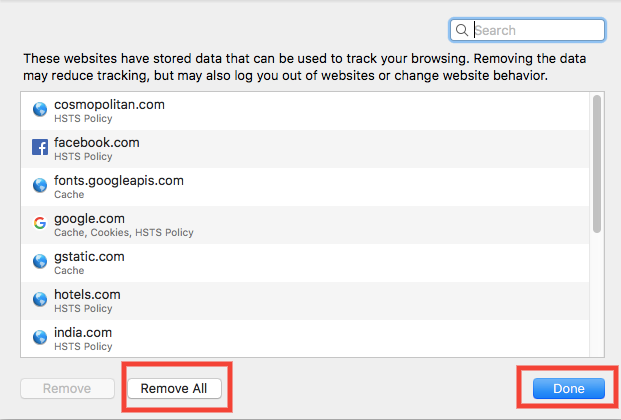
- Click Remove All and confirm.
Tip: Only need to fix one site? Press
Ctrl+F5 (or Cmd+Shift+R on a Mac) for a hard refresh. It reloads the page without old copies.Before you clear cookies, make sure you remember your passwords. Menu names change between browser versions. If you cannot find one, look for words like Privacy or Clear data.
Quick recap
- Cache holds saved page parts. Cookies hold small notes like logins.
- Use
Ctrl+Shift+Deleteto open the clear window quickly. - Tick cookies and cached files, then clear.
- Expect to log in to sites again.