

What is SSH?
SSH stands for Secure Shell. It is a safe way to type commands on a server that is far away. It is like a phone line that nobody else can listen to. Everything you type is scrambled on the way.
What you need
- Your server's IP address. An IP address is the number that identifies a computer on the internet. Look in your welcome email or in the client area at https://secure.hostvento.com/clientarea.php.
- Your user name. On many servers it is
root, the admin account. - Your password, or an SSH key. An SSH key is a pair of files that act like a very strong password.
- The SSH port. It is usually 22. Your welcome email may list a different one.
Shared hosting plans may not include SSH. Ask Hostvento support if you are not sure.
Connect from Mac or Linux
- Open the Terminal app. A terminal is a window where you type commands.
- Type this command. Use your own user name and IP address.
The number shown is only an example.ssh root@203.0.113.10 - If you use another port, add
-p.ssh -p 2222 root@203.0.113.10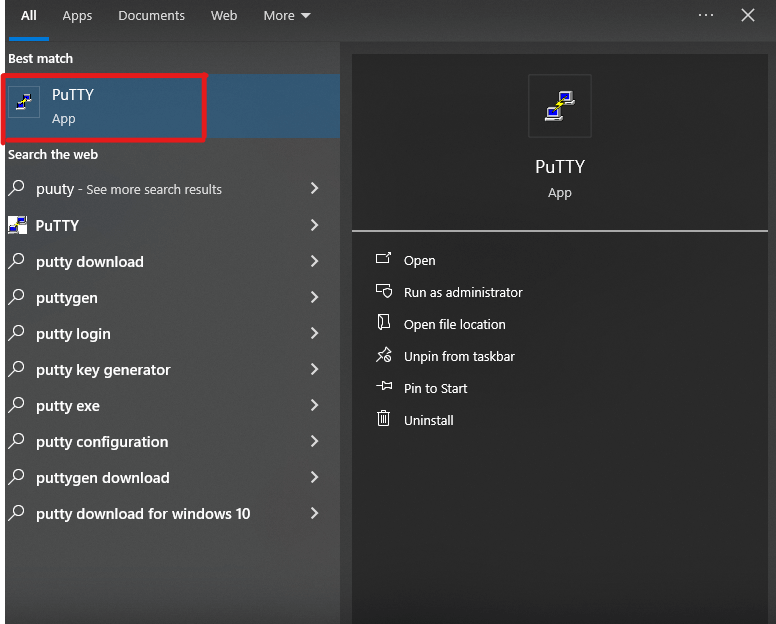
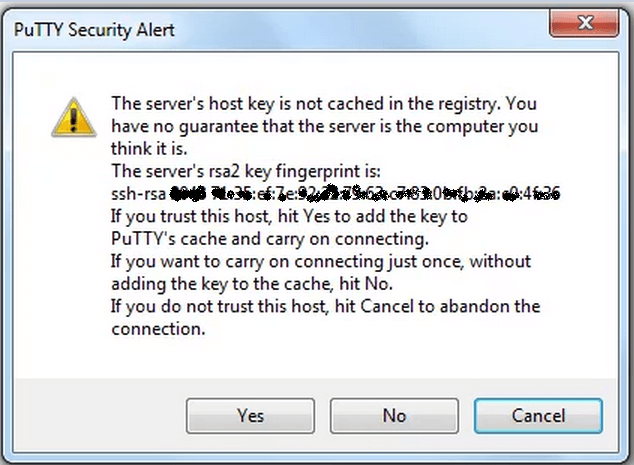
- The first time, you see a question about trusting the server. Type
yesand pressEnter. - Type your password and press
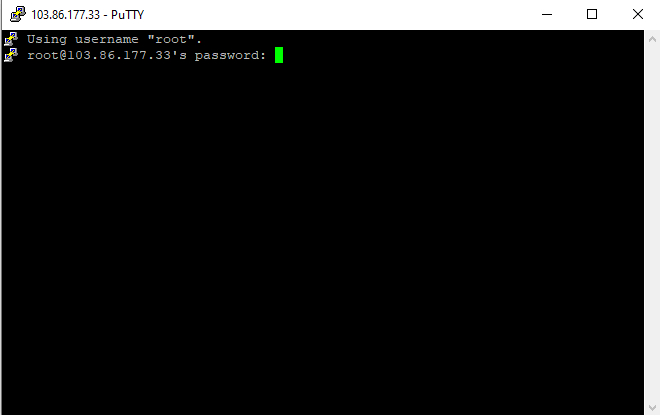
Enter. You will not see the letters as you type. That is normal.
Connect from Windows
Windows 10 and 11 have SSH built in. Open PowerShell or Command Prompt and use the same command as above. You can also use a free program called PuTTY.
- Open PuTTY.
- Type your IP address in Host Name.
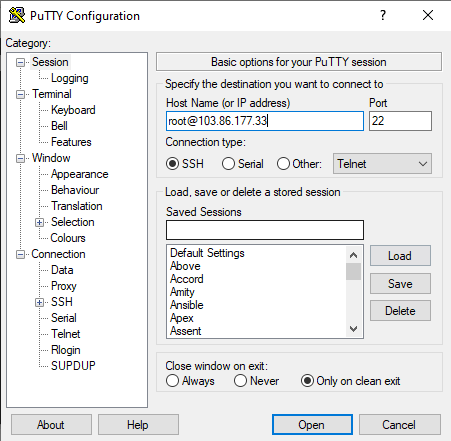
- Type the port in Port.
- Click Open.
- Type your user name and password when asked.
Connect with a key
ssh -i /path/to/your-key root@203.0.113.10The -i option points to your private key file. Never share that file.
If it does not work
- Check the IP address, user name and port.
- A "connection refused" error can mean a firewall or a wrong port.
- Check your internet connection.
- Still stuck? Open a support ticket.
Tip: Type
exit to leave the server when you finish.Quick recap
- SSH is a safe way to run commands on a server.
- You need an IP address, user name, password or key, and port.
- Use
ssh user@ipfrom a terminal. - Ask Hostvento support if SSH is not on your plan.