

What does this error mean?
CodeIgniter is a framework. A framework is a ready-made set of code that helps people build websites with PHP. PHP is the language that runs many websites.
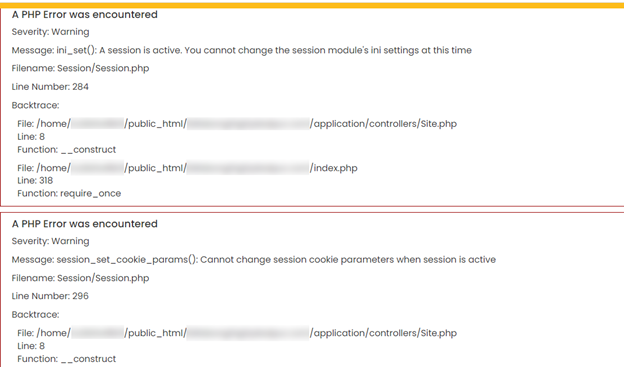
When your code has a problem, CodeIgniter shows a box that starts with "A PHP Error was Encountered". The box is a clue. It is not the problem itself.
Read the box first
The box shows four things:
- Severity: how serious it is, such as Notice, Warning or Error.
- Message: what went wrong, in short words.
- Filename: which file has the problem.
- Line Number: the exact line in that file.
Steps to fix it
- Write down the filename, line number and message.
- Log in to your Hostvento hosting and open the File Manager, or connect with FTP. The control panel name is in your welcome email.
- Take a backup copy of the file before you change it.
- Open the file and go to the line from the error box.
- Match your message to the common causes below and fix it.
- Save the file and reload the page.
Common messages and fixes
- Undefined variable or index: your code uses a name that was never set. Set it first, or check it exists before you use it.
- Call to undefined function: a needed PHP add-on is missing, or the name is misspelled. Check the spelling and ask Hostvento support about the add-on.
- Unable to load the requested file: a file name or folder is wrong. Linux cares about capital letters, so
Home.phpandhome.phpare different. - Database error or mysqli connection: check the database name, user and password in
application/config/database.php. - Deprecated: your code uses an old feature. Your PHP version may be newer than your CodeIgniter version. Update CodeIgniter, or ask support about choosing an older PHP version.
Hide errors on a live site
Visitors should not see these boxes. In index.php, find the line with ENVIRONMENT. Set it to production on a live site.
define('ENVIRONMENT', 'production');This hides the error box. The errors are still saved in the log folder at application/logs, so you can read them there.
Tip: Fix the problem first. Hiding an error does not remove it.
Quick recap
- The box tells you the file, the line and the message.
- Back up the file, then fix that line.
- Check spelling, capital letters, database details and PHP version.
- Use
productionmode on live sites and read the logs. - Ask Hostvento support if you are stuck.