

What is the root password?
Root is the main administrator account on a Linux server. It can do everything. The root password is the key to that account.
To reset it, you restart the server and tell it to start in a special rescue mode. In this mode, you can change the password without knowing the old one. You must be able to see and type in the server's screen. This is called the console. Your VPS panel or Hostvento support can tell you how to reach it.
Before you start
This needs a restart, so your sites will be offline for a short time. Pick a quiet moment. Take a backup or snapshot if your plan allows it.
Steps
- Open the console of your server and restart it. Use the reboot button in your panel, or choose Send Ctrl+Alt+Del.
- When the boot menu (GRUB) appears, quickly press the e key. This lets you edit the start-up settings.

- Use the arrow keys to find the line that starts with
linux16(orlinuxefi). - Go to the end of that line. Remove any words
rhgb quietif they are there. - Add this at the end of the line:

rd.break enforcing=0rd.break stops the start-up early. enforcing=0 turns off the SELinux safety check for this boot only.
- Press Ctrl and X to start with these settings.
- When you get a prompt, make the disk writable:
mount -o remount,rw /sysroot- Switch into the real system:
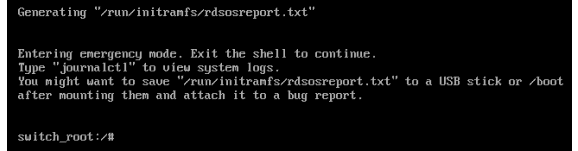
chroot /sysrootThis makes the next commands act on your real server files.
- Set the new password:
passwd rootType the new password twice. You will not see it on screen.
- Tell the system to fix its safety labels on the next start:
touch /.autorelabel- Leave the rescue shell and restart:
exit
exit
The server restarts. The first start may take longer while it fixes the labels. Do not turn it off.
- Log in as root with the new password.

touch /.autorelabel step, you may be unable to log in. Pick a strong password and keep it somewhere safe.If you cannot reach the GRUB menu, open a ticket with Hostvento support at the support ticket page.
Quick recap
- Restart the server from the console and press e at the boot menu.
- Add
rd.break enforcing=0to thelinux16line. - Remount, chroot, then run
passwd root. - Run
touch /.autorelabeland exit twice. - Log in with the new password.