

What does the error mean?
An opcode is a tiny instruction that the computer chip follows. "Illegal OpCode" means the chip got an instruction it could not understand. The server stops and shows a red screen. People call it the red screen of death.
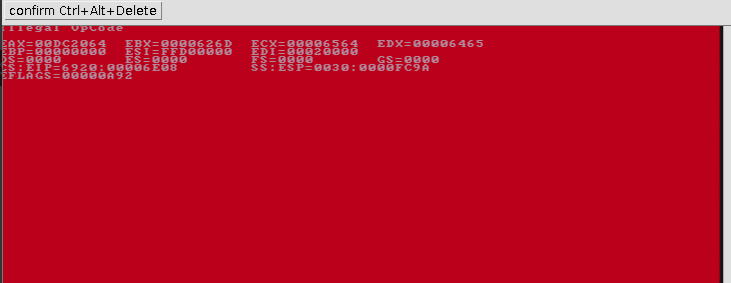
It often points to a problem with the server's firmware. Firmware is the built-in software that starts the hardware. It can also come from bad memory or a failing part.
This applies to physical servers you can reach yourself. If your server is a Hostvento service, contact Hostvento support first. Do not open any hardware.
Safe steps
- Write down everything on the screen. A photo with your phone is best.
- Check for any other message, code or flashing lights on the front of the server.
- Do not press keys at random.
- Restart the server once with the power button. Hold it for the normal shutdown, wait a few seconds, then turn it on again.
- If it boots, back up your data at once. The fault may return.
- If you recently changed anything, such as adding memory or a card, note it. Undo it only if you know how to do so safely, with the power off.
- Check the server's management tool for hardware alerts. HPE servers often have a built-in one called iLO. You need its address and login from whoever set up the server.
- Look in its log for errors about memory, power or the chip.
- Check if the maker has a newer firmware update for your model. Only install updates by following the official steps.
Tip: Never switch the power off in the middle of a firmware update. That can make the server unusable.
When to contact Hostvento support
- The red screen comes back after a restart.
- The server will not start at all.
- You see memory or hardware warnings in the log.
- You are not sure about any step.
Open a ticket at https://secure.hostvento.com/submitticket.php. Include your photo, what happened just before, and any recent changes.
Quick recap
- Illegal OpCode means the chip got an instruction it could not read.
- Photograph the screen and write down details.
- Try one calm restart and back up your data if it boots.
- Check hardware logs and firmware, with care.
- Contact Hostvento support if the error returns.