

What is php.ini?
PHP is the language many websites use to run. The php.ini file is a small text file that holds PHP's settings. Think of it as a control panel made of plain text. Each line sets one rule, such as how big an uploaded file may be.
Common settings you may want to change
| Setting | What it does |
|---|---|
memory_limit | How much memory one script may use |
upload_max_filesize | The biggest file a visitor may upload |
post_max_size | The biggest amount of form data allowed |
max_execution_time | How many seconds a script may run |
Steps
Warning: a wrong setting can break your site. Take a backup of the file first.
- Log in to your hosting control panel. Your welcome email tells you where.
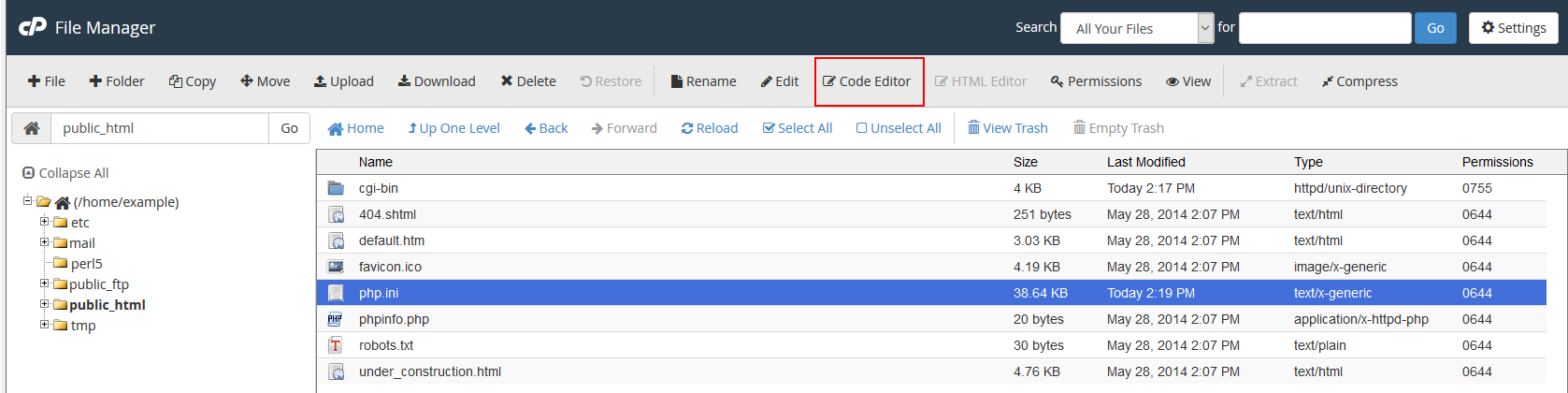
- Open the File Manager.

- Go to the folder of your website. This is often called
public_html. - Look for a file named
php.ini. If it is not there, create a new file with that name. - Right-click the file and choose Copy to make a backup copy.
- Right-click the original and choose Edit.
- Find the line you want to change, or add a new line at the bottom. For example:
memory_limit = 256M
upload_max_filesize = 64M
post_max_size = 64M
max_execution_time = 300
These lines allow more memory, bigger uploads and longer-running scripts. The letter M means megabytes.
- Click Save Changes.
- Reload your website and check that it still works.
Checking that the change worked
Create a file called info.php with this content:
<?php phpinfo(); ?>Open it in your browser. It lists every PHP setting. Delete the file afterwards, because it shows private details.
Tip: Some hosting plans use a different place for PHP settings, such as a PHP selector in the control panel. Some servers also limit how high a value can go. Ask Hostvento support if your change has no effect.
Quick recap
- php.ini holds the settings for PHP.
- Back up the file before you edit it.
- Change one value at a time and save.
- Test your site and remove any info.php file you made.
- Ask support if the change does not apply.