

What is mounting
Linux does not give drives letters. A drive is attached to a folder, called a mount point. After mounting, the files of the drive appear inside that folder.
Find the available drives
lsblk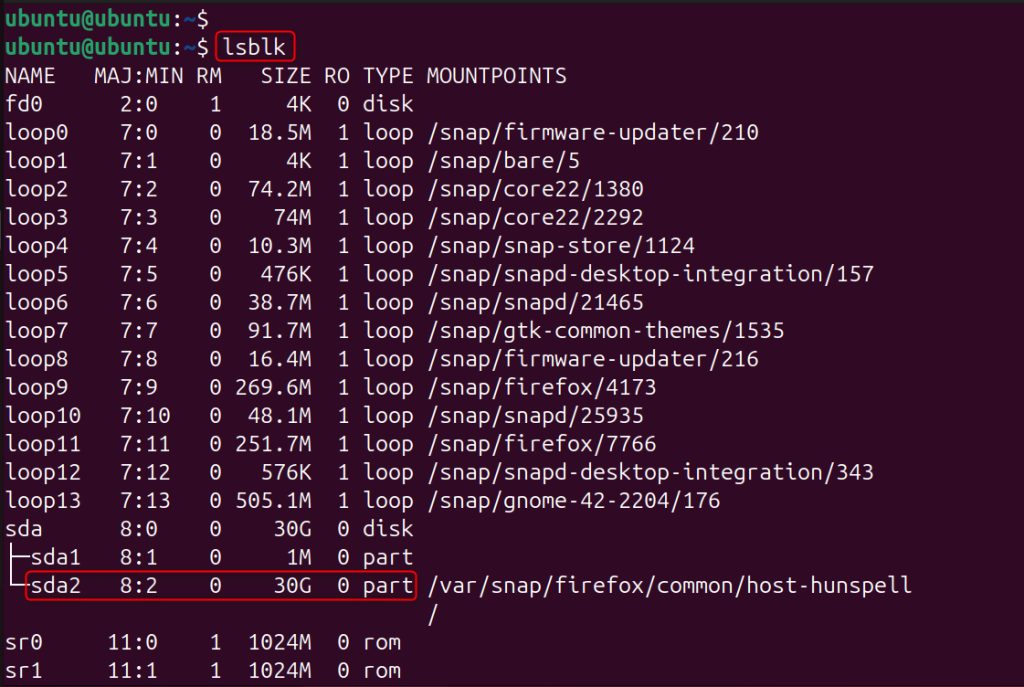
sudo fdisk -l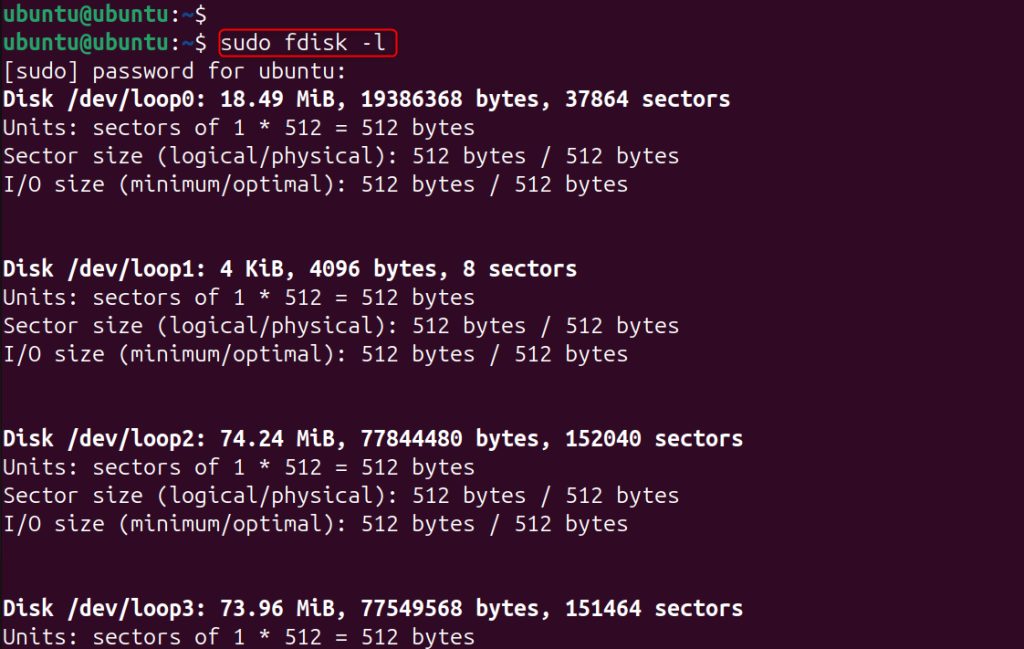
Check the file system
sudo blkid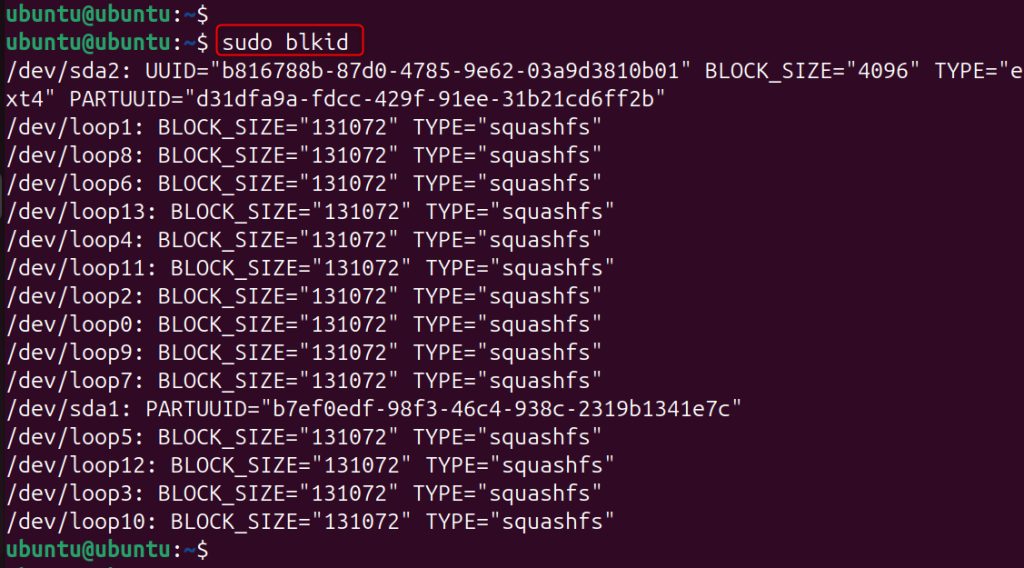
Method 1: Mount by hand
Step 1: Create a mount point
sudo mkdir /mnt/drive1
Step 2: Mount the drive
sudo mount /dev/sda2 /mnt/drive1
Use the same folder name in both commands.
Step 3: Check the mount
df -h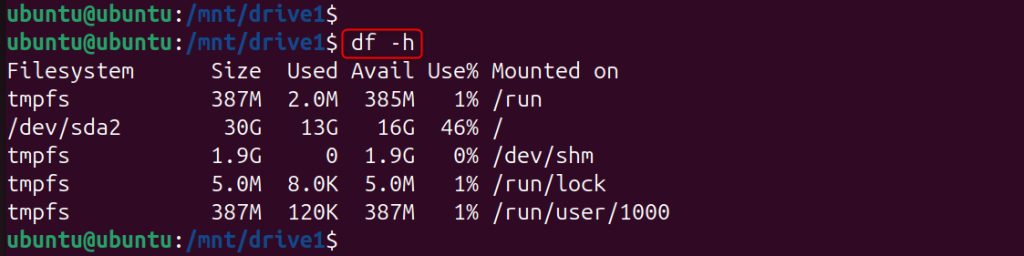
mount | grep sda2
Method 2: Mount a specific file system
sudo mount -t ext4 /dev/sda2 /mnt/drive1
For a FAT32 USB drive:
sudo mount -t vfat /dev/sdb1 /mnt/mydriveFor NTFS (install ntfs-3g if needed):
sudo mount -t ntfs-3g /dev/sdb1 /mnt/mydriveMethod 3: Mount at boot with /etc/fstab
Step 1: Find the UUID
sudo blkid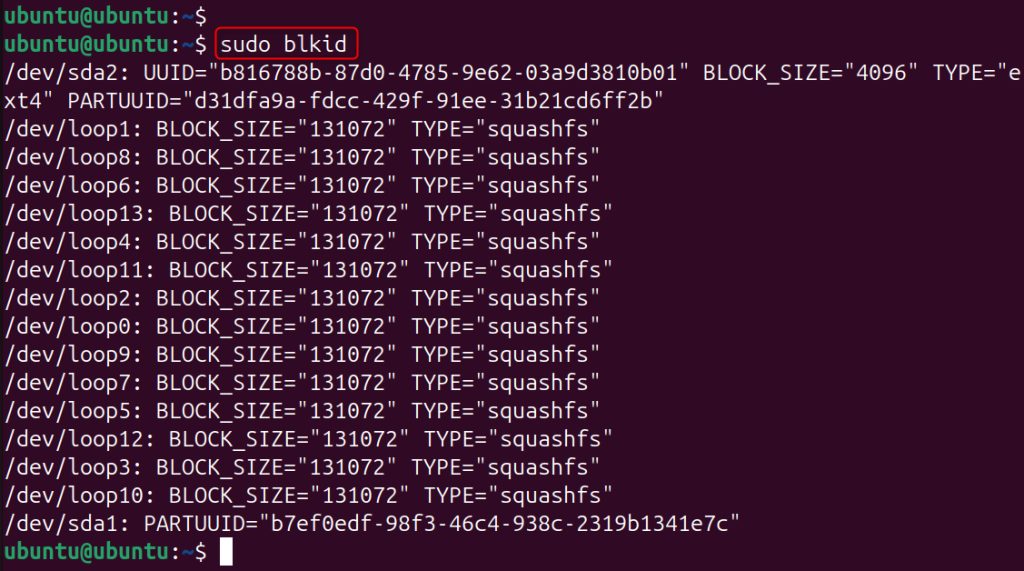
Step 2: Edit /etc/fstab
sudo nano /etc/fstabAdd a line like this (use your UUID and mount point):
UUID=1234abcd-12ab-34cd-56ef-1234567890ab /mnt/drive1 ext4 defaults 0 2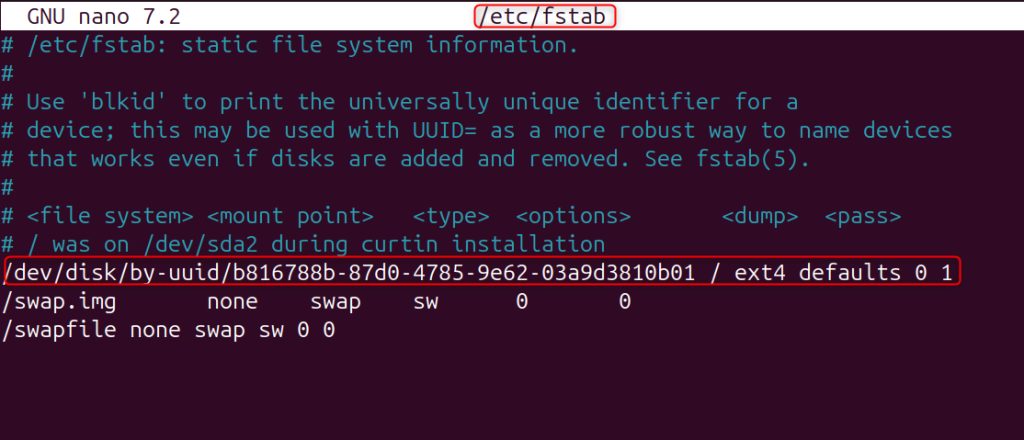
The fields are: device, mount point, file system, options, dump flag and fsck order.
Step 3: Test the file
sudo mount -a
No error means the line is correct. A bad fstab line can stop the system from booting, so always test before a reboot. Add nofail to the options for drives that may be missing.
Unmount a drive
sudo umount /mnt/drive1
You can also use the device:
sudo umount /dev/sda2
(The command is umount, with no "n".)
If the device is busy
The error target is busy means a program or your shell is using the drive. Leave the folder (cd ~), then find what uses it:
sudo lsof +f -- /mnt/drive1or
sudo fuser -vm /mnt/drive1
Stop those programs and unmount again. As a last step you can use a lazy unmount, which detaches the drive as soon as it is free:
sudo umount -l /mnt/drive1
Quick recap
lsblkfinds the drive,mount DEVICE FOLDERmounts it,umountunmounts it.- Use the UUID in
/etc/fstabto mount at boot.