

There are two ways: the terminal and the graphical Disks tool.
Method 1: Terminal
Step 1: Check the system
uname -srm
Step 2: Find the SD card partitions
lsblk | grep -iE 'sd[a-z]+'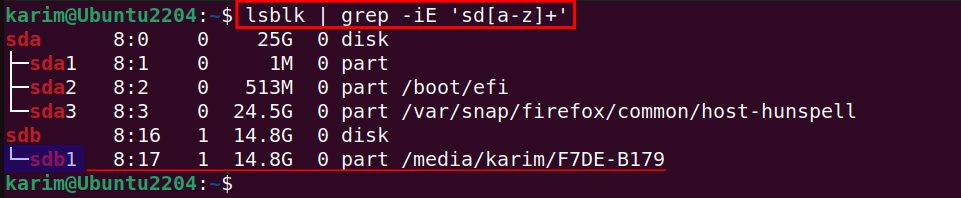
Some systems name the card mmcblk0p1 instead. In that case run lsblk and look for it.
Step 3: Create a mount point
sudo mkdir /media/sd-card
Step 4: Mount the card
sudo mount /dev/sdb1 /media/sd-card -v
Use your partition name instead of /dev/sdb1. -v shows what the command does.
Step 5: Check
lsblk | grep -iE 'sd[a-z]+'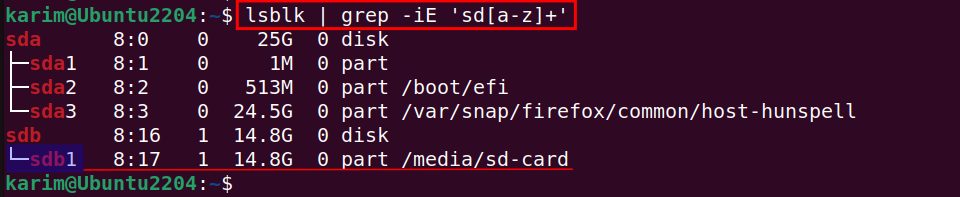
The mount point now appears next to the partition.
Step 6: Unmount
sudo umount /media/sd-card -v
Method 2: Disks (graphical)
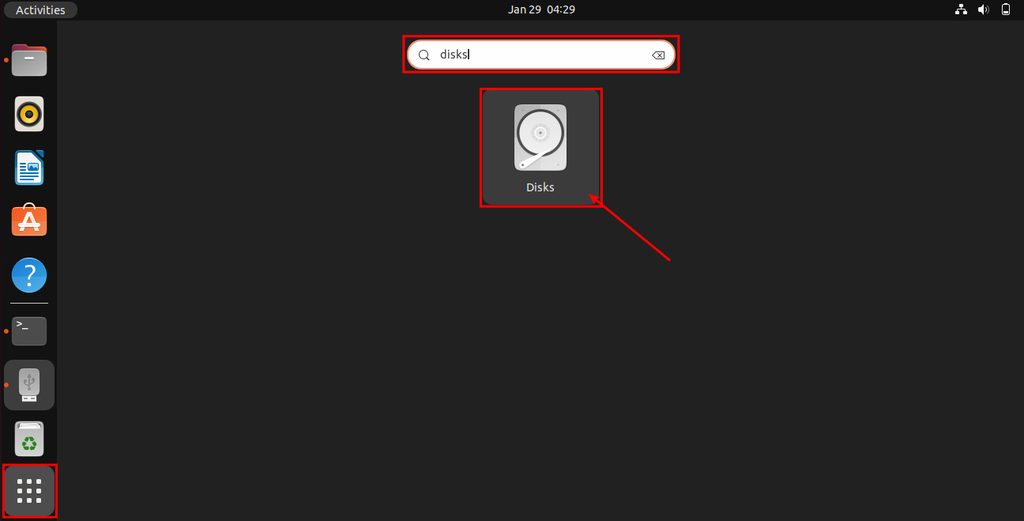
Step 1: Open Disks
Search for Disks in the application menu.
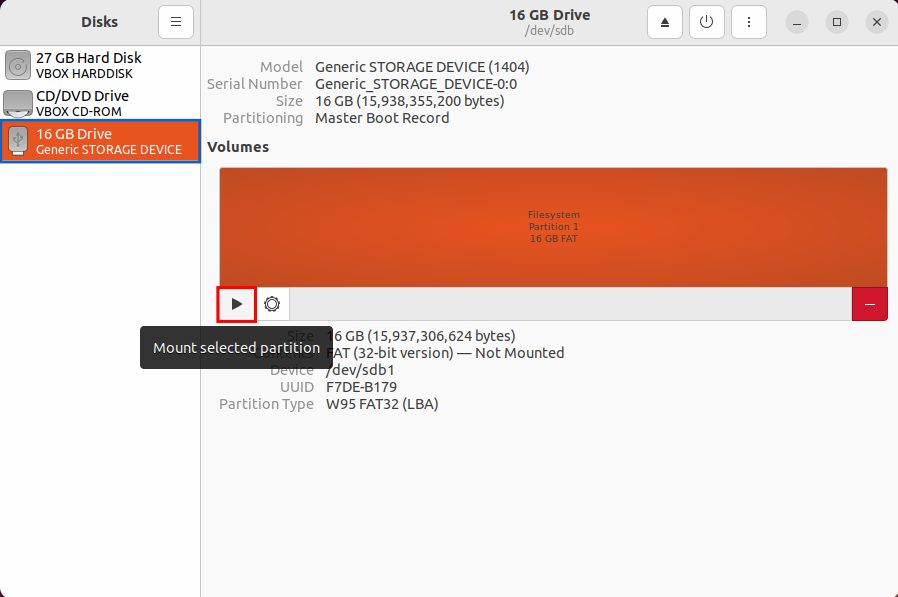
Step 2: Mount
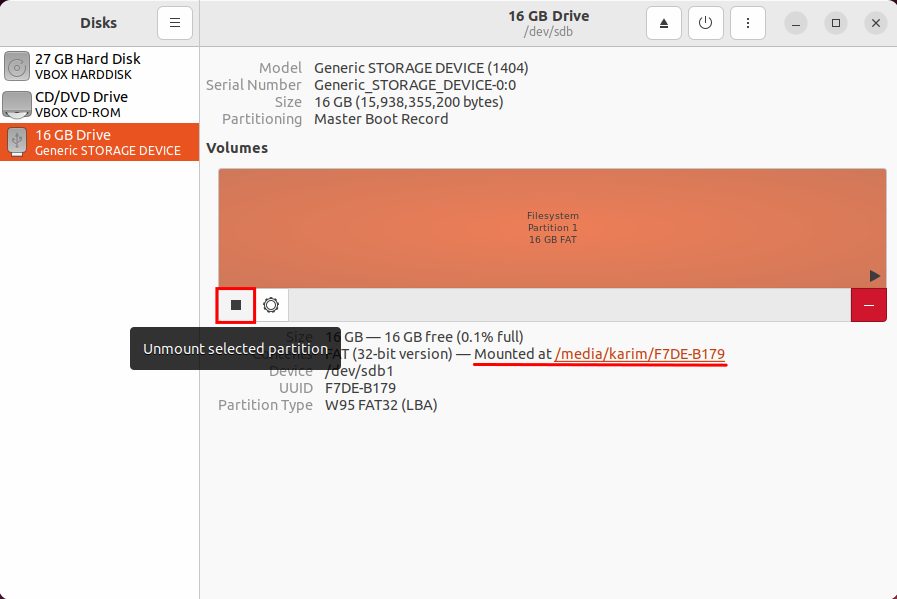
Select the SD card in the left list and click the Play (mount) button.
Step 3: See where it is mounted
- Select the SD card.
- Click the gear button below the volumes.
- Choose Edit Mount Options or look at the volume details.
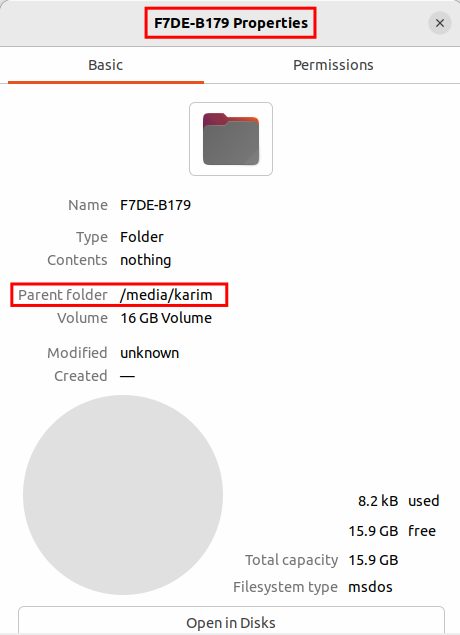
Step 4: Unmount
Select the card and click the Stop (unmount) button.
FAQ
Can I mount an SD card in Linux? Yes, with mount in the terminal or with a graphical tool such as Disks.
Is there a graphical tool? Yes, Disks (GNOME) and similar tools. Most desktop systems also mount the card by themselves when you insert it.
Quick recap
lsblk,mkdir,mount, andumountwhen done.