

What is a protected directory?
A directory is just a folder on your web hosting. Normally anyone with the link can open what is inside. When you protect a folder, the browser asks for a username and password first. It is like a door with a lock. Only people with the key can go in.
Steps in the control panel
Most hosting control panels have a tool for this. In cPanel it is called Directory Privacy (or Password Protect Directories). Your welcome email says which panel you have.
- Log in to your control panel.
- Find the Directory Privacy tool and open it.
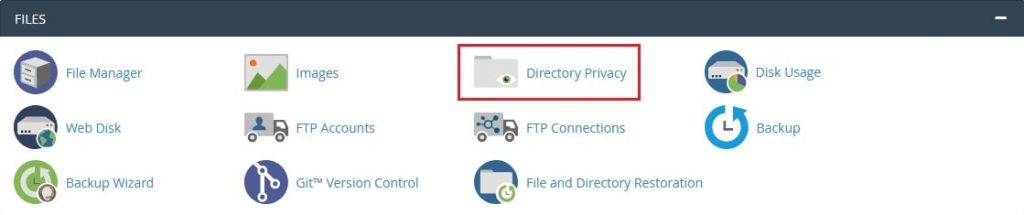
- Choose the folder you want to lock. Click its name to open it.
- Tick the box Password protect this directory.
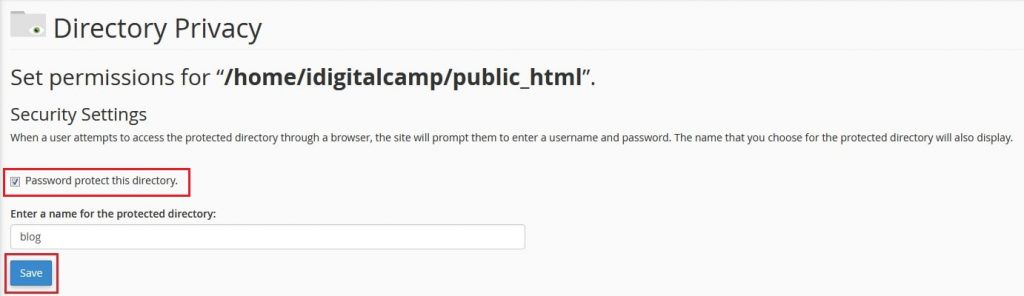
- Type a name for the folder. Visitors will see this on the login box.
- Click Save.
- Under Create User, type a username.

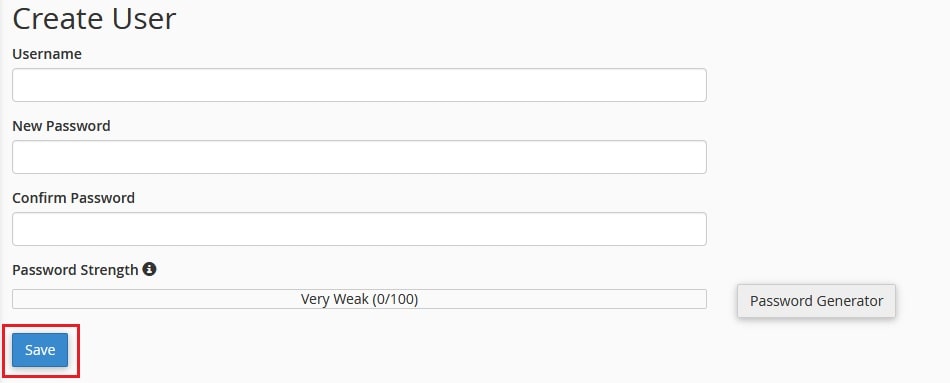
- Type a strong password. Use a mix of letters, numbers and symbols.
- Click Save.
Test it
- Open a private or incognito browser window.
- Visit the folder address, for example
yourdomain.com/private/. - A box should ask for a username and password.
- Type the details you made. The page should open.
How to remove the lock
- Go back to Directory Privacy.

- Open the same folder.
- Untick Password protect this directory.
- Click Save.
What happens behind the scenes
The panel makes two small files. One is .htaccess, which tells the web server to ask for a login. The other is .htpasswd, which stores the usernames and scrambled passwords. Do not delete them by hand unless you know why.
Tip: Password protection is good for private files, test sites and client previews. It is not a replacement for a full login system on a busy site.
Quick recap
- A protected folder asks for a username and password.
- Use Directory Privacy in your control panel.
- Pick the folder, tick the box, add a user and save.
- Test in a private browser window.