What is this warning?
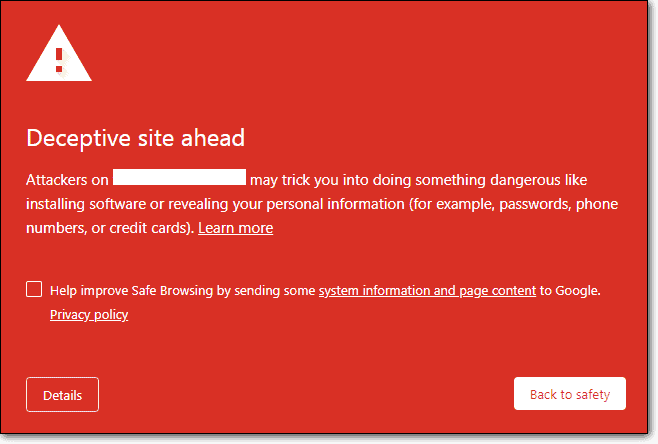
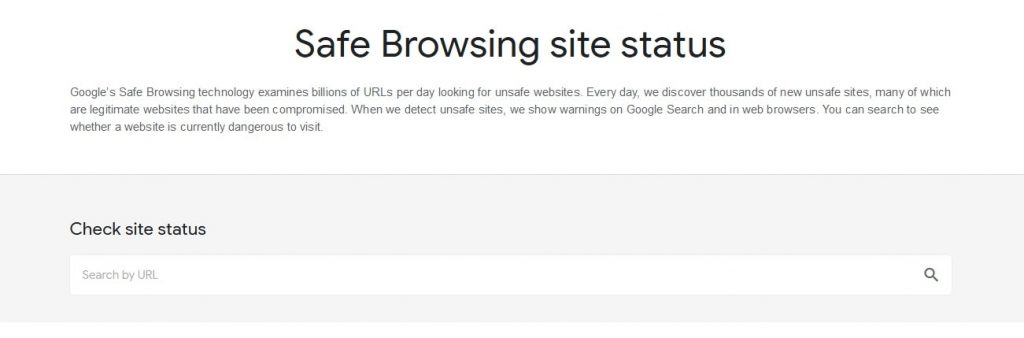
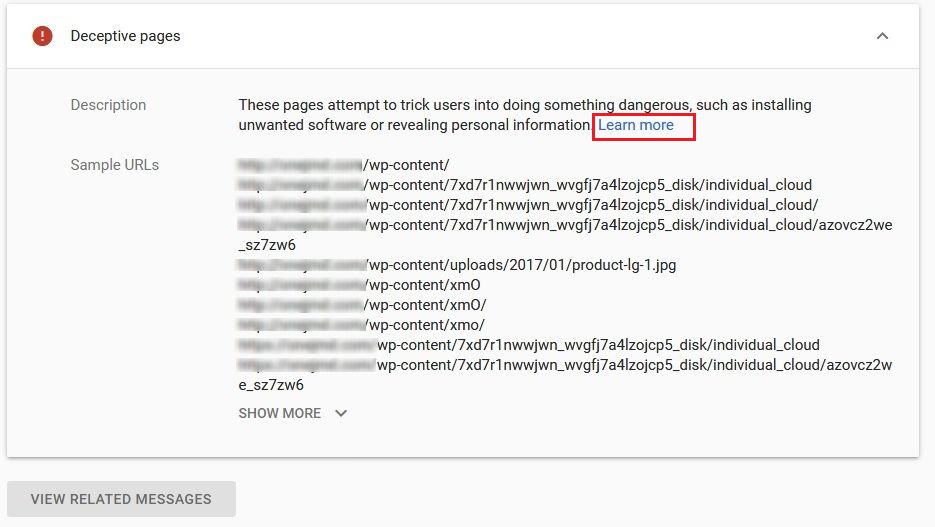
Google Chrome and other browsers keep a list of unsafe websites. This list is called Safe Browsing. If your site is on it, visitors see a red page saying "Deceptive site ahead". The browser thinks your site may trick people into giving away private details or installing bad software. Most often, a hacker has put harmful files on your site without you knowing.
Steps to fix it
Warning: take a full backup before you delete or change any files.
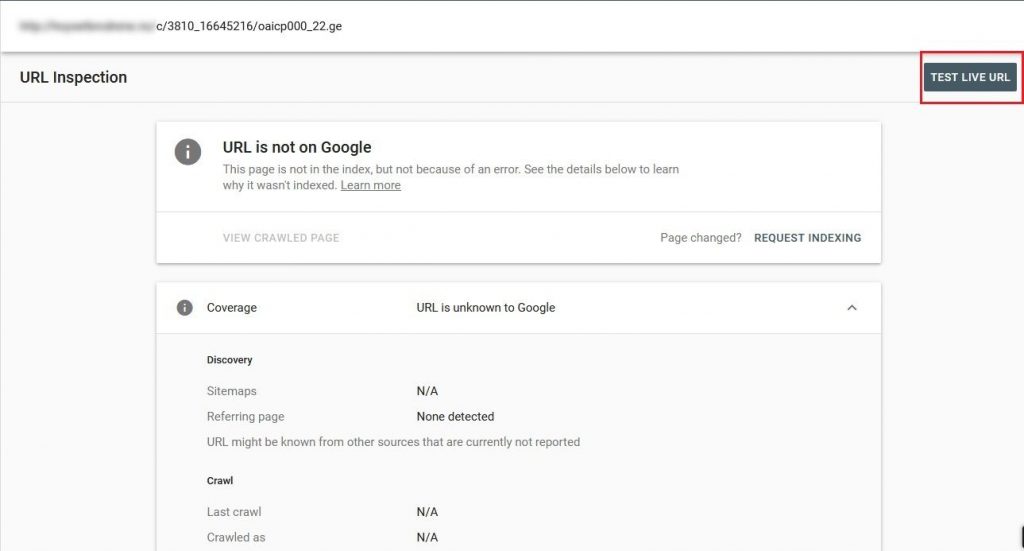
- Open Google Search Console and add your site. It is a free tool from Google. You must prove you own the site.
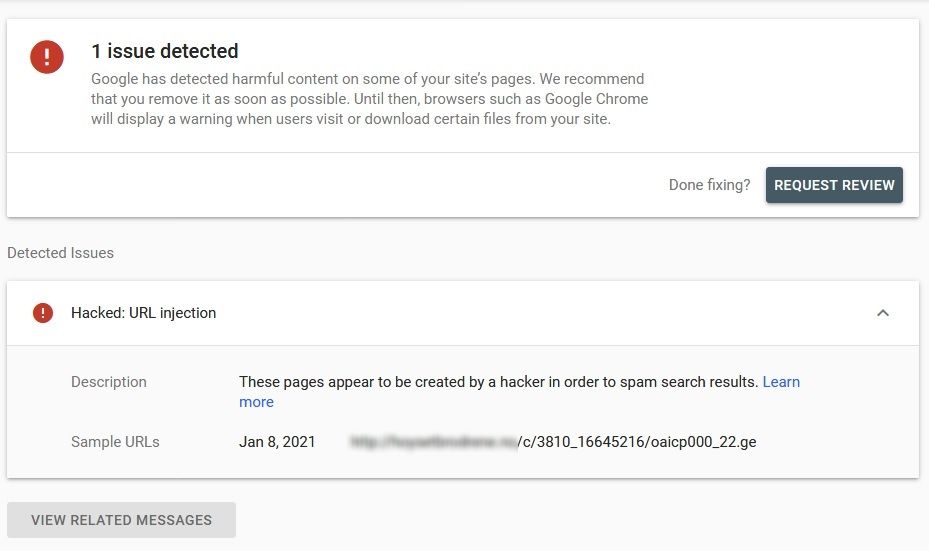
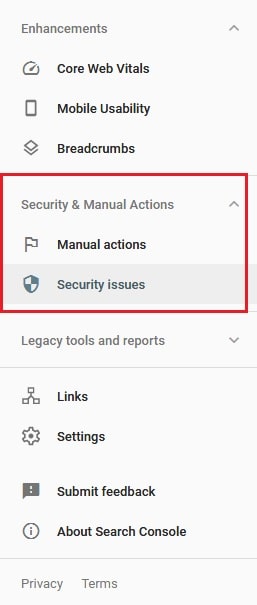
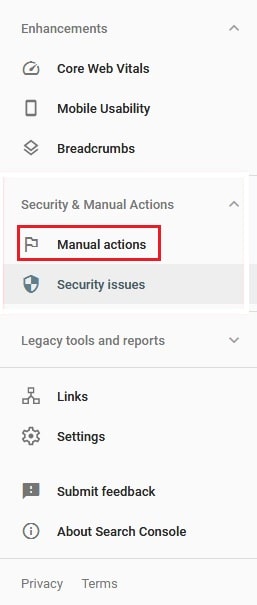
- Open the Security issues report. It tells you what Google found.
- Scan your site for malware (harmful code). Use a scanner in your control panel, a security plugin, or an online site scanner.
- Change your passwords: hosting, control panel, FTP, database and your site admin login. Use strong, new ones.
- Remove the bad files. Look for files you did not add, odd code inside your pages, and strange new users in your admin area.
- If you use WordPress or another CMS, update the core software, themes and plugins. Delete any you do not use.
- Look at your
.htaccessfile for redirects you do not recognise. Remove them. - If you are not sure, restore a clean backup from before the problem started.
- Check your pages for links to bad sites, fake login forms or pop-ups.
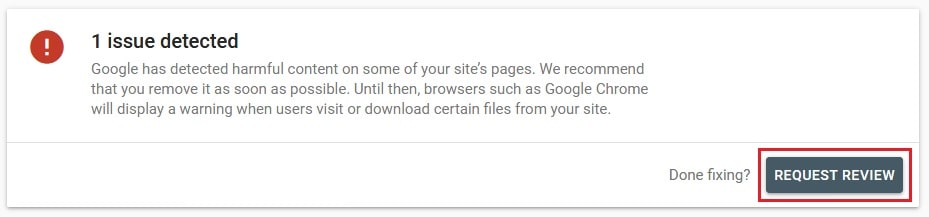
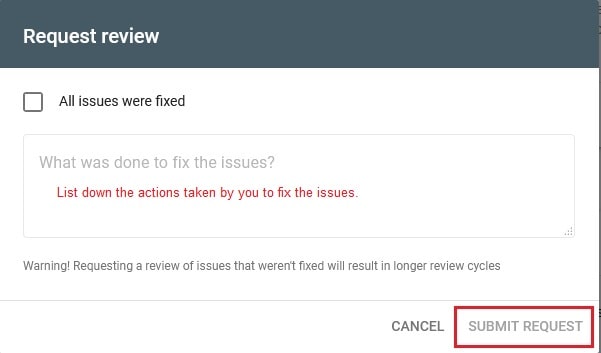
- Go back to the Security issues report and click Request a review. Write a short note on what you cleaned.
- Wait for Google's answer. It can take a few days. When approved, the warning goes away.
Keep it from coming back
- Keep all software up to date.
- Use strong, different passwords.
- Take regular backups.
- Use HTTPS (the padlock) on your site.
Tip: If you cannot find the bad files, open a ticket with Hostvento support on the ticket page. Ask what they can check on your account.
Quick recap
- The warning means a browser thinks your site is unsafe.
- Find and remove malware and unknown files.
- Change all passwords and update software.
- Request a review in Google Search Console.