

What is a cache?
A cache is a saved copy. When Google visits your pages, it keeps a snapshot of what it saw. Think of it as a photo of your page. If the real page is gone, the photo may still help you rebuild it. The copy may be old, and it may be missing images or styles. Google has also been phasing out its "Cached" link, so it may not be offered for every page.
Steps to find the saved copy
- Open Google in your browser.
- Type this in the search box, using your own page address:
cache:yourdomain.com/page-nameThis asks Google to show its saved copy of that page.
- If that does not work, search for
site:yourdomain.com page title.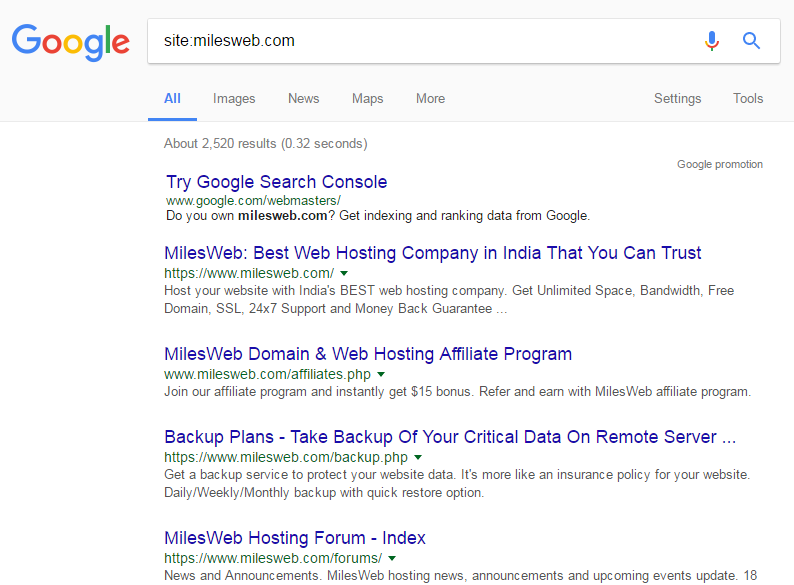
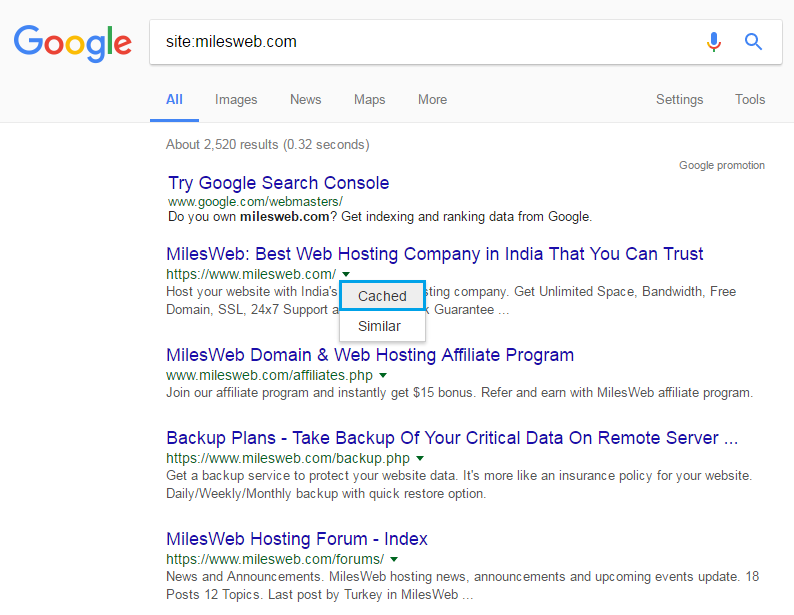
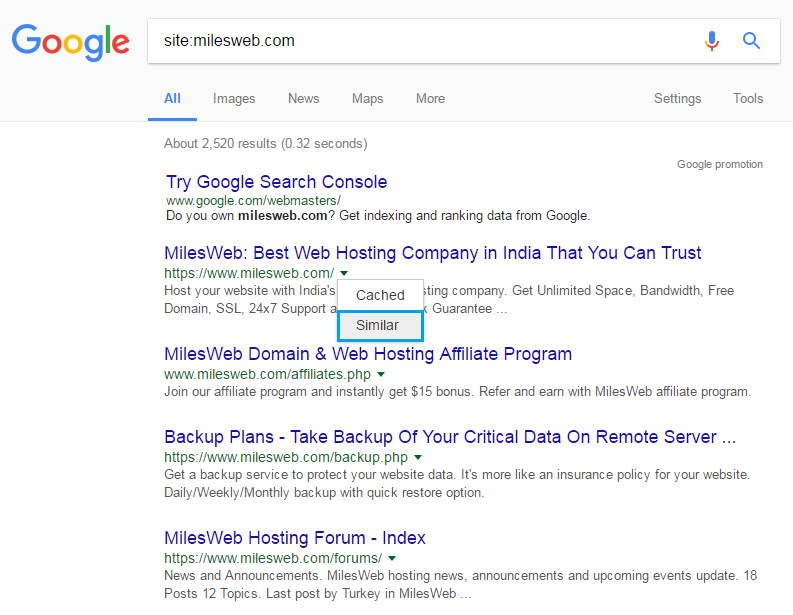
- Find your page in the results. Click the small three dots or arrow next to the address.
- If you see a Cached option, click it.
Steps to save the content
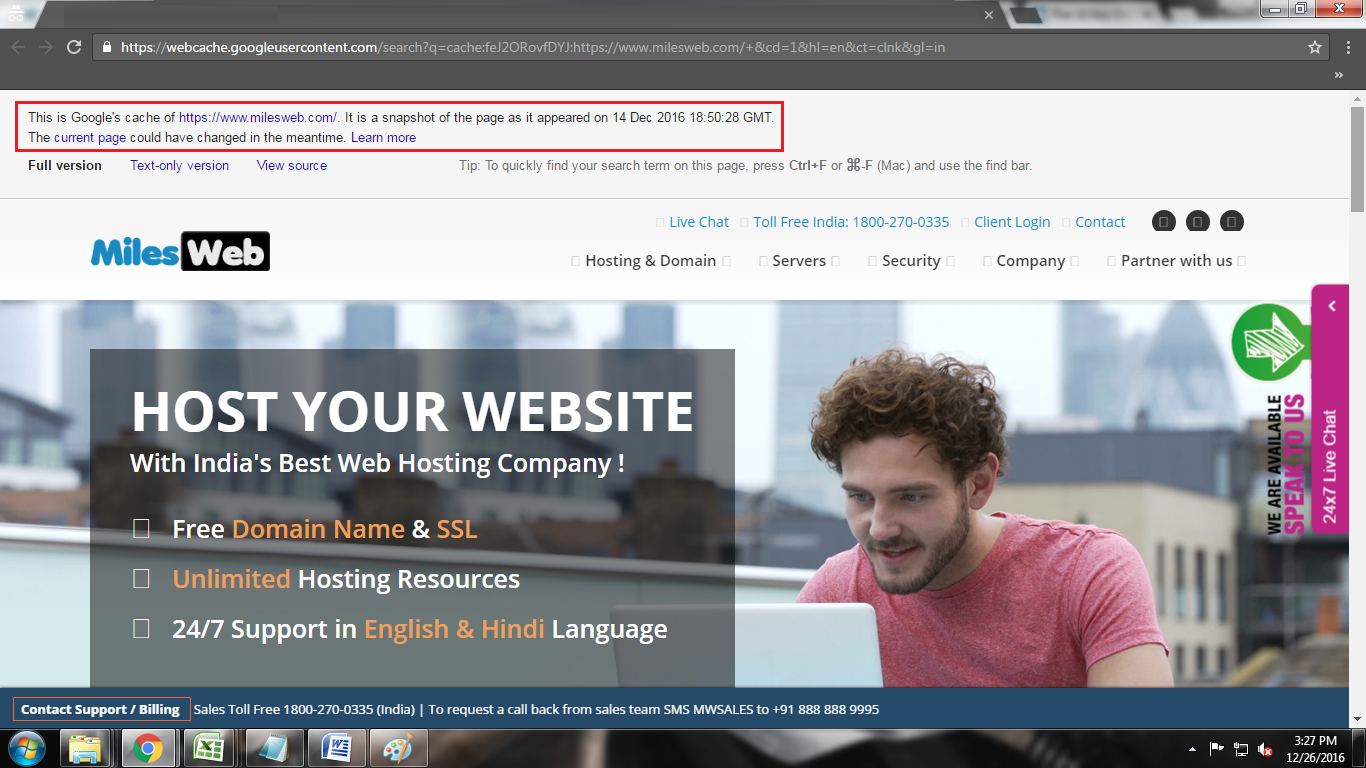
- When the saved page opens, read the date at the top. It tells you when Google took the copy.
- Select the text with your mouse and copy it with Ctrl + C.
- Paste it into a text editor or your website editor.
- For images, right-click each one and choose Save image as. Images may not always load.
- Rebuild the page in your site editor and publish it.
If Google has no copy
- Check your own backups first. This is the best way. Look in your control panel's backup tool or ask Hostvento support whether a backup exists on your plan.
- Try the Wayback Machine at archive.org. It keeps old copies of many sites.
- Try a search engine such as Bing, which can also hold saved copies.
Tip: Do not rely on cache as a backup. Set up regular backups so you never need this trick.
Quick recap
- A cache is a saved snapshot of a page.
- Search
cache:yourpagein Google to find it. - Copy the text and save the images, then rebuild the page.
- If nothing is found, use a backup or archive.org.