

Why use keys
Passwords can be guessed or stolen, and servers are attacked by bots all day. An SSH key pair is much stronger. The private key stays on your computer and the public key goes on the server. Nobody can log in without the private key.
Step 1: Create a key pair on your computer
ssh-keygen -t ed25519 -C "you@example.com"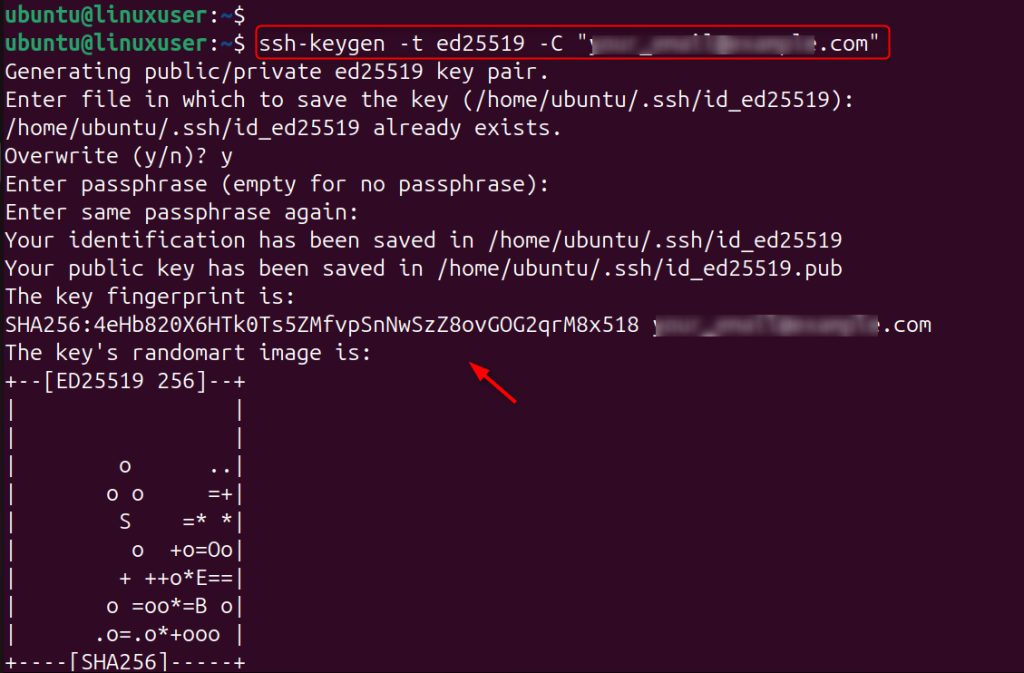
Press Enter to accept the default file. Set a passphrase for extra safety.
Step 2: Copy the public key to the server
ssh-copy-id user@your_server_ip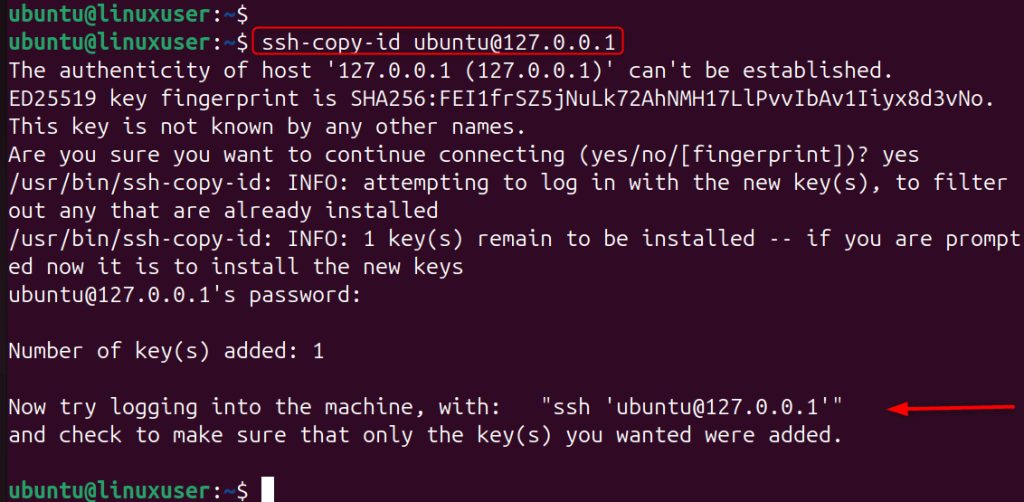
If ssh-copy-id is not available:
cat ~/.ssh/id_ed25519.pub | ssh user@your_server_ip "mkdir -p ~/.ssh && chmod 700 ~/.ssh && cat >> ~/.ssh/authorized_keys && chmod 600 ~/.ssh/authorized_keys"Step 3: Test the key login
ssh user@your_server_ip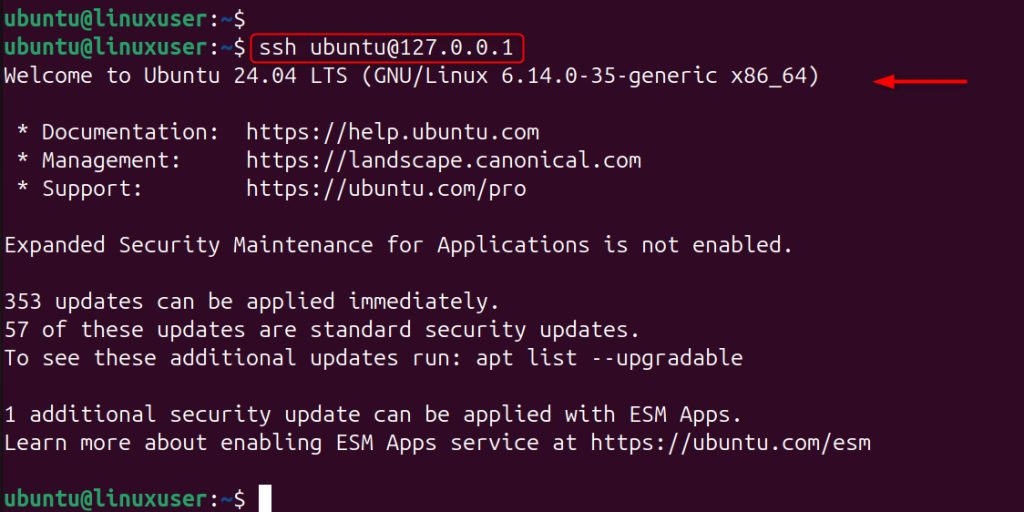
It should log in without asking for the account password (it may ask for the key passphrase).
Step 4: Turn off password login
Only do this after the key login works.
sudo nano /etc/ssh/sshd_configSet these lines (remove the # if there is one):
PasswordAuthentication no
PubkeyAuthentication yes
KbdInteractiveAuthentication no
PermitRootLogin prohibit-password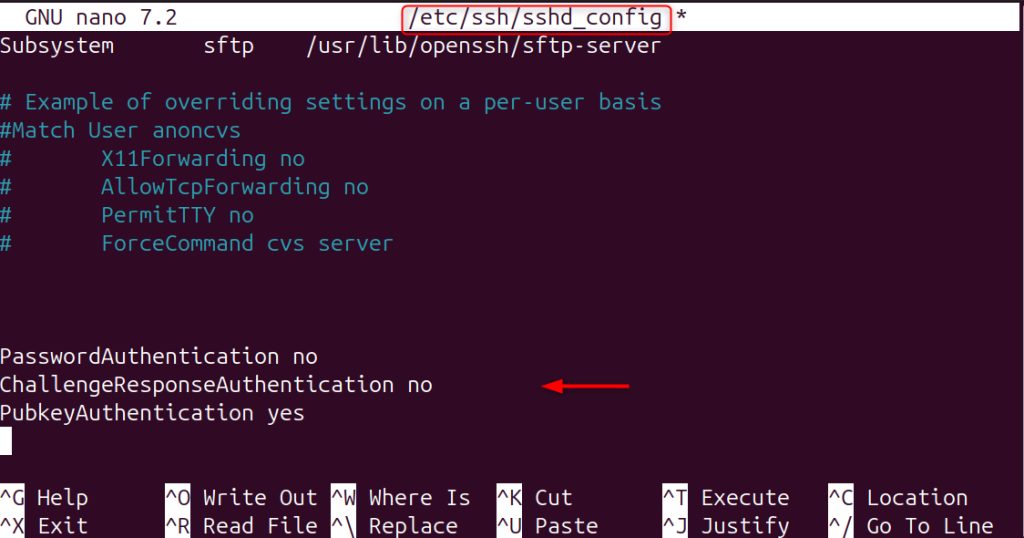
Check the file and restart SSH:
sudo sshd -t
sudo systemctl restart sshd
(On Ubuntu the service can be called ssh.) Open a new session to test before you close the old one.
Step 5: Add two-factor authentication (optional)
Install Google Authenticator for PAM
sudo apt install libpam-google-authenticator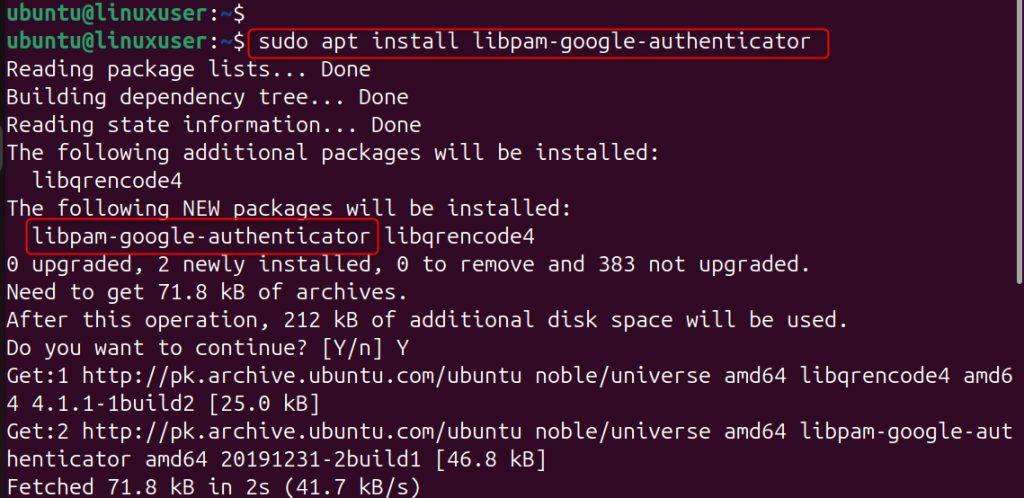
Create your secret
Run as the user who logs in:
google-authenticator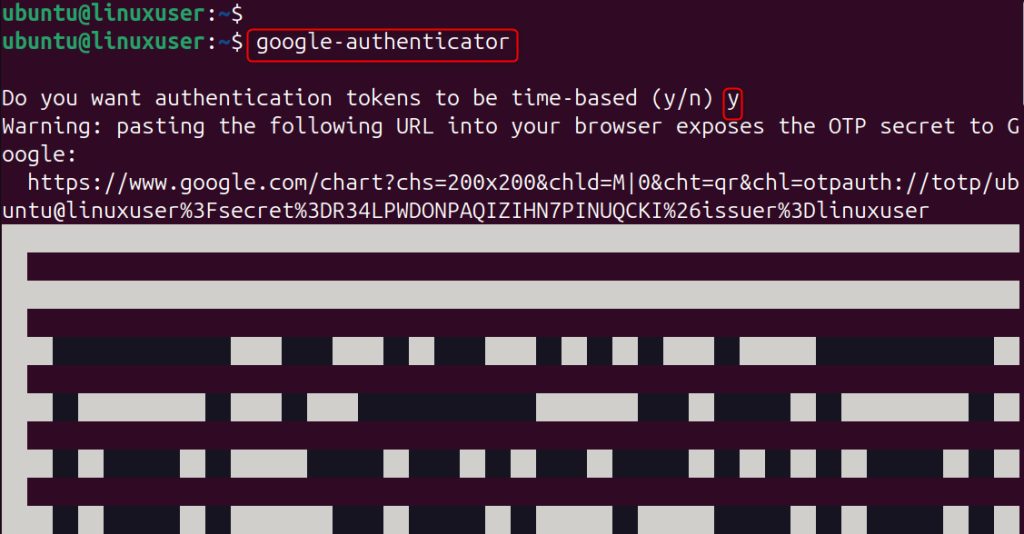
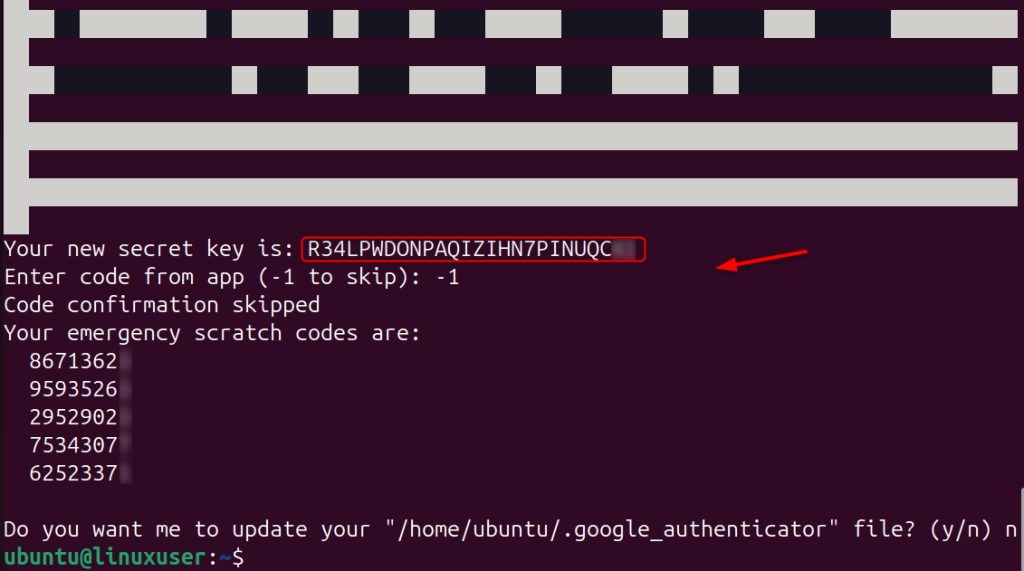
Scan the QR code with an authenticator app and answer the questions (answer y to the time-based tokens and to update the file).
Save the backup codes in a safe place.
Tell PAM to ask for the code. Edit /etc/pam.d/sshd and add:
auth required pam_google_authenticator.so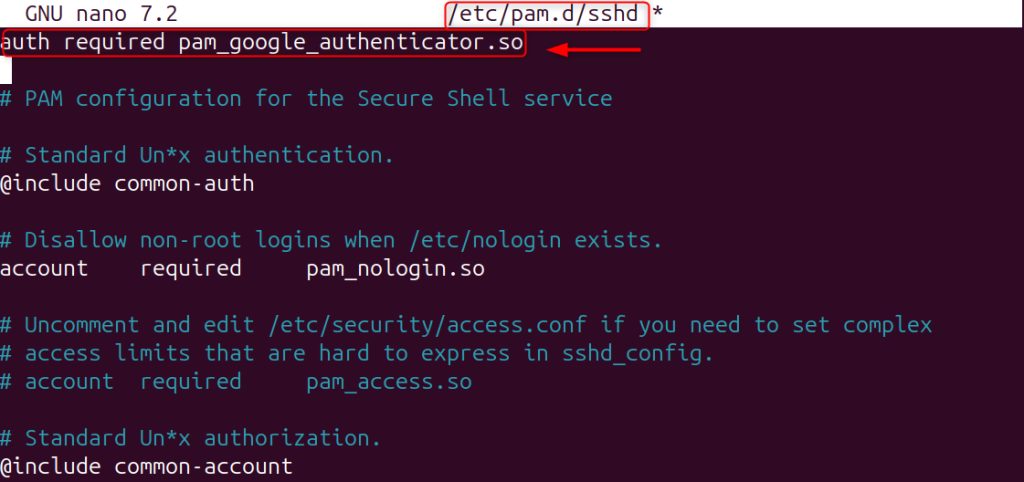
Turn it on in SSH. In /etc/ssh/sshd_config set:
KbdInteractiveAuthentication yes
UsePAM yes
AuthenticationMethods publickey,keyboard-interactive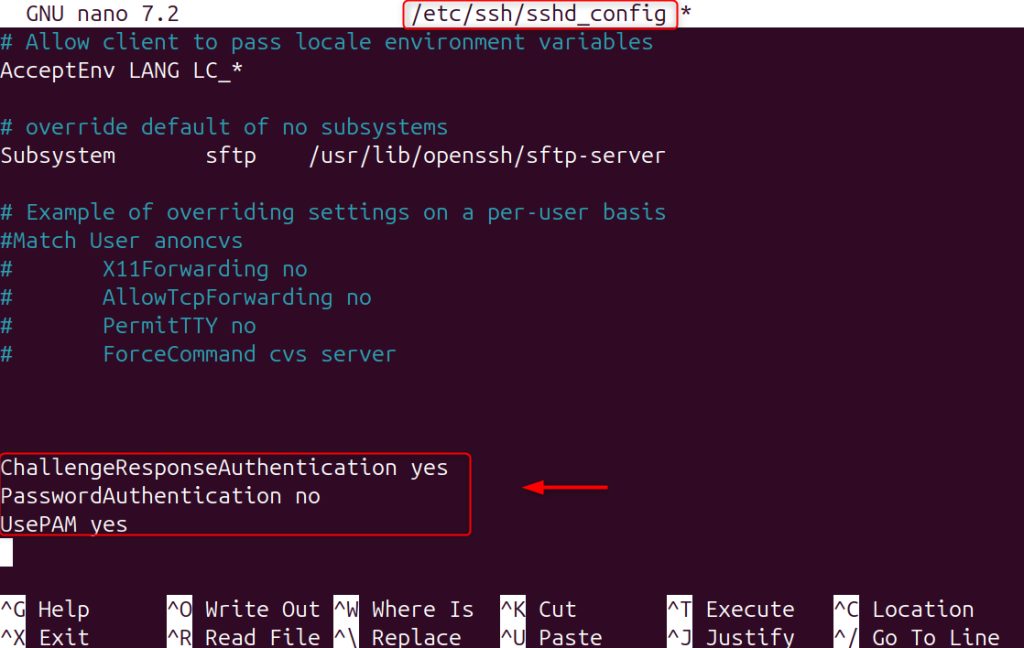
Restart SSH:
sudo systemctl restart sshd
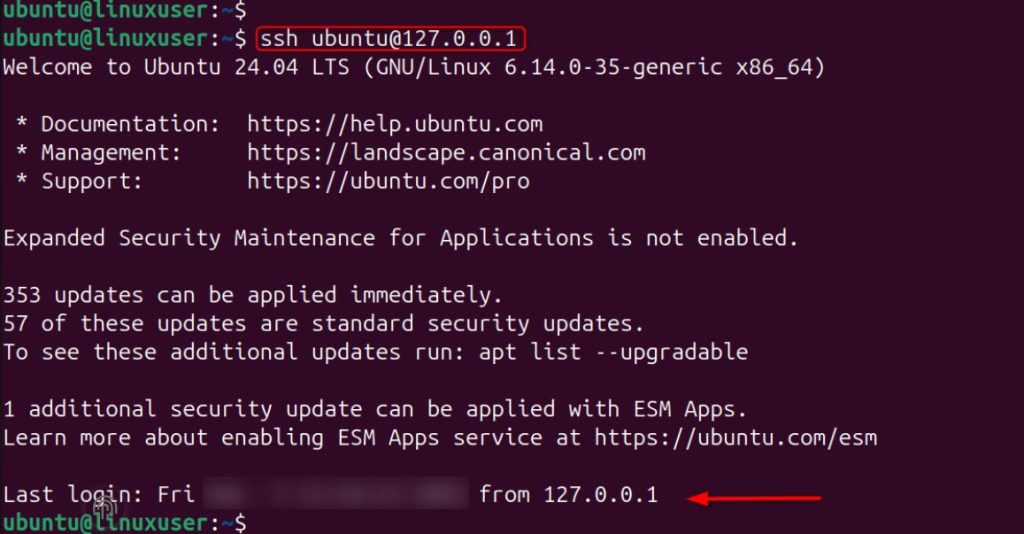
Test the login. You must now use the key and the 6-digit code.
Step 6: Change the default port (optional)
A different port reduces the noise from bots. It does not replace the other steps.
sudo nano /etc/ssh/sshd_configPort 2222
Open the new port in the firewall first (step 7), then restart:
sudo systemctl restart sshd
Connect with ssh -p 2222 user@your_server_ip.
Step 7: Firewall rules
With UFW:
sudo ufw allow 2222/tcp
sudo ufw enable
sudo ufw status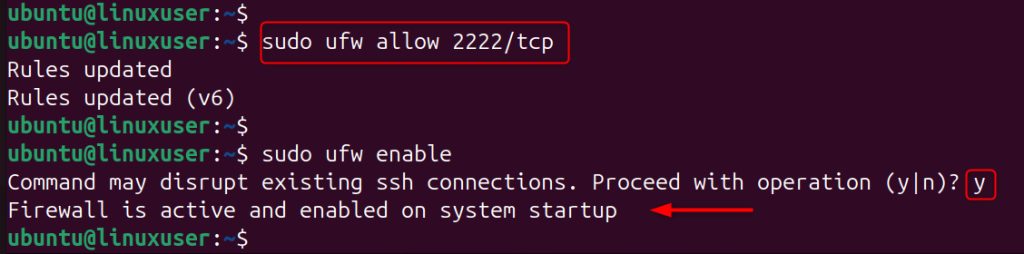
After you confirm that the new port works, remove the old rule with sudo ufw delete allow 22/tcp.
Step 8: Install Fail2Ban
Fail2Ban bans addresses that fail to log in many times.
sudo apt install fail2ban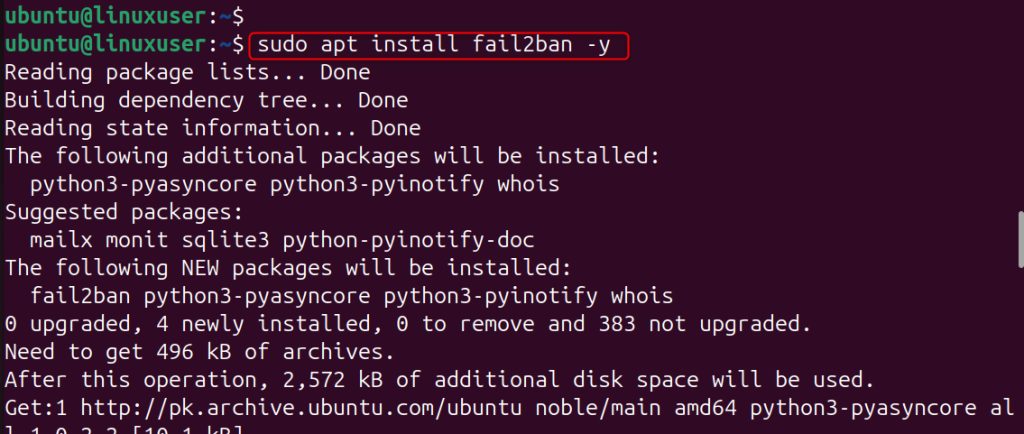
Create /etc/fail2ban/jail.local:
[sshd]
enabled = true
port = 2222
maxretry = 5
bantime = 1h
Start it:
sudo systemctl enable --now fail2ban
Check the bans with sudo fail2ban-client status sshd.
Quick recap
- Use ed25519 keys, turn off passwords and root password login.
- Add 2FA, a firewall and Fail2Ban for more safety.