

What is Leech Protect?
Sometimes people share a username and password for a private area of your site with other people. This is called "leeching". Many people then use one account, and your server gets busy for free. Leech Protect watches for this. If one login is used from too many places, it can redirect the user or send you a message and suspend the account.
cPanel is the control panel where you manage your hosting. Find the login link in your client area or your welcome email.
Before you start
Leech Protect only works on folders that already have a password. This is done with Directory Privacy, which asks for a username and password before showing a folder. Set that up first if you have not.
- In cPanel, click Directory Privacy.
- Open the folder you want to protect.
- Tick Password protect this directory, give it a name and click Save.
- Add a user with a strong password and click Save.
Steps to turn on Leech Protect
- Go back to the cPanel home page.
- In the Security section, click Leech Protection. If you do not see it, ask Hostvento support whether it is on your plan.

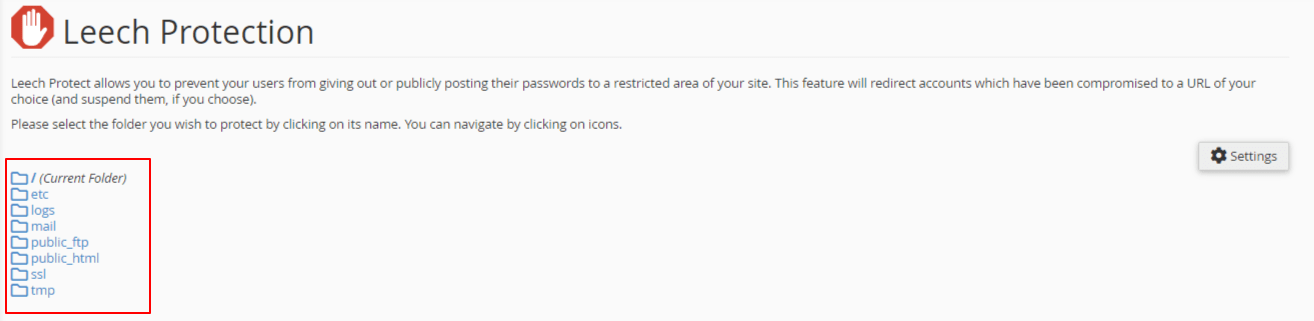
- Click the folder you want to protect.
- In Number of logins allowed within a two-hour period, type a number. For example, 4 means a user can log in only from a few places in two hours.
- Tick Send the Email to and type your email address if you want a warning.
- In Redirect the Leech User to the following URL, type a page where the user should land. This is optional.
- Tick Disable Compromised Accounts if you want the account to be suspended.
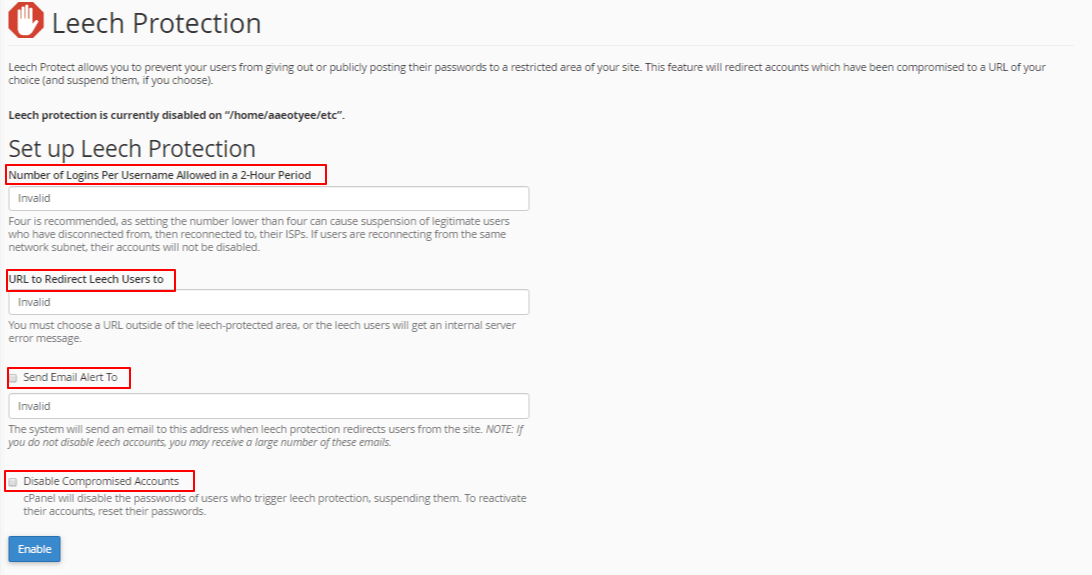
- Click Enable.
Steps to turn it off
- Open Leech Protection again.
- Click the folder.
- Click Disable.
Good to know
- Set the limit carefully. A very low number may block honest users who log in from their phone and laptop.
- If an account gets disabled, you can set a new password for that user in Directory Privacy.
Tip: Test with a user that you made on purpose, so you know how the warning looks.
Quick recap
- Leech Protect stops people from sharing a login.
- Protect the folder with Directory Privacy first.
- Open Leech Protection, set a login limit and click Enable.
- Choose an email alert and what happens to the account.