

Steps
- Check the current IPv6 setting. If IPv6 is on, the command prints addresses:
ip -6 addr show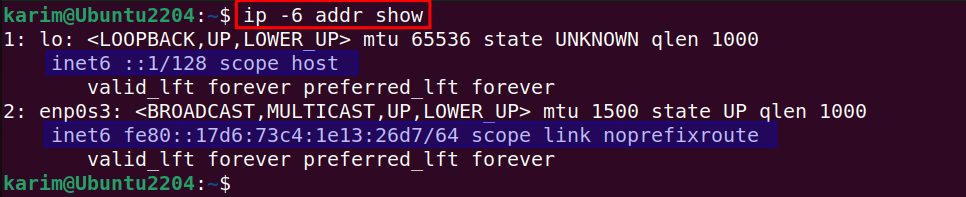
- Open the GRUB configuration file:
sudo nano /etc/default/grub
- Find the line that starts with
GRUB_CMDLINE_LINUX_DEFAULT. To disable IPv6, addipv6.disable=1inside the quotes:
GRUB_CMDLINE_LINUX_DEFAULT="ipv6.disable=1"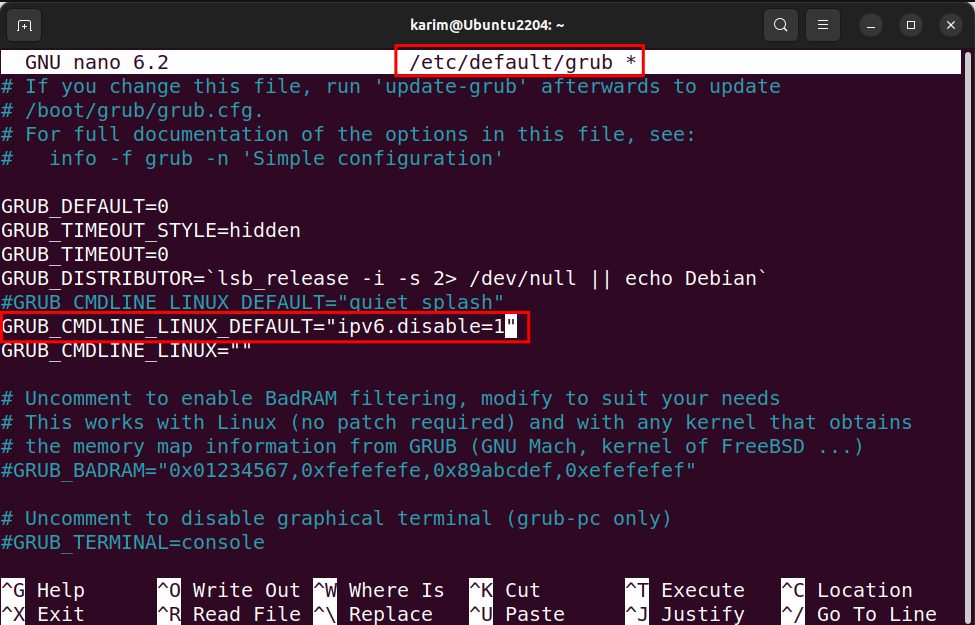
If the line already has other options, keep them and add the new one with a space, for example "quiet splash ipv6.disable=1".
To enable IPv6, use ipv6.disable=0 or remove the option:
GRUB_CMDLINE_LINUX_DEFAULT="ipv6.disable=0"- Save the file (
Ctrl + O,Enter,Ctrl + X) and update GRUB:
sudo update-grub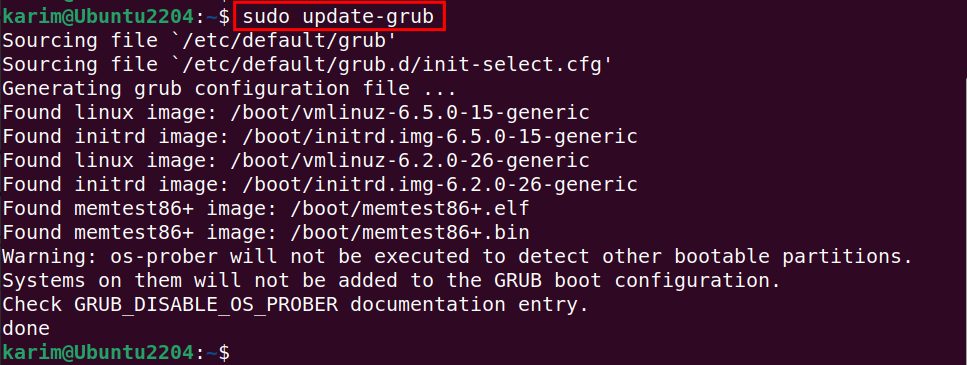
- Reboot:
sudo reboot
- Check again:
ip -6 addr show
When IPv6 is off, the command shows no inet6 addresses.
Without a reboot
You can switch IPv6 off at once with sysctl. This change is lost at the next boot unless you save it in /etc/sysctl.conf:
sudo sysctl -w net.ipv6.conf.all.disable_ipv6=1
sudo sysctl -w net.ipv6.conf.default.disable_ipv6=1
To turn it on again, set the values to 0.
Tip: Make a copy of
/etc/default/grub before you edit it, so you can go back if the server does not boot.Quick recap
- Edit
GRUB_CMDLINE_LINUX_DEFAULTin/etc/default/grub. - Run
sudo update-gruband reboot. - Verify with
ip -6 addr show.