

Why use remote desktop
Remote desktop lets you use the screen, files and apps of your Ubuntu machine from anywhere. It is helpful for admins who fix problems and for developers who work on a remote server.
Step 1: Update the system
sudo apt update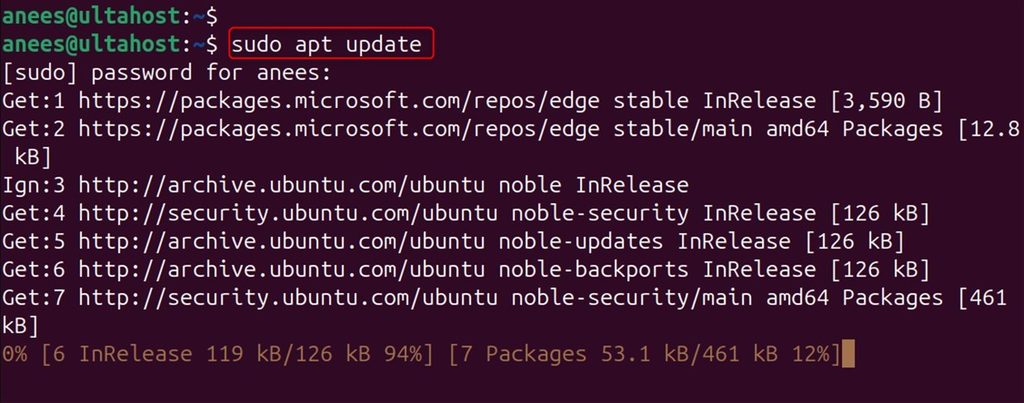
Step 2: Install xrdp
xrdp is a server for the Remote Desktop Protocol (RDP). Windows can connect to it with its built-in client.
sudo apt install xrdp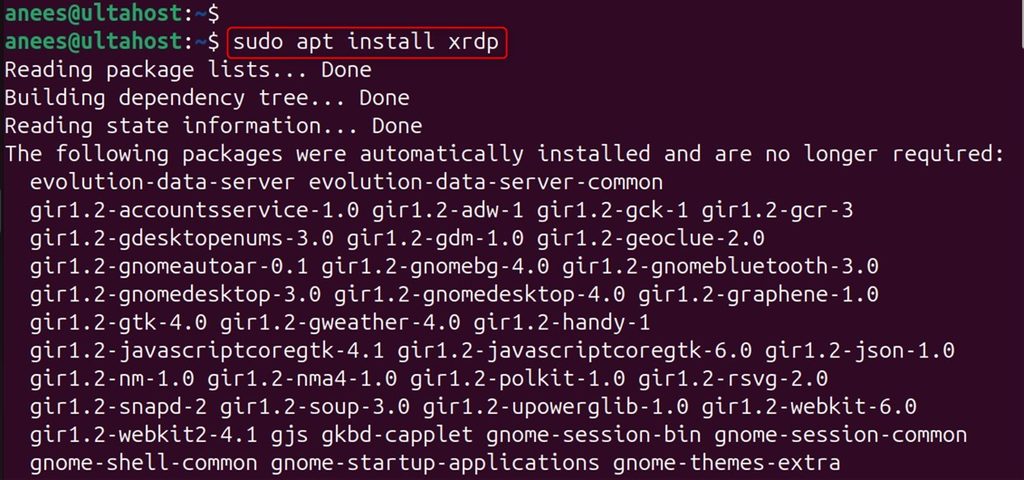
Start the service and make it start at boot:
sudo systemctl start xrdp
sudo systemctl enable xrdp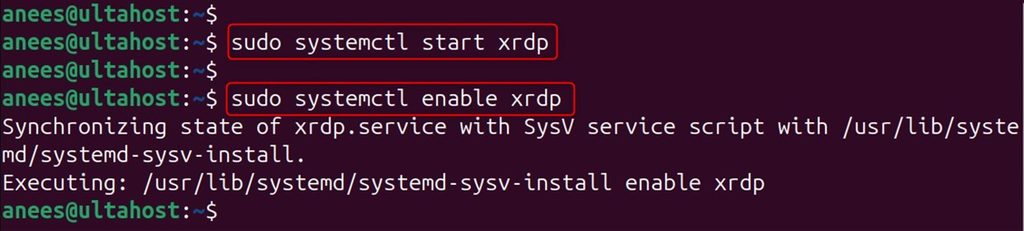
Step 3: Check the desktop sharing settings
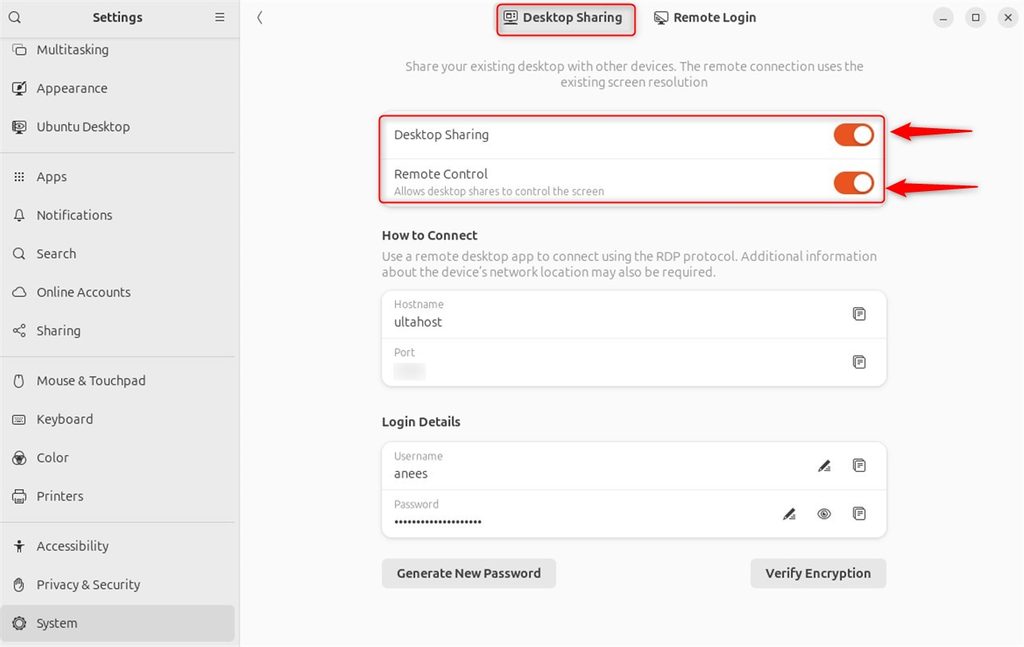
If you also want to share the desktop that is already on screen, open Settings on the Ubuntu machine. Go to System (or Sharing) and open Remote Desktop.
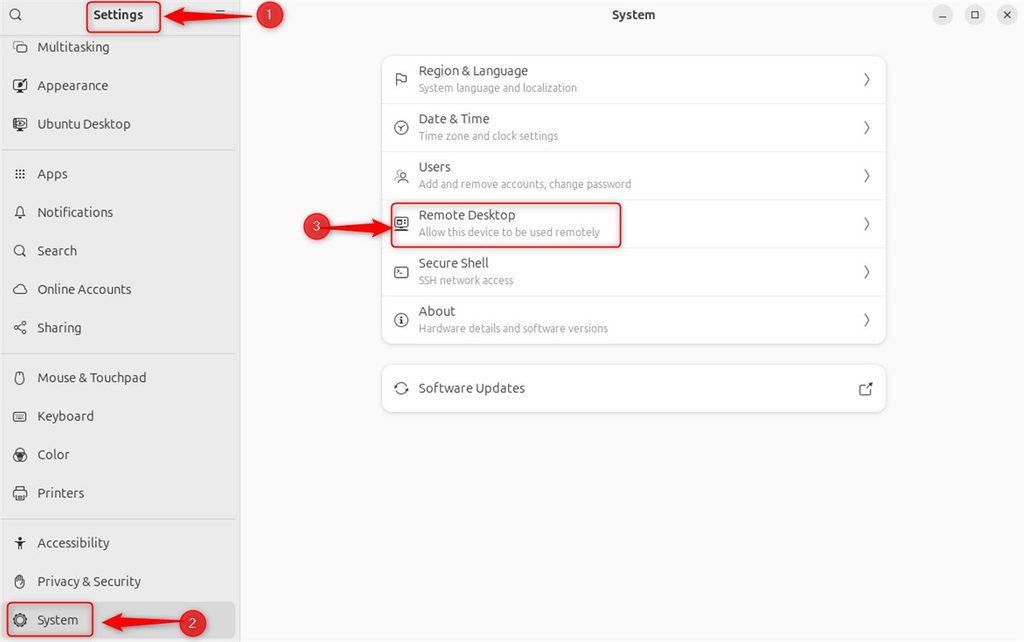
Turn on Desktop Sharing and Remote Control. You can also require a password for access.
Step 4: Open the firewall
xrdp uses port 3389. If UFW is on, allow it:
sudo ufw allow 3389/tcp
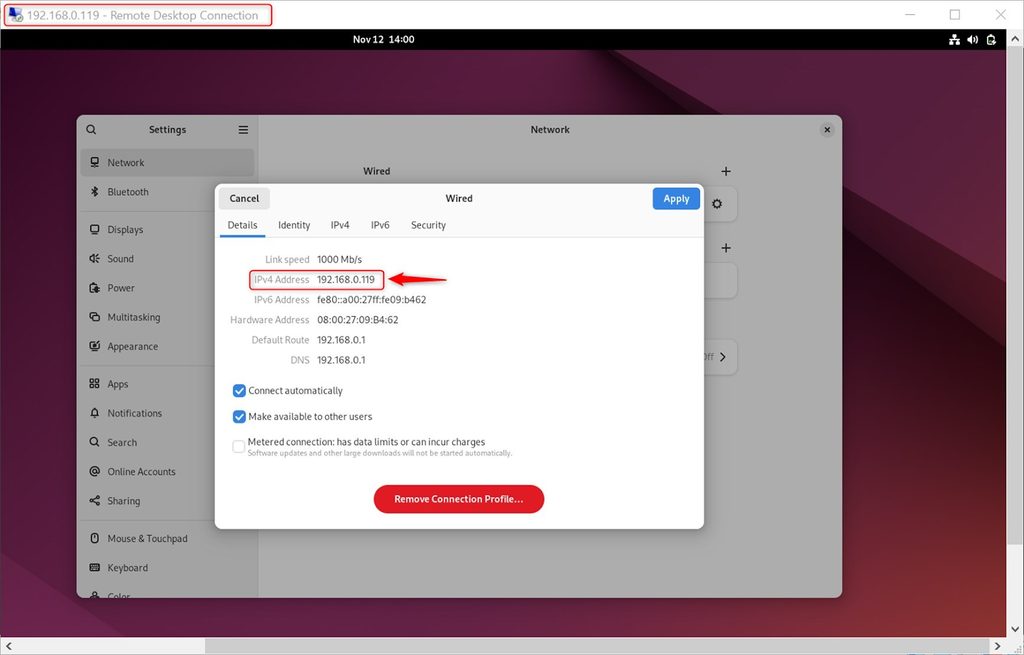
Find the IP address of the machine:
ip a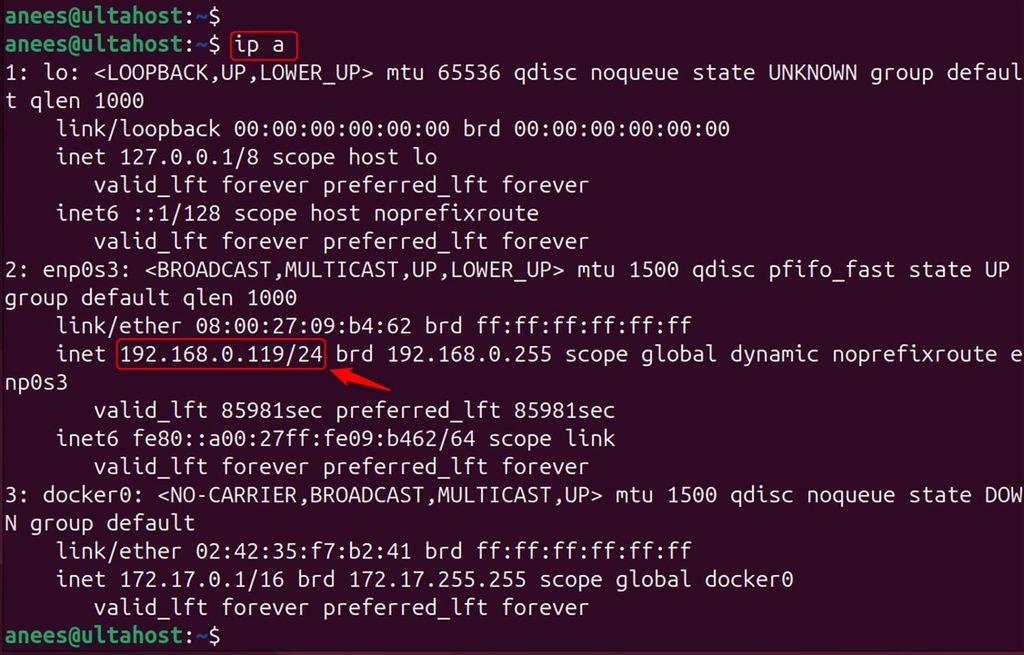
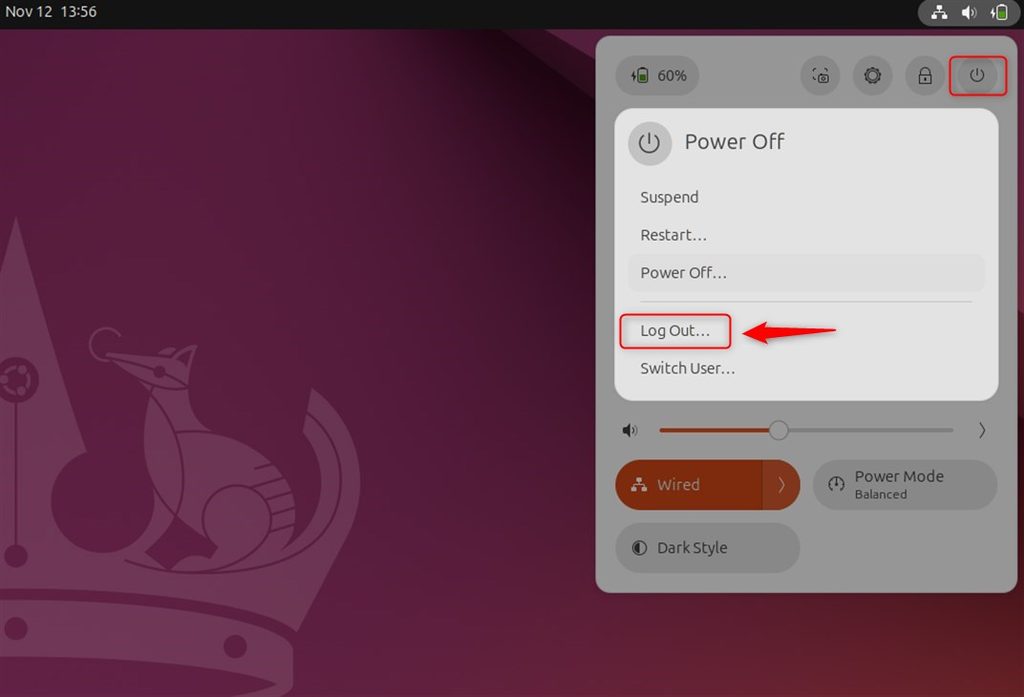
Log out of the Ubuntu desktop session. xrdp cannot open a session for a user who is already logged in on the screen.
Step 5: Connect
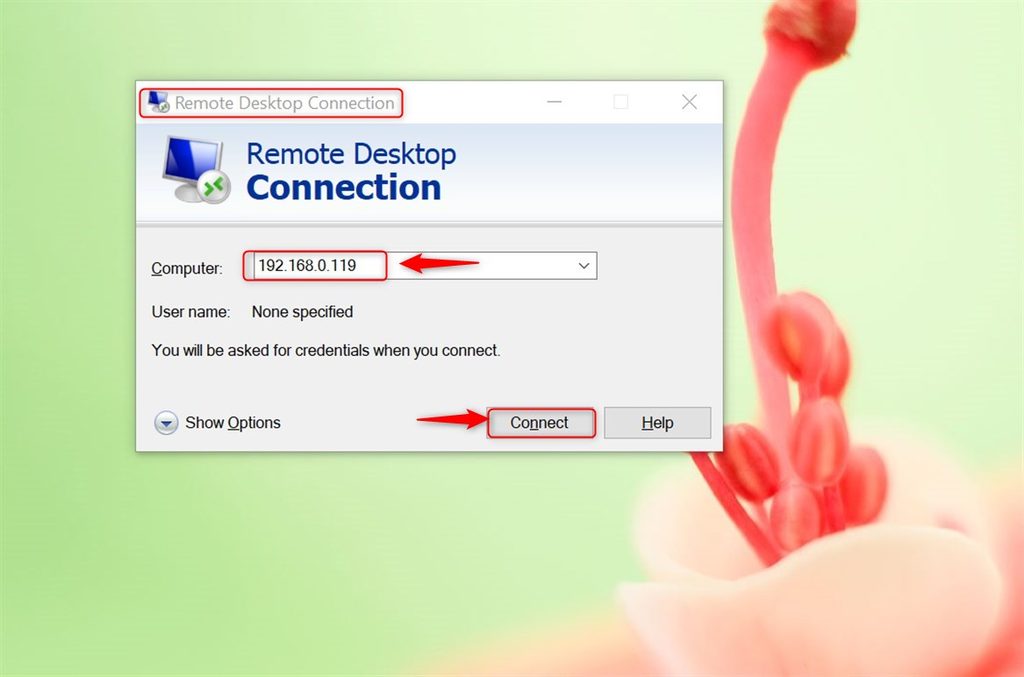
- On a Windows computer, open Remote Desktop Connection. Type the IP address of the Ubuntu machine and click Connect.
- In the xrdp login window, enter your Ubuntu user name and password.
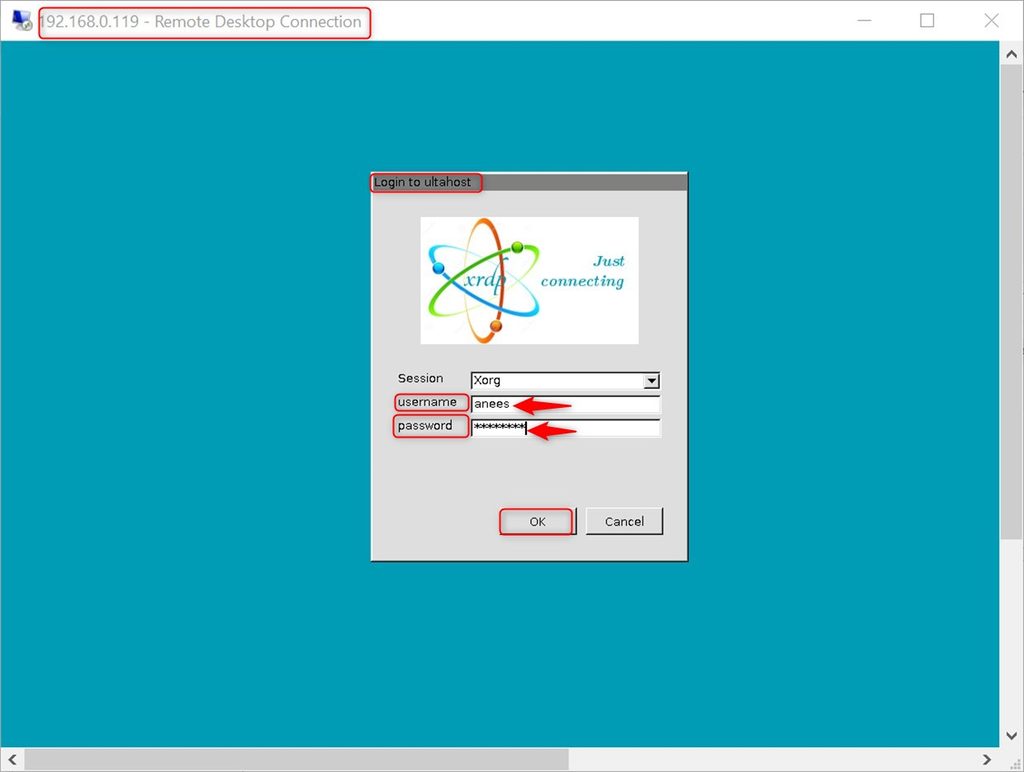
- The Ubuntu desktop opens.
Quick recap
- Install and enable
xrdp. - Allow port 3389 in the firewall.
- Log out locally and connect with Remote Desktop Connection.