

What are user policies?
Moodle is a program for running online courses. Every person on a Moodle site has a role. A role is like a job badge. It decides what the person may see and do. A student badge lets you take lessons. A teacher badge lets you build them.
User policies are site-wide rules about which badges people get by default. You set them once, and they apply to the whole site.
Be careful: Giving a role too much power can let strangers change your site. Change one setting at a time. Write down the old value first so you can go back.
Steps
- Log in to Moodle as an administrator.
- Open Site administration. In newer versions it is in the left drawer. In older versions it is in the block on the side.
- Click the Users tab.
- Under Permissions, click User policies.
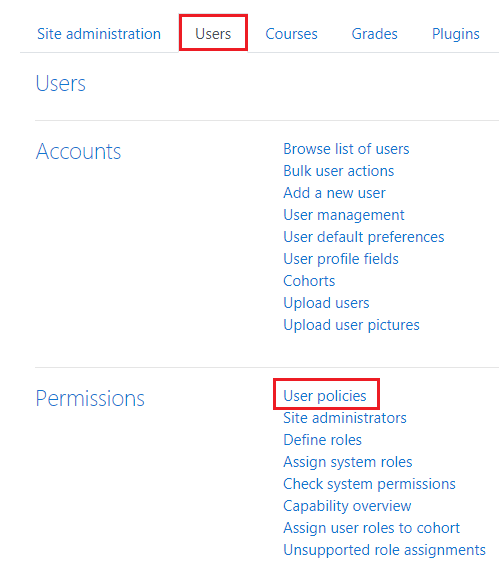

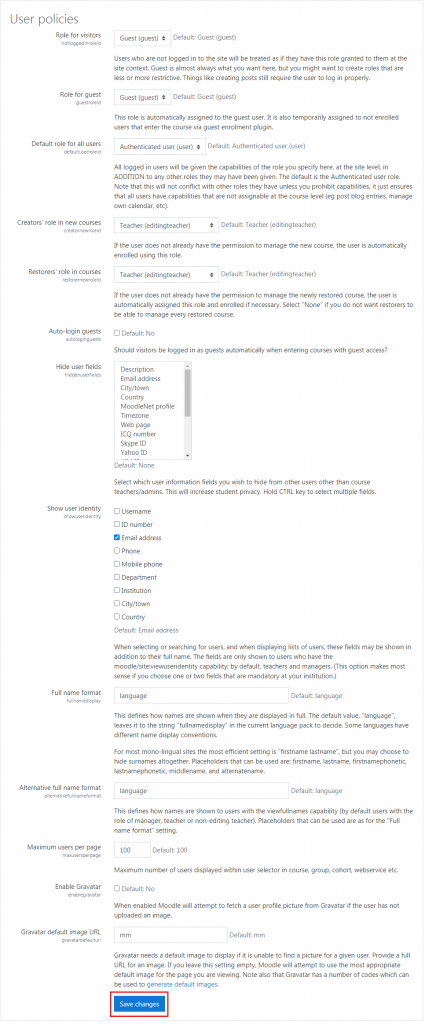
- Find the setting Role for visitors. This is the role used by people who are not logged in. The usual choice is Guest.
- Find Default role for all users. Every logged-in person gets this role on the whole site. Keep it as Authenticated user unless you know why to change it.
- Find Creators' role. This is the role given to people who may create courses.
- Find New course creator role or similar settings. These control the role given to someone who makes a new course.
- Look at the other options on the page, such as who can see hidden user details. Read the short help text under each one.
- Scroll to the bottom and click Save changes.
The exact list of settings changes a little between Moodle versions. If a name is not the same as here, read the help text next to each setting.
Check your work
- Open your site in a private browser window. This shows what a visitor sees.
- Try a course. Make sure visitors see only what you want.
- Log in with a test student account and check again.
Tip: To change what a role can do, use Users, then Permissions, then Define roles. That is a different page from user policies.
Quick recap
- A role decides what a person can do in Moodle.
- User policies pick the default roles for visitors and members.
- Find them at Site administration, Users, Permissions, User policies.
- Change one setting at a time and click Save changes.
- Test as a visitor and as a student.