

Pages and posts are different
WordPress is a program for building websites. It has two main kinds of content. A post is a dated article, like a news item. A page is a fixed part of your site, like About us, Contact or Services. Pages are not sorted by date.
Create a new page
- Log in to your WordPress dashboard. This is your control room. The address is usually your site name plus
/wp-admin. - In the left menu, click Pages.
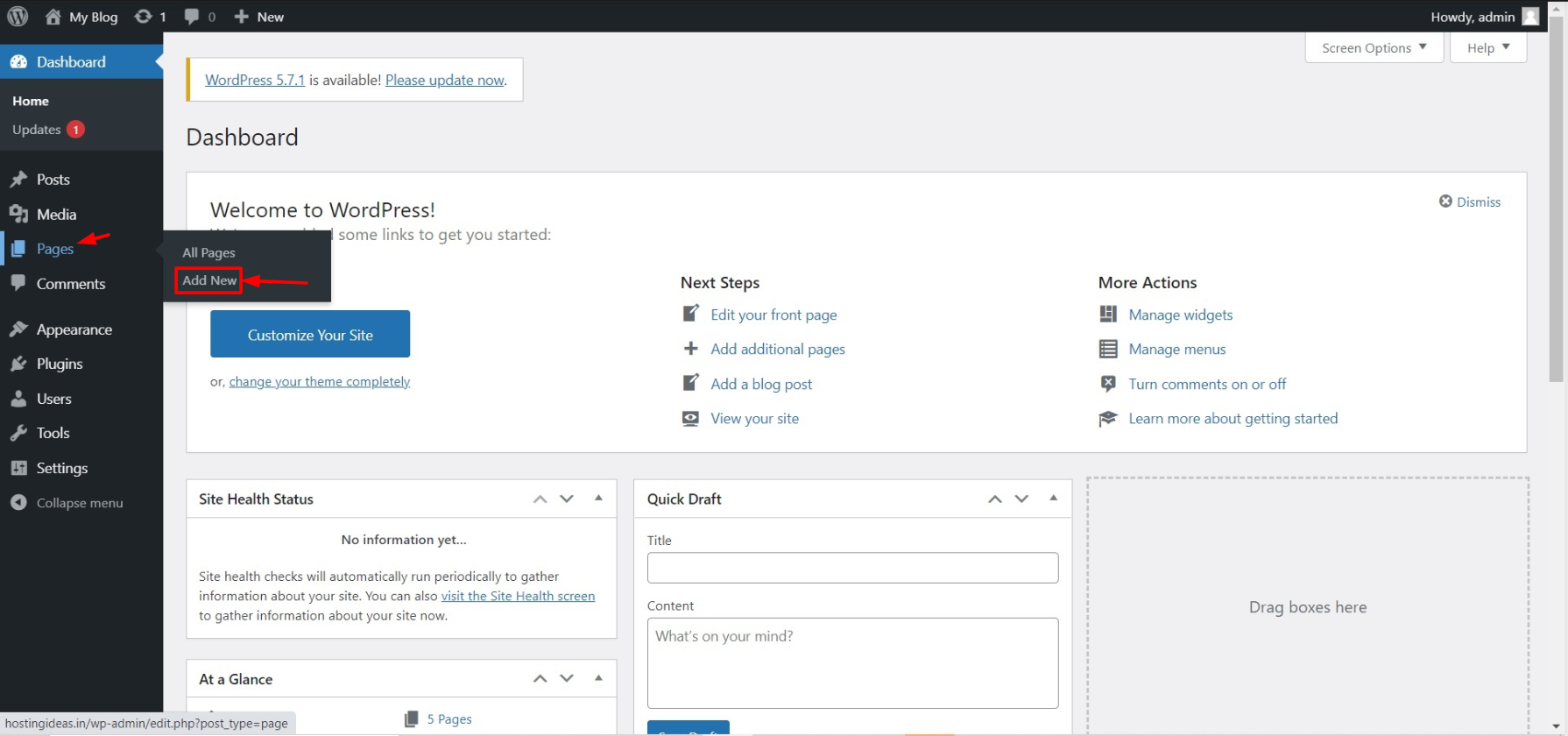
- Click Add New.
- Type the page title in the box that says Add title.
- Click the body area and type your text.
- Click the + button to add more blocks. A block is one piece of the page, such as a picture, a heading or a button.
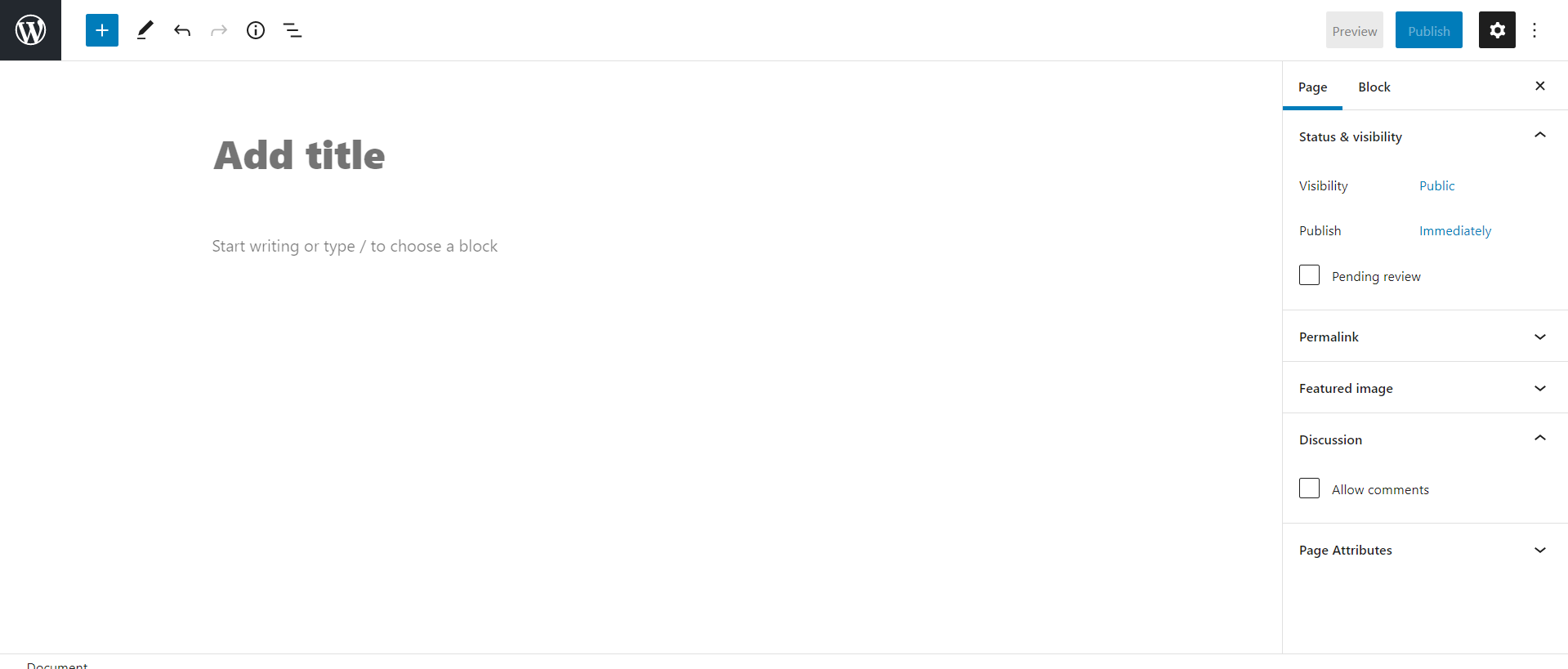
- Open the settings panel on the right. Under Page Attributes, you can choose a template. A template is a ready-made layout from your theme.
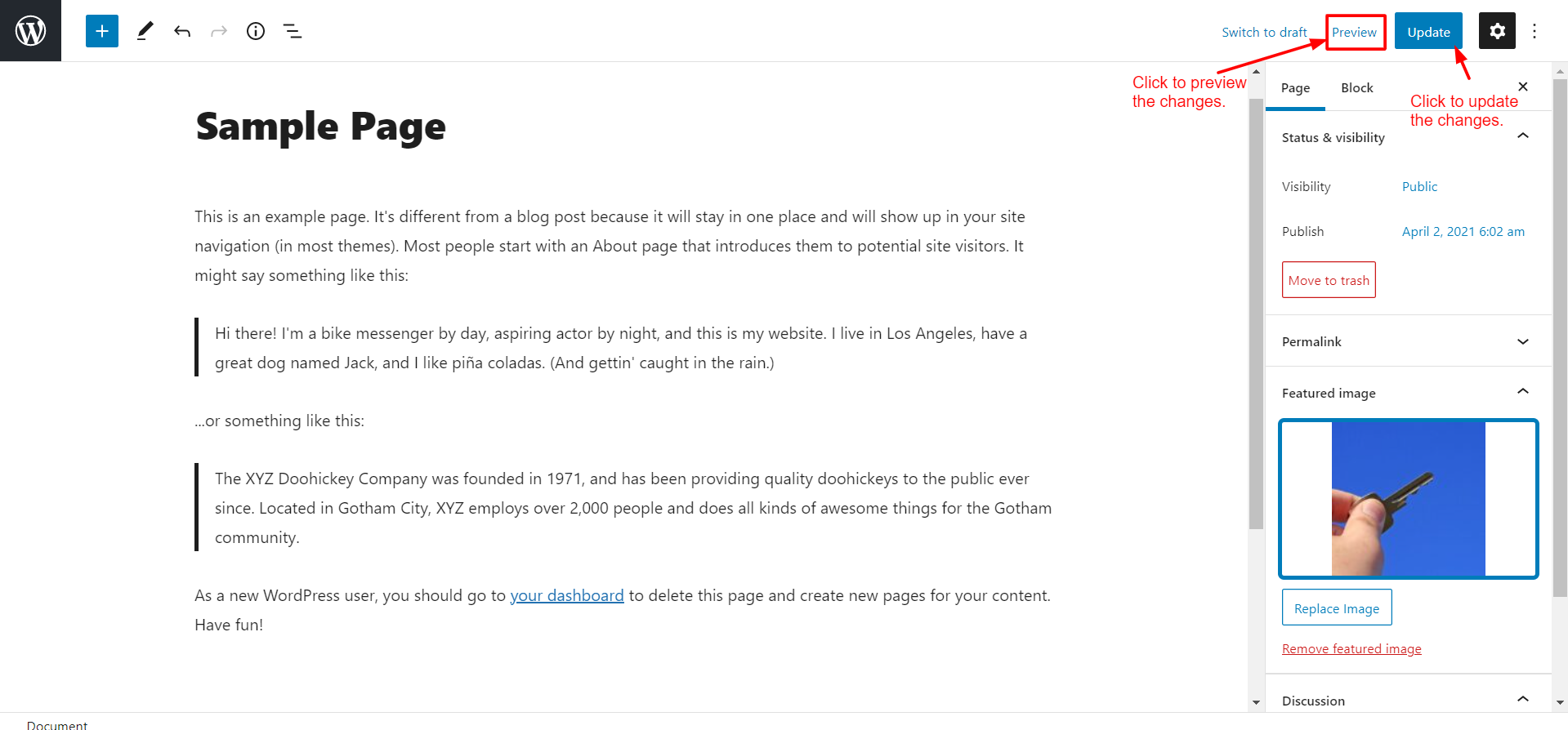
- Click Preview to see the page before anyone else does.
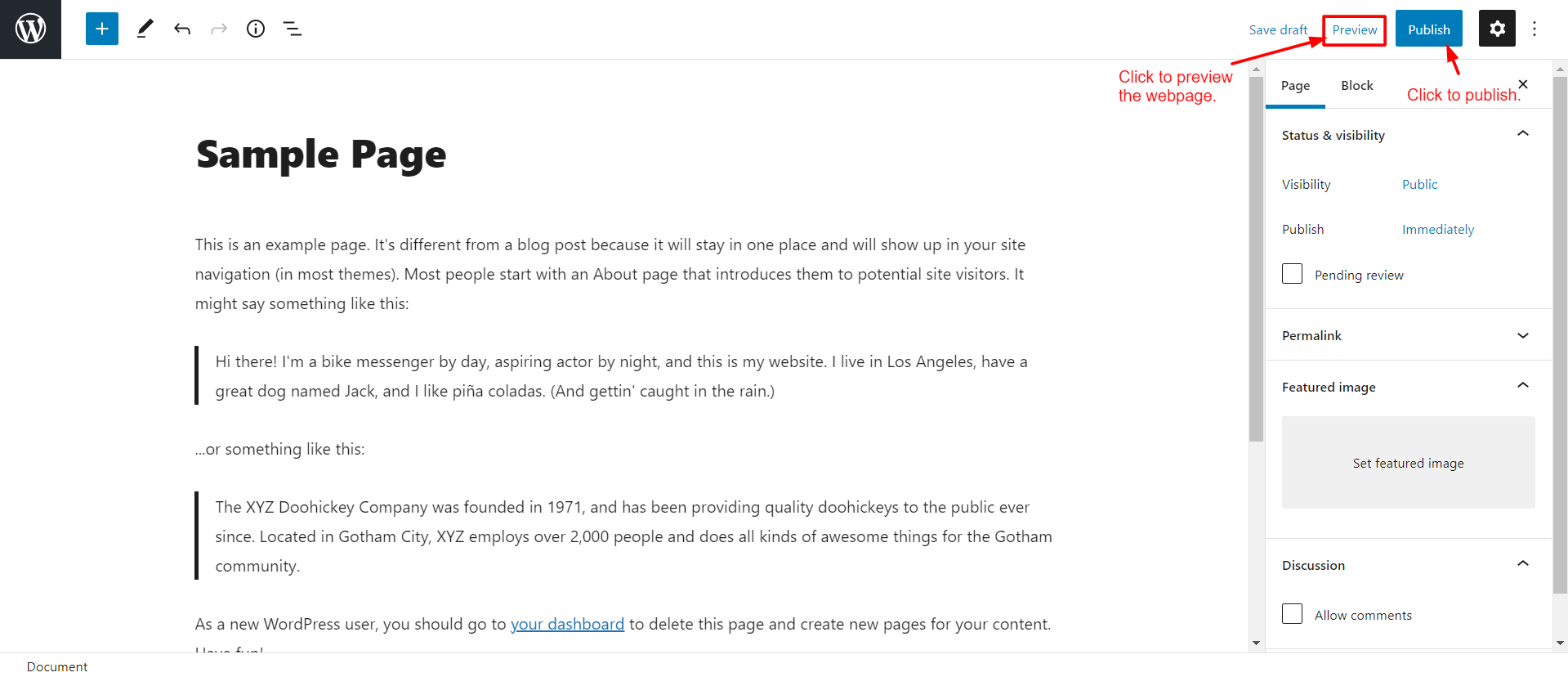
- Click Publish, then click Publish again.
Edit an existing page
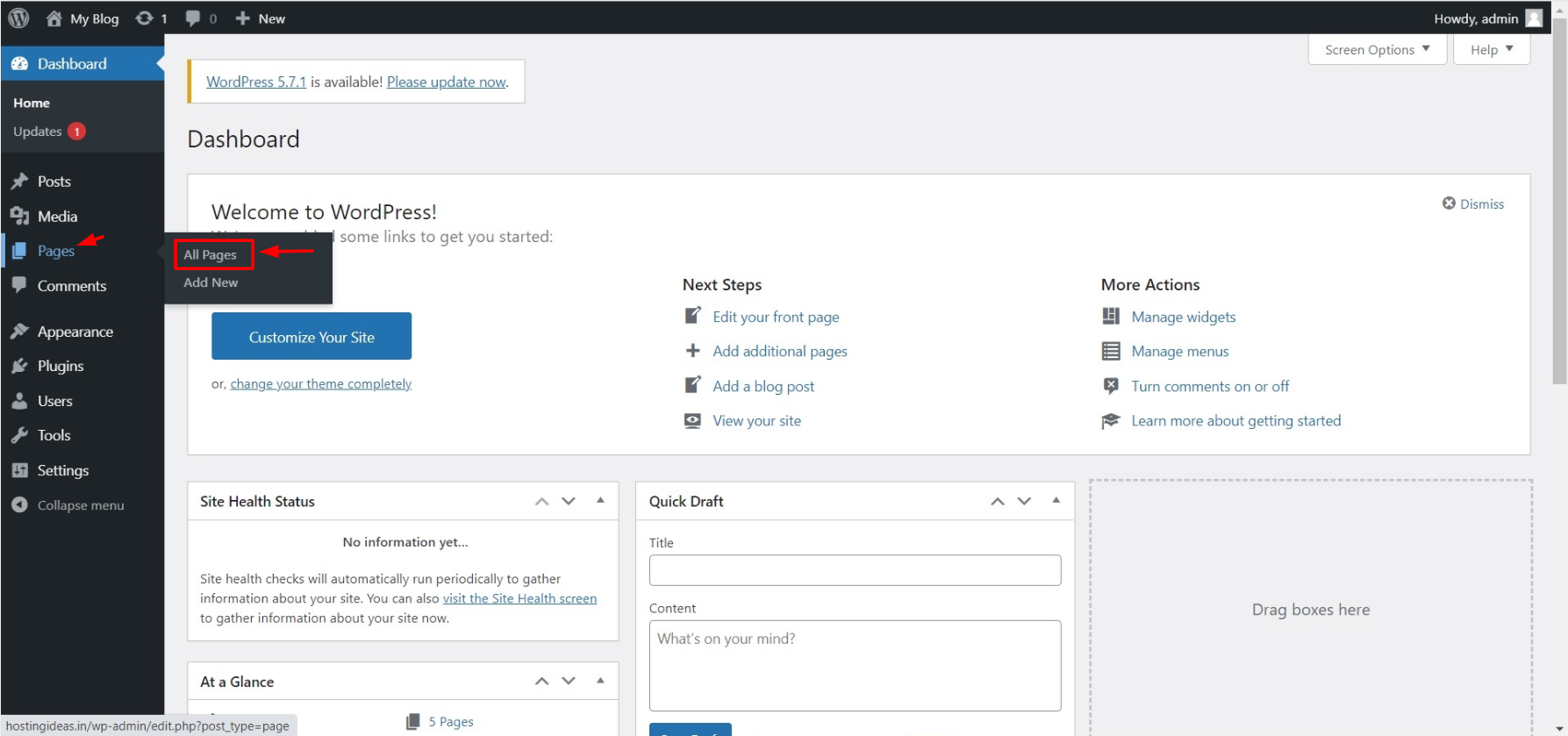
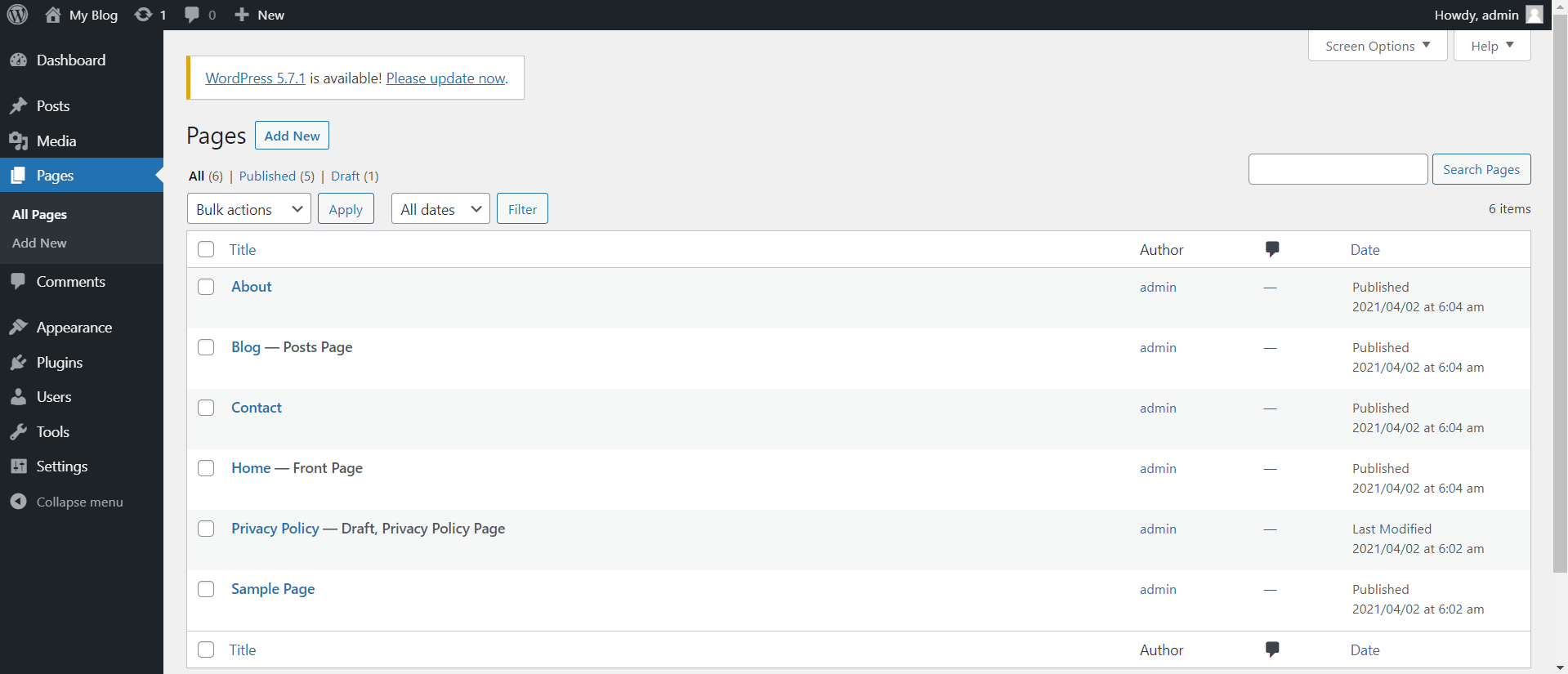
- Click Pages, then All Pages.
- Find the page in the list. You can use the search box at the top right.
- Click the page title, or hover over it and click Edit.
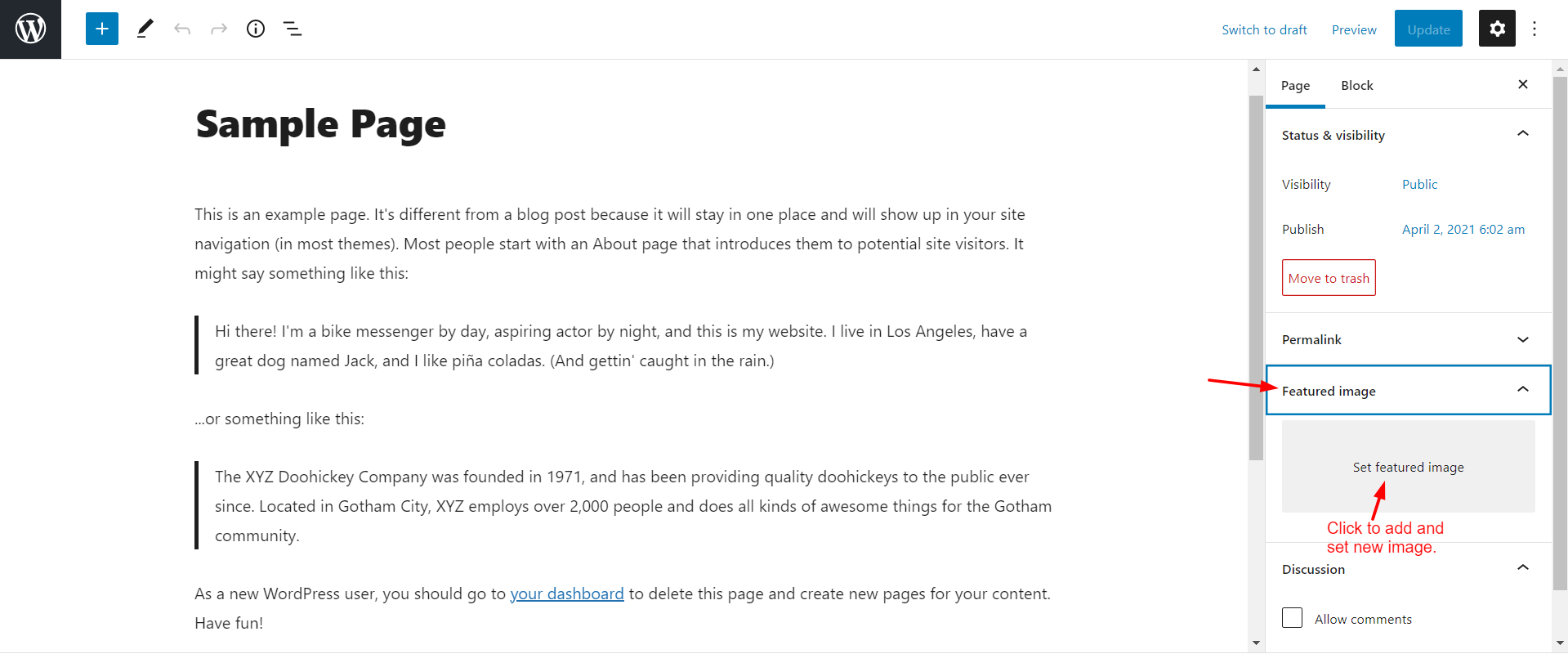
- Change the text, pictures or blocks.
- Click Update at the top right. Your change goes live right away.
Tip: Use Quick Edit under a page title in the list to change the title, the web address ending (the slug) or the status without opening the editor.
Put the page in your menu
A new page does not appear in your menu on its own. Go to Appearance, then Menus. Tick your page, click Add to Menu, then click Save Menu. With some newer themes, you use Appearance, then Editor, instead.
Delete a page
In All Pages, hover over a page and click Trash. Visitors will no longer see it. You can restore it from the Trash link at the top of the list.
Quick recap
- Pages are for fixed content. Posts are for dated articles.
- Create a page with Pages, Add New, then Publish.
- Edit a page from All Pages and click Update.
- Add the page to a menu so visitors can find it.