

Pages and posts: what is the difference?
WordPress has two main kinds of content. A post is a dated article, like a diary entry. It shows up in your blog list. A page stays the same for a long time. "About" and "Contact" are good examples of pages.
Steps
- Log in to your WordPress dashboard. This is the private area where you manage your site.
- In the left menu, click Pages.
- Click Add New. The editor opens.
- Click where it says Add title. Type the page name.
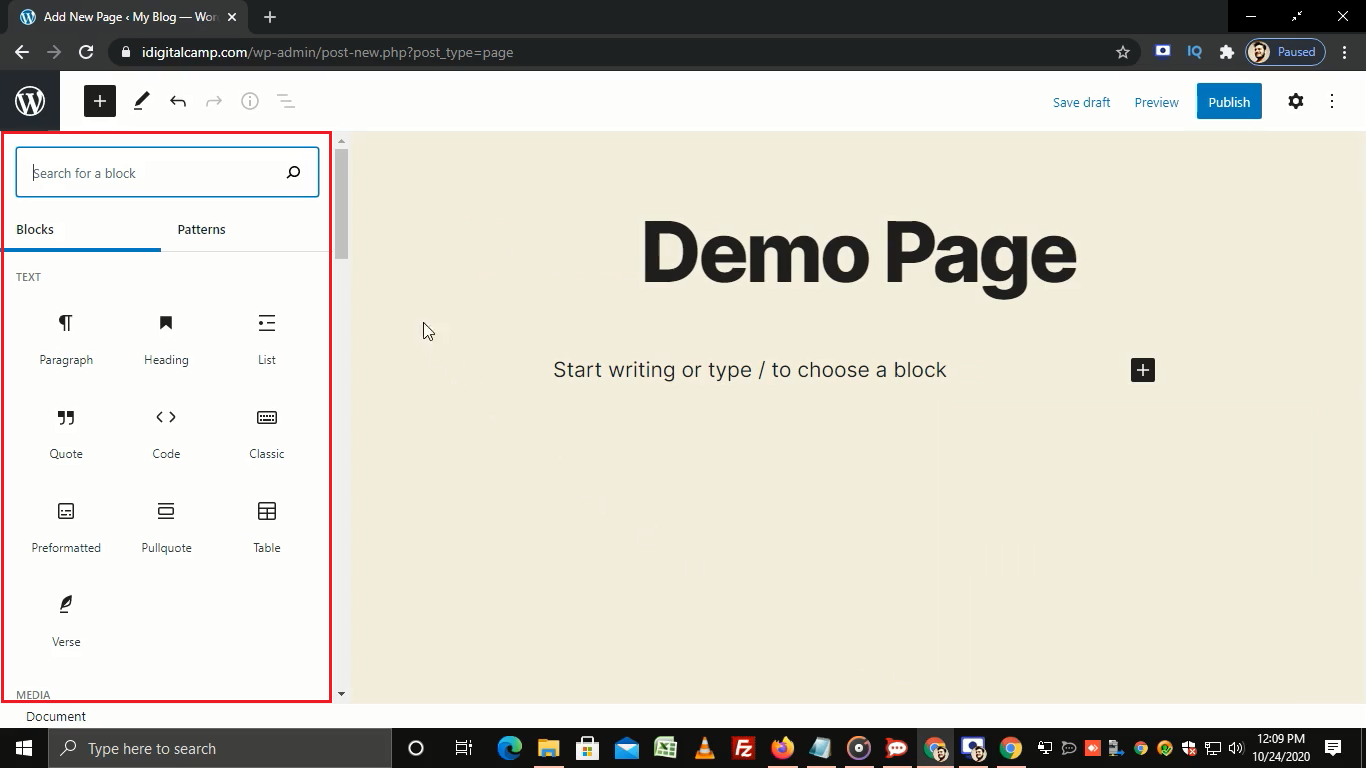
- Click in the large empty area below the title. Start typing your text.
- Press Enter to start a new paragraph. Each paragraph is a block, which is one piece of the page.
- To add a picture, click the + button. Choose Image. Upload a file or pick one from your library.
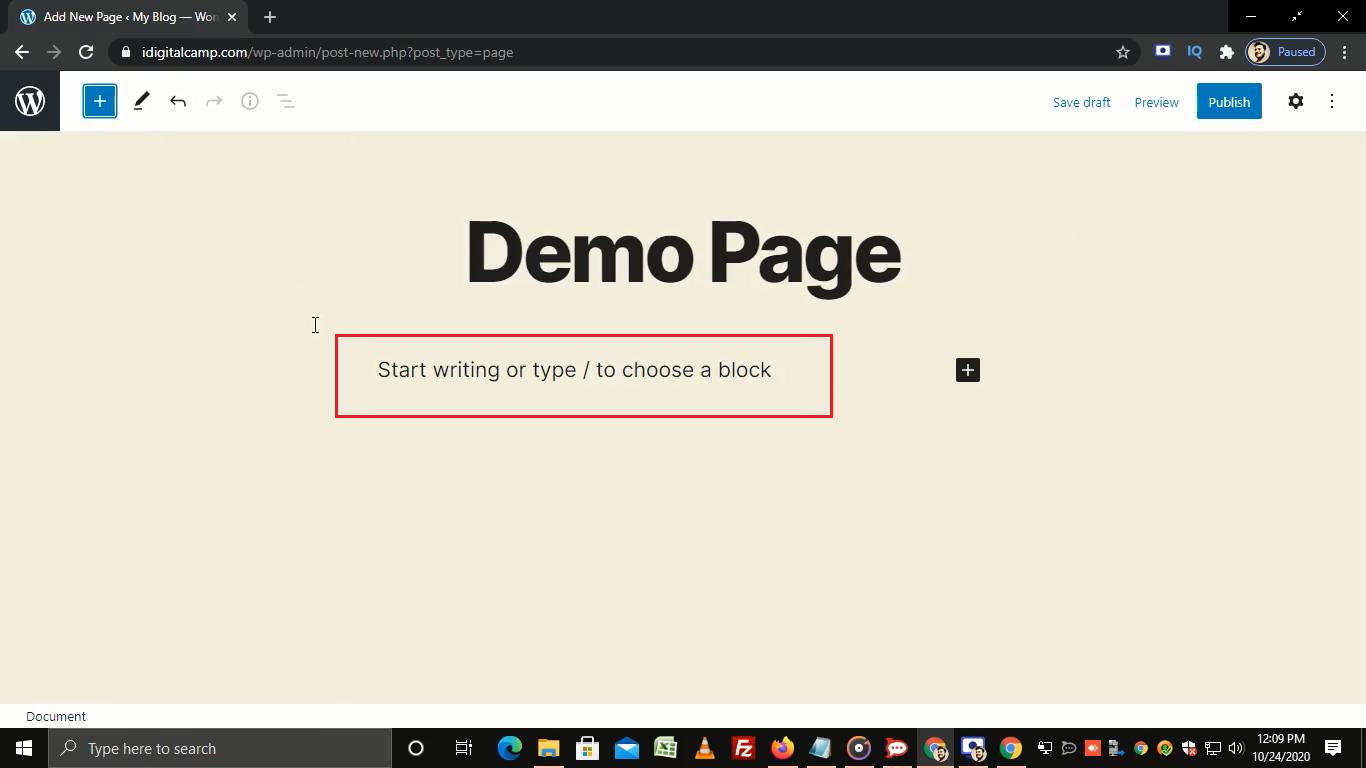
- To make a heading, click the + button and choose Heading.
- Look at the right-hand panel. Under Page, you can set the Permalink. This is the last part of the web address, such as
about-us. Keep it short. - Click Preview to check how the page looks.
- Click Publish. Click Publish once more to confirm.
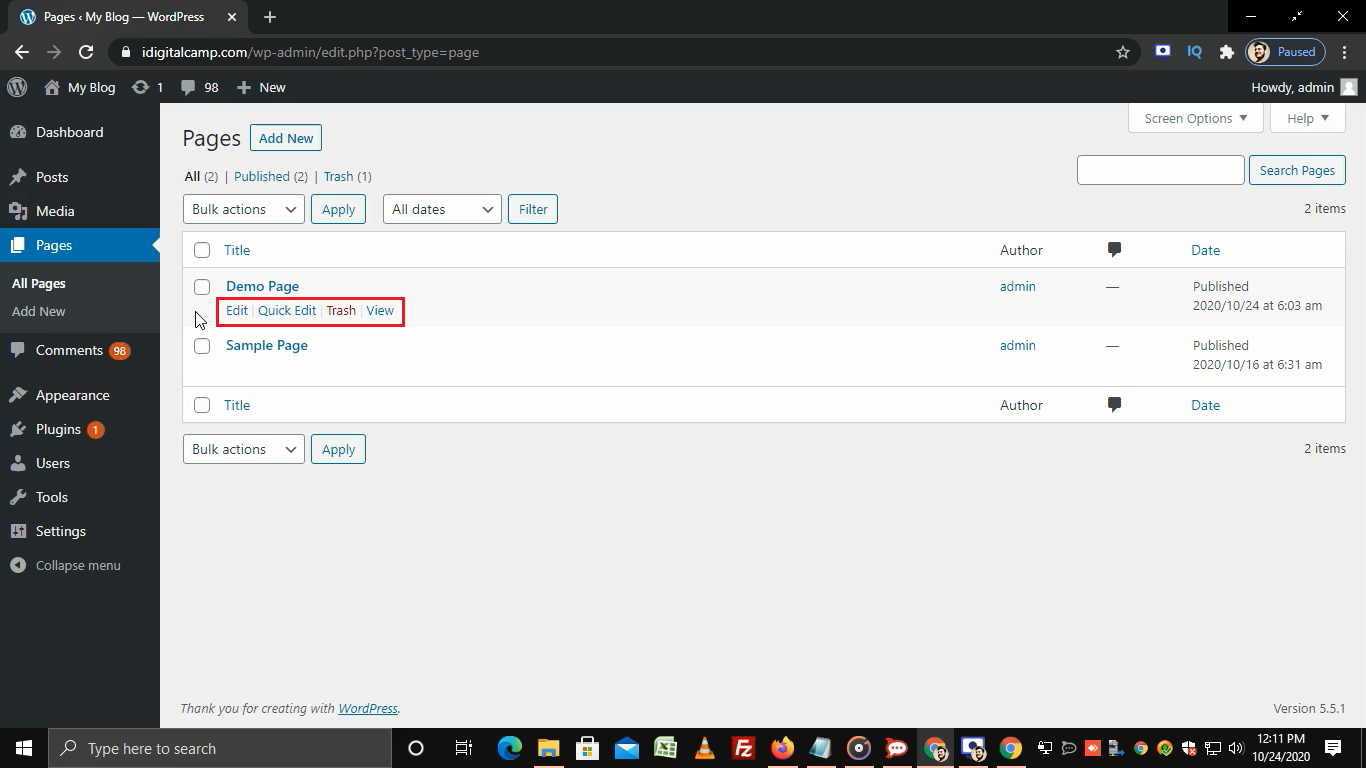
Your page is now live. Click View Page to see it.
Add the page to your menu
A new page does not always show in the menu by itself. Do this to add it.
- Go to Appearance, then Menus. If your theme uses the Site Editor, go to Appearance, then Editor, and open the navigation instead.
- Find your page in the list on the left.
- Tick it and click Add to Menu.
- Click Save Menu.
Change a page later
Go to Pages, then All Pages. Click the page name. Make your changes and click Update.
Tip: Not ready yet? Click Save draft instead of Publish. Only you can see a draft.
Quick recap
- Pages are for lasting content. Posts are for dated articles.
- Go to Pages, then Add New.
- Add a title and your content, then click Publish.
- Add the page to your menu so visitors can find it.
- Use Update to save later changes.