

What is Moodle?
Moodle is a free learning platform. Schools and trainers use it to run online courses. A site administrator is the boss of the whole site. They can change settings, add users and see everything.
Because the power is large, give it to very few people.
Before you start
- You must be logged in as a site administrator.
- Make sure the person already has a Moodle account.
- Keep at least one working administrator at all times.
Steps to add an administrator
- Log in to Moodle as an administrator.
- Click Site administration.
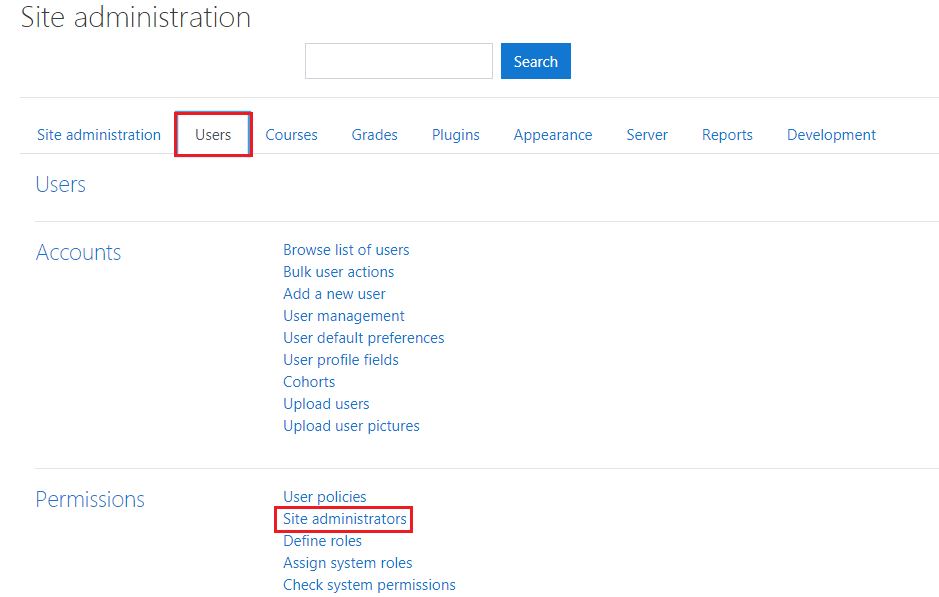

- Open the Users tab.
- Under Permissions, click Site administrators.
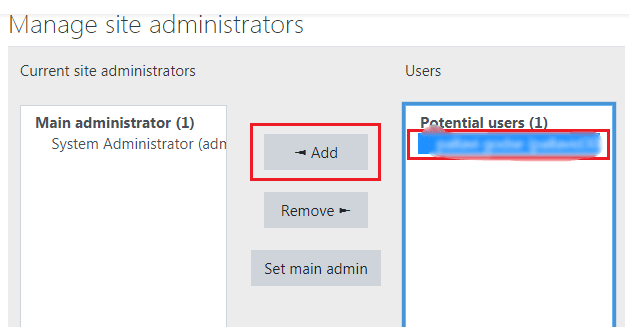
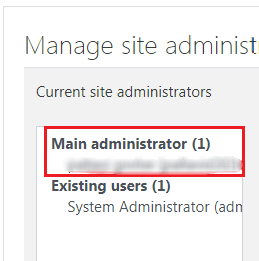
- You will see two boxes. The left one lists current administrators. The right one lists other users.
- In the right box, click the name of the person you want. Use the search box to find them.
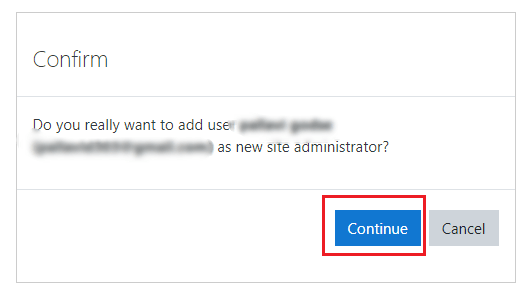
- Click the Add button. The name moves to the left box.
Steps to remove an administrator
- Open Site administration, then Users, then Permissions, then Site administrators.
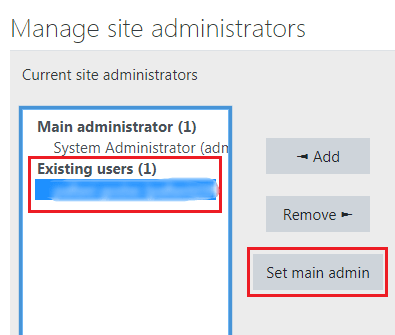
- In the left box, click the person's name.
- Click the Remove button.
Moodle will not let you remove the main admin who is protected by default settings. Menu names may vary a little between Moodle versions.
Change the order
The list order only affects display in some places. You can use the up and down arrows beside the list to move a name. Click Save changes afterwards.
Better idea: use roles
Not everyone needs full power. A role is a set of rights, like a job title. Moodle has roles such as Manager, Teacher and Student. Open Site administration, then Users, then Permissions, then Assign system roles. Give someone the Manager role if they only need part of the control.
Warning: If you remove the wrong person and lock yourself out, ask Hostvento support for help. Take a database backup first if you are unsure.
Quick recap
- Site administrators have full control.
- Go to Site administration, Users, Permissions, Site administrators.
- Use Add and Remove to move names between boxes.
- Give roles when full control is too much.
- Always keep one working administrator.