

What is SMTP?
SMTP is the system that sends email across the internet. It works like a post office. You hand over your letter, and the post office delivers it. Moodle needs the address of a post office, plus a login to use it.
Without SMTP, Moodle may send mail in a plain way that often lands in spam. With SMTP and a real mailbox, mail is more likely to arrive.
What you need
- An email account on your domain, for example
noreply@yourdomain.com. Create one in cPanel under Email Accounts. - The mail server name, port and security type. Look in your welcome email, or in cPanel under Email Accounts and Connect Devices. You can also ask Hostvento support.
- The email address and its password.
Steps
- Log in to Moodle as an administrator.
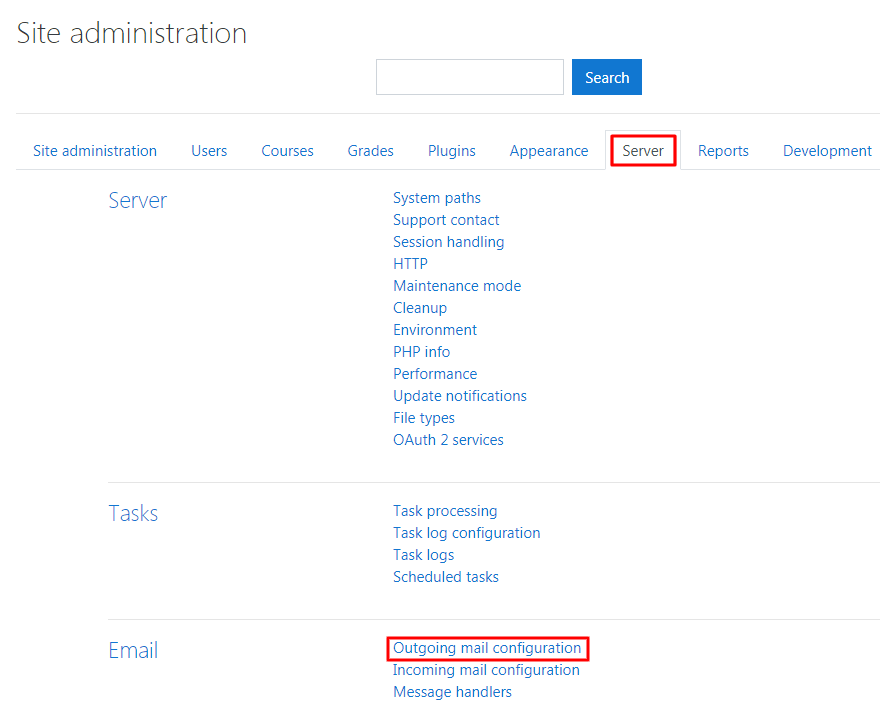
- Click Site administration.
- Open the Server tab.
- Click Email, then Outgoing mail configuration.
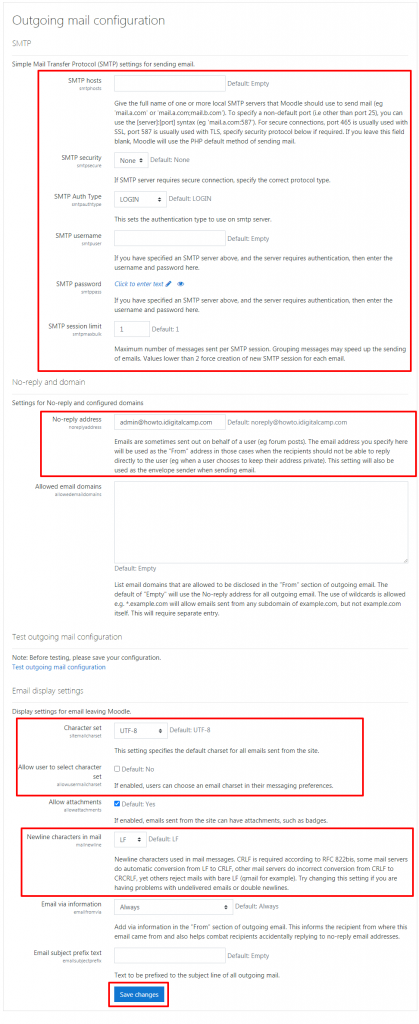
- In SMTP hosts, type the mail server name and port, joined by a colon. For example:
mail.yourdomain.com:465. Use the real values for your account. - In SMTP security, choose SSL or TLS to match your port. Port 465 usually means SSL. Port 587 usually means TLS.
- In SMTP username, type the full email address.
- In SMTP password, type the mailbox password.
- In No-reply address, type an address such as
noreply@yourdomain.com. - Click Save changes.
Send a test email
- On the same Outgoing mail configuration page, scroll to the bottom.
- Click the link Test outgoing mail configuration.
- Enter an address you can check and click Send a test email.
- Check the inbox. Also check spam.
Menu names may differ a little between Moodle versions.
If it fails
- Check the user name and password for typos.
- Check that the port and the security type match.
- Make sure the mail account exists and works in webmail.
- Ask Hostvento support to check that outgoing mail is allowed from your plan.
Tip: Use a dedicated mailbox for Moodle. Then a password change on your own mailbox will not break Moodle.
Quick recap
- SMTP is the system that sends your email.
- Create a mailbox and find its server details.
- Fill in Outgoing mail configuration in Moodle.
- Send a test email to check.