

What is an MDB file?
A database is a store for information. Microsoft Access is a program that makes small databases. Its files end in .mdb (or .accdb in newer versions). It is like a spreadsheet with extra powers.
Some older websites, written in ASP, read data from such a file.
Plesk is a control panel, which is a web page for managing hosting. Ask Hostvento support if your plan is Windows with Plesk, and whether Access databases are allowed.
Before you start
- You need a Windows hosting plan. Linux plans cannot run Access files.
- Keep a copy of the MDB file on your own computer.
Step 1: upload the file
- Log in to Plesk. Your welcome email has the link and login.
- Click Files.
- Open your site folder, often
httpdocs. - Open or create a folder named
App_Dataordb. Keep it outside the open web folders if you can. - Click Upload Files and choose your MDB file.
Tip: Anyone who knows the file address may download an MDB inside a public folder. Use a private folder if Plesk offers one.
Step 2: make a connection (DSN)
A DSN, or Data Source Name, is a short label that points to the database file. Your site uses the label instead of the long path.
- In Plesk, go to Websites & Domains.
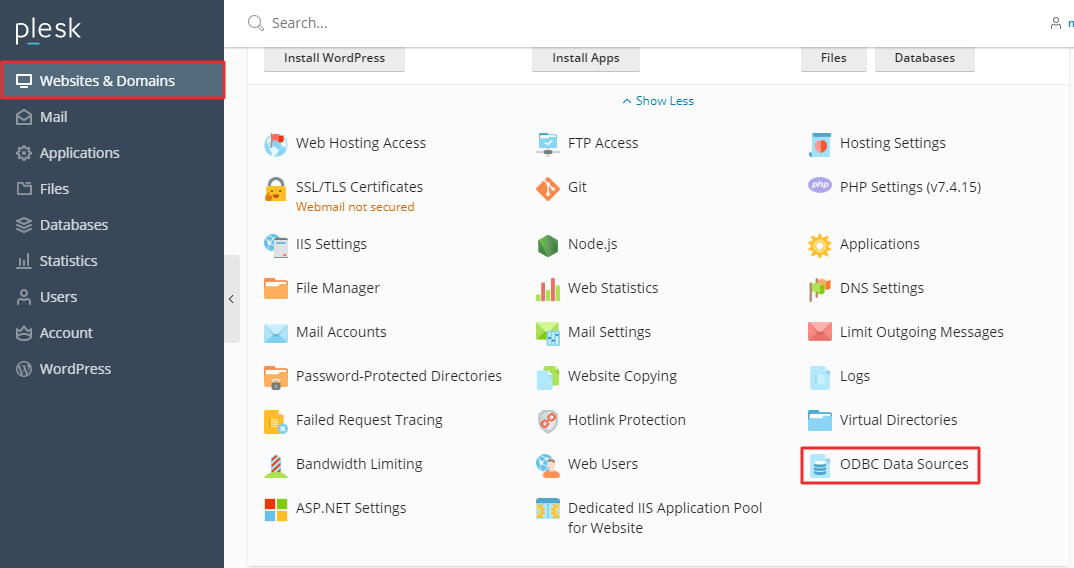
- Open your domain.
- Click Databases.
- Click ODBC Data Sources.
- Click Add ODBC DSN.
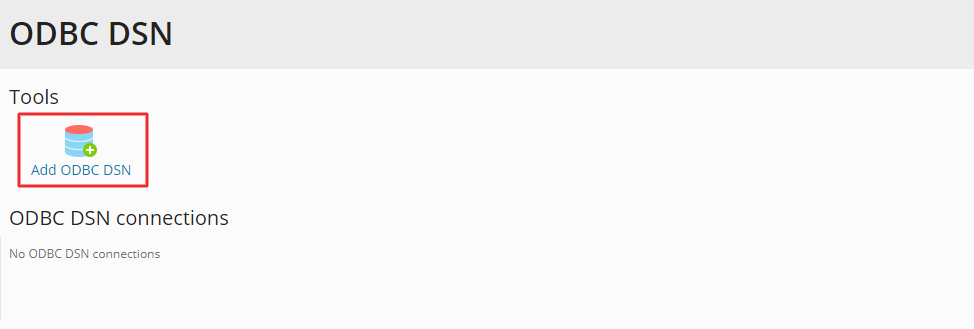
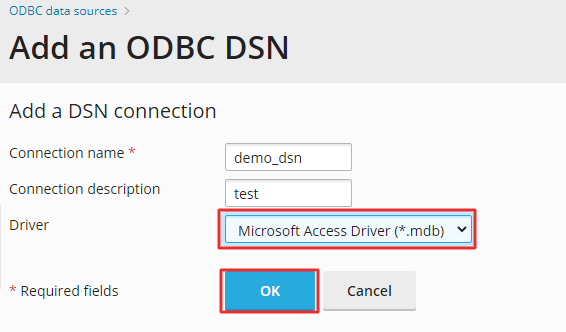
- Type a name for the DSN, such as
mydata. - Choose Microsoft Access Driver (*.mdb) from the driver list.
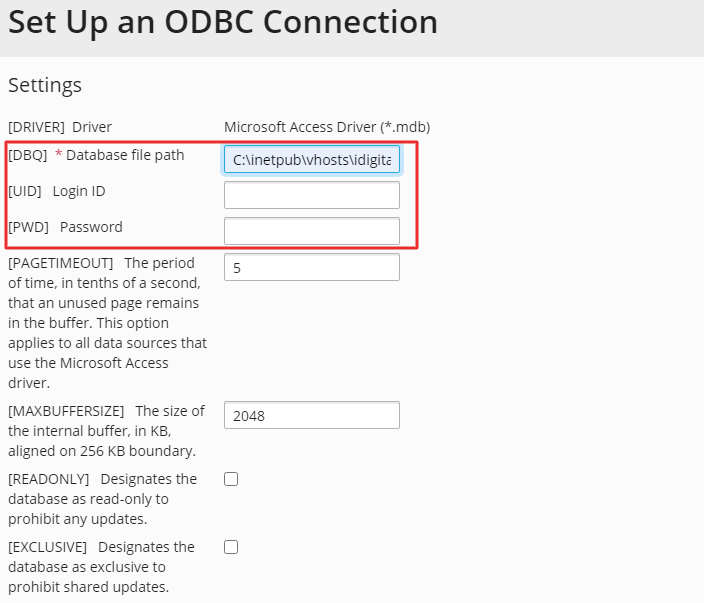
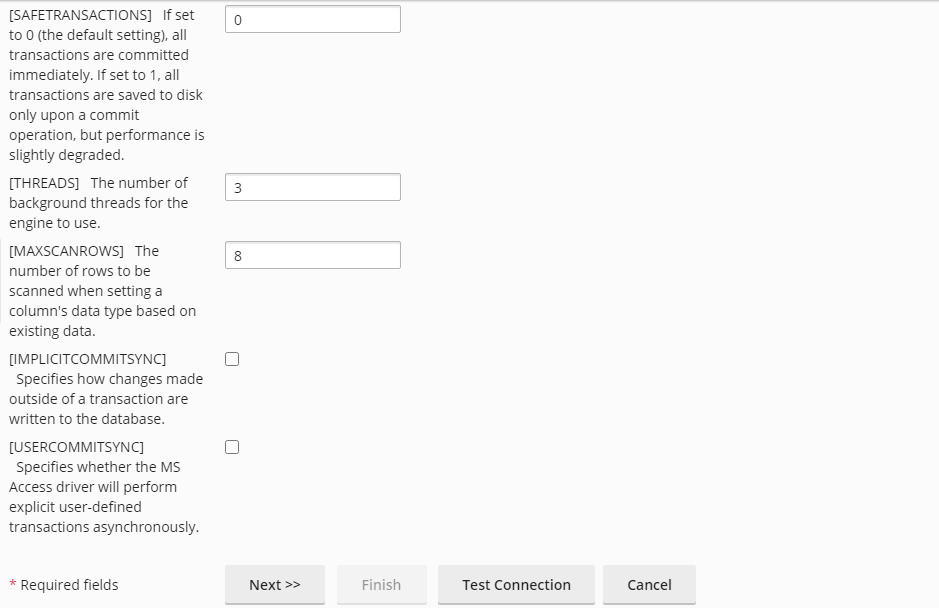
- Click Configure if it is offered. Enter the path to your MDB file.
- Click Test to check it.
- Click OK to save.
Step 3: use it in your code
Your site can now use the DSN. In classic ASP, the connection line looks like this:
conn.Open "DSN=mydata"This opens the database named by your DSN. You can also use a direct path with the server's full folder path.
Fix problems
- If you get "permission denied", the folder may be read-only. Access needs write rights to save changes.
- If Plesk does not list the driver, ask support. Open a support ticket.
Quick recap
- An MDB file is a Microsoft Access database.
- It works only on Windows hosting.
- Upload the file, then add an ODBC DSN in Plesk.
- Use the DSN name in your code. Make sure the folder is writable.