

Note: This guide needs root access. VPS and dedicated server customers have it. Shared hosting customers do not.
What is a MySQL profile?
MySQL is a database system. A database is a store for a website's information.
WHM stands for WebHost Manager. It is the admin panel for a cPanel server.
A MySQL profile is a saved set of login details for one database server: the host, port, user name and password. It is like a contact card in your phone. Instead of typing every detail, you pick the card.
Profiles matter when your server uses more than one database server. For example, a separate machine may hold the databases. WHM can then switch between servers with a profile.
Before you start
- Have the host name, port and login of the database server. The port is usually
3306. - The MySQL user must be allowed to connect from your WHM server.
- Take a backup of your databases first.
Warning: switching the active profile changes which database server cPanel accounts use. Do not do this on a live server unless you have planned it.
Steps
- Log in to WHM as root. The address is your server address followed by
:2087.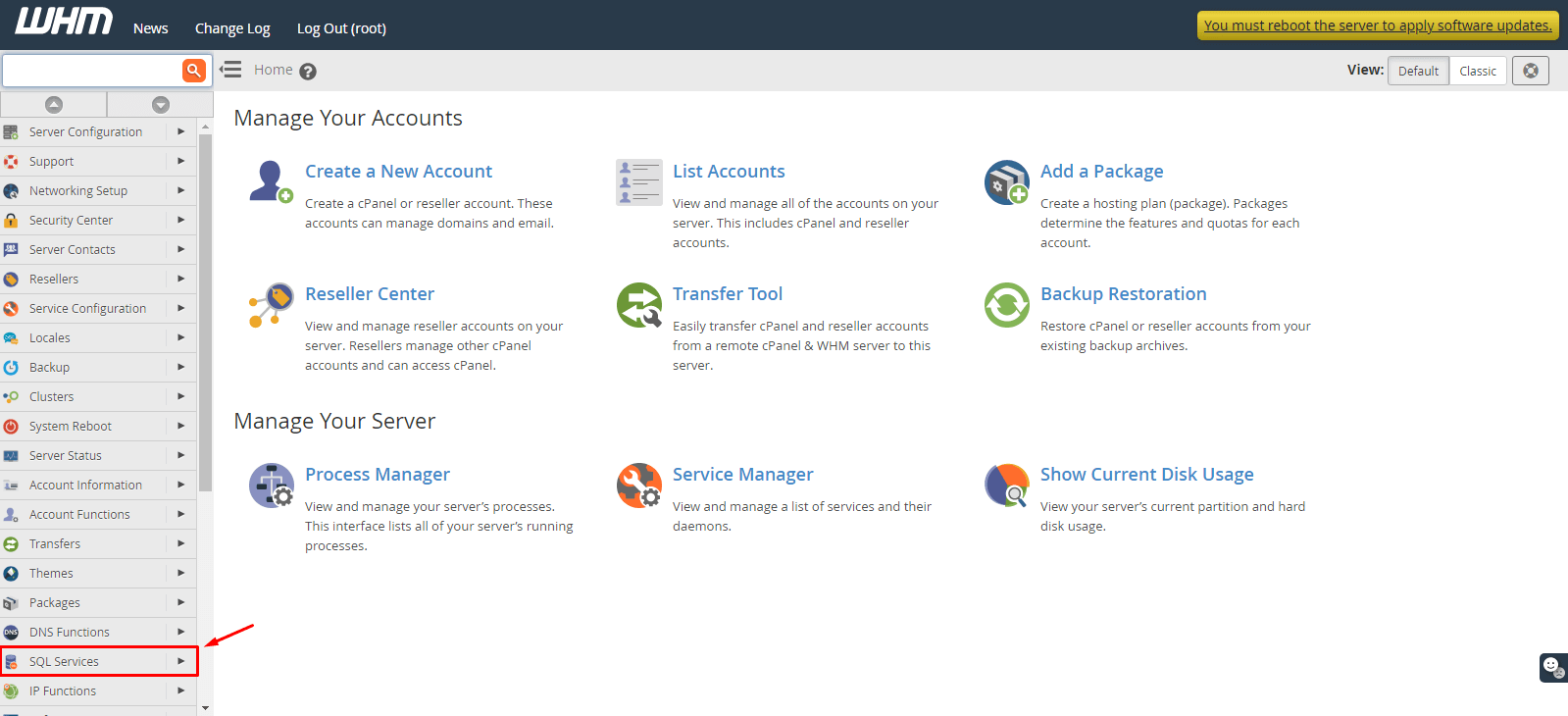
- In the search box at the top left, type Manage MySQL Profiles.
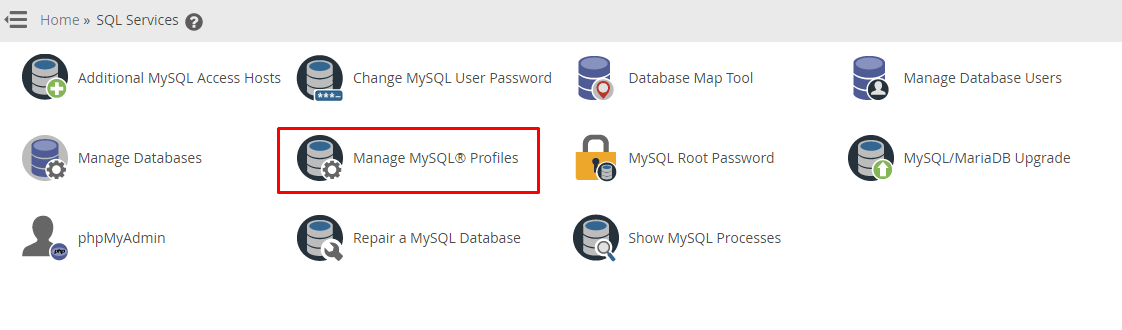
- Click Manage MySQL Profiles. It may be inside SQL Services.
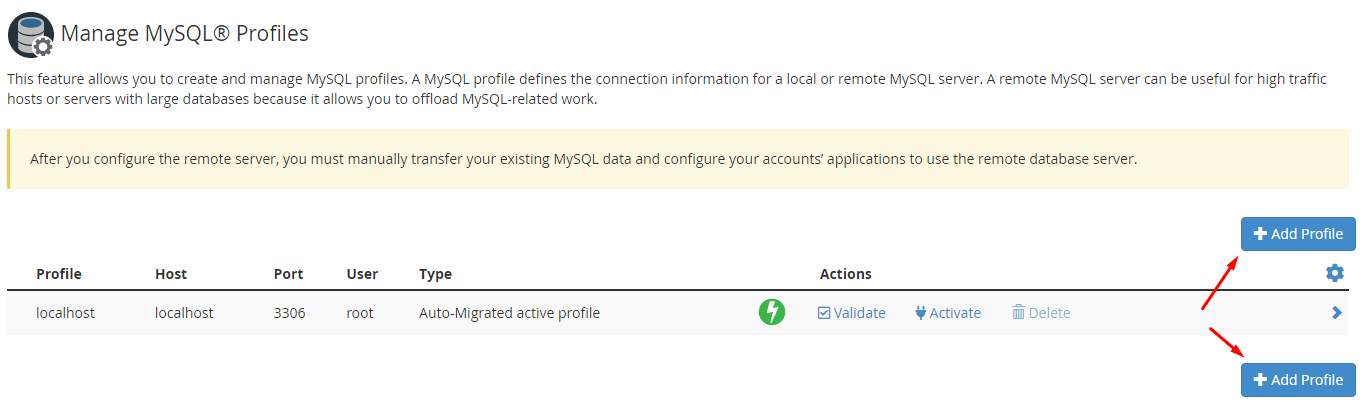
- Click Add New MySQL Profile.
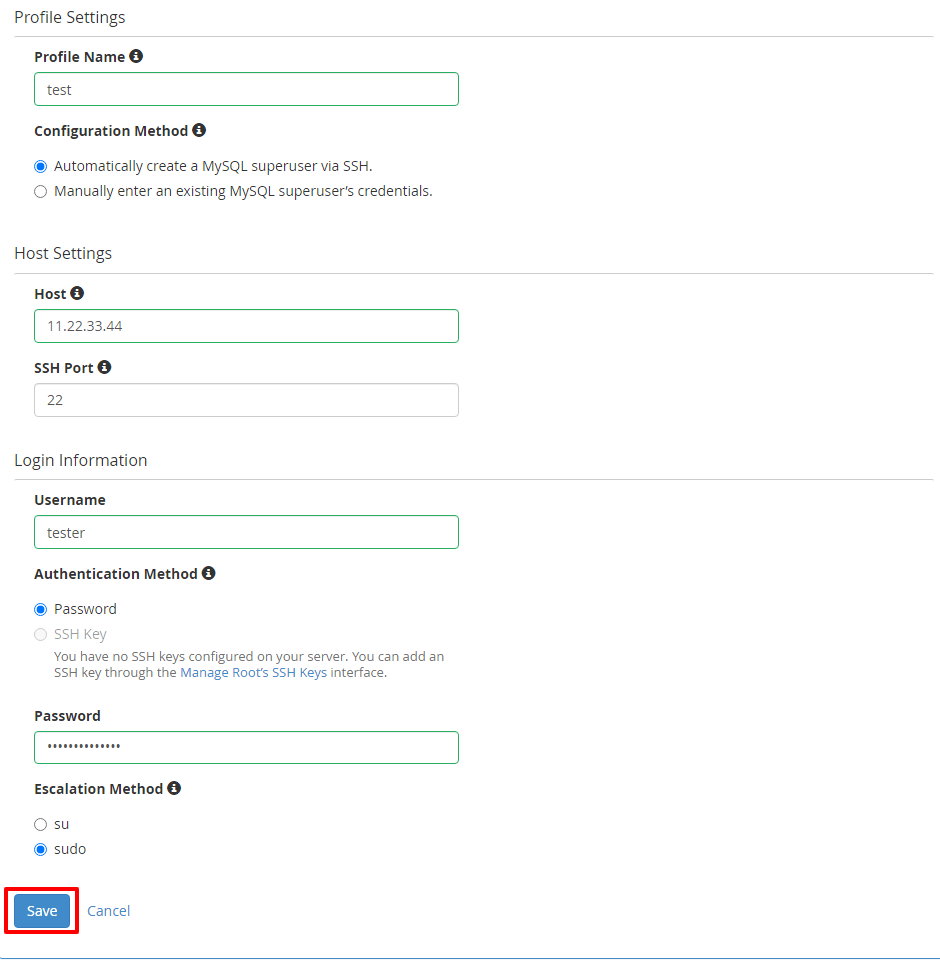
- Type a clear Profile Name, like
db-server-2. - Type the Host name or IP address.
- Type the Port.
- Type the Account Name and Password of a MySQL user who has full rights.
- Click Validate. WHM tests the connection.
- If the test passes, click Save.
Make a profile active
- On the Manage MySQL Profiles page, find the profile in the list.
- Click Make Active.
New cPanel accounts will now use this database server.
Fix problems
- If validation fails, check the host, port, user name and password.
- Check that the firewall lets your WHM server reach the database server.
- Ask Hostvento support if you are not sure. Open a support ticket.
Quick recap
- A MySQL profile saves login details for one database server.
- Open Manage MySQL Profiles in WHM.
- Add the host, port, user and password, and click Validate.
- Back up before you change the active profile.