

What is a database?
A database is a store where a website keeps its information. A blog keeps posts and comments there. A shop keeps products and orders.
cPanel is the control panel for your hosting. It is a web page where you manage your site.
Warning: deleting a database removes all data in it for good. You cannot undo it. If a website still uses the database, that website will stop working. Take a backup first.
Step 1: back up the database
- Log in to cPanel. Your welcome email has the link and login.
- In the Databases section, click phpMyAdmin.
- Click the database name in the left panel.
- Click the Export tab.
- Click Export. A file saves to your computer.
- Keep that file somewhere safe.
Step 2: delete the database
- Go back to the cPanel home page.
- In the Databases section, click MySQL Databases (or Manage My Databases in newer versions).
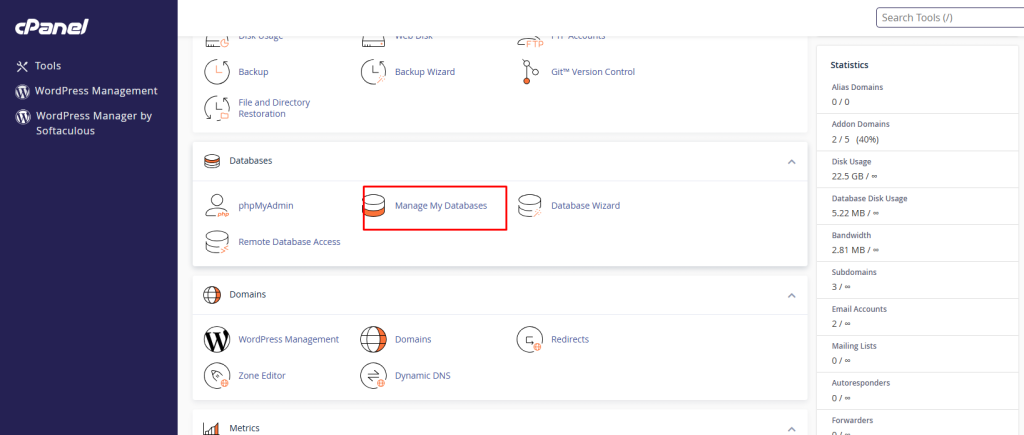
- Scroll down to Current Databases.
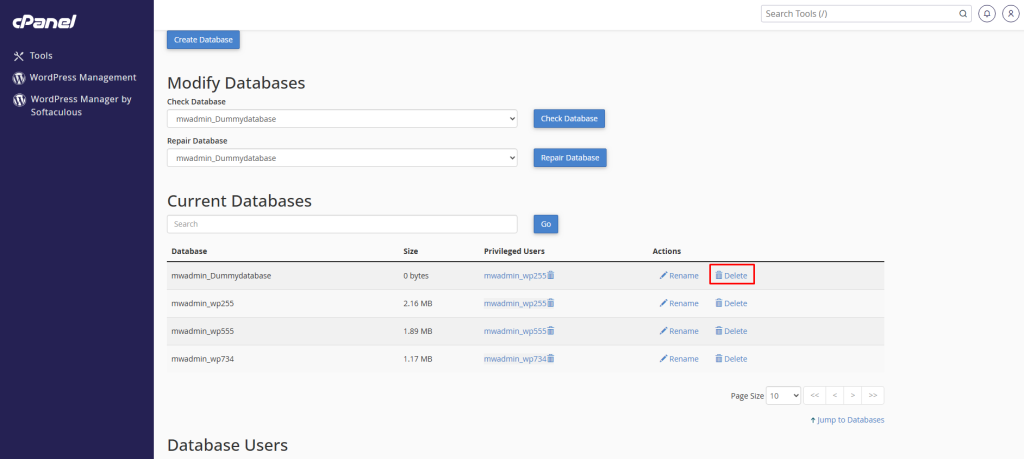
- Find the database you want to remove.
- Click Delete in that row.
- A message asks if you are sure. Read the name again.
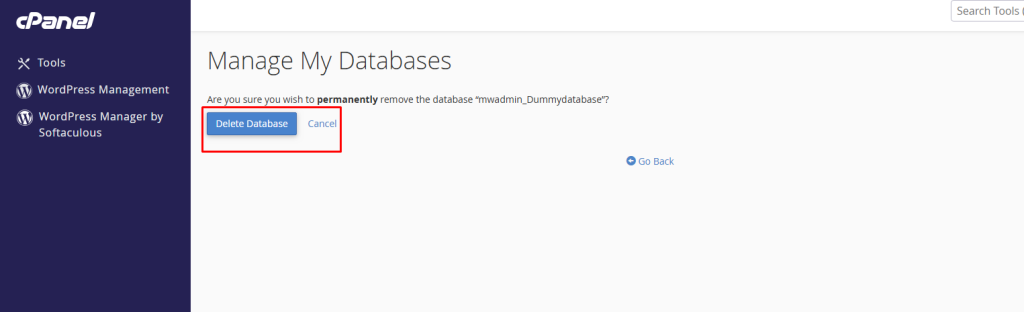
- Click Delete Database to confirm.
Step 3: delete the database user (optional)
A database user is a login for a database. Deleting a database does not delete its users. Remove the ones you no longer need.
- On the same MySQL Databases page, scroll to Current Users.
- Find the user that belonged to the deleted database.
- Make sure no other database uses it.
- Click Delete next to the user.
- Click Delete User to confirm.
Check your website
Open your website. If it was meant to be live, make sure it still works. Check the config file of any app that used the database. For WordPress this is wp-config.php.
Tip: Not sure which database a site uses? For WordPress, open
wp-config.php in File Manager and look for DB_NAME.Quick recap
- Deleting a database removes its data for good.
- Export a backup in phpMyAdmin first.
- Delete it from MySQL Databases in cPanel.
- Remove unused database users too.