

What does "empty a database" mean?
A database is like a digital filing cabinet. It holds your site's data. Each table is a drawer in that cabinet. Emptying a database means removing every drawer. The cabinet stays, ready to use again.
Warning: this deletes all your data for good. Take a backup first. If your site uses this database, it will stop working until you restore the data.
Steps in phpMyAdmin
phpMyAdmin is a web tool that lets you manage databases with clicks. You can open it from cPanel, the control panel for your hosting.

- Log in to your client area and open your hosting service. Then open cPanel.
- Under Databases, click phpMyAdmin.
- In the left list, click the name of the database you want to empty.
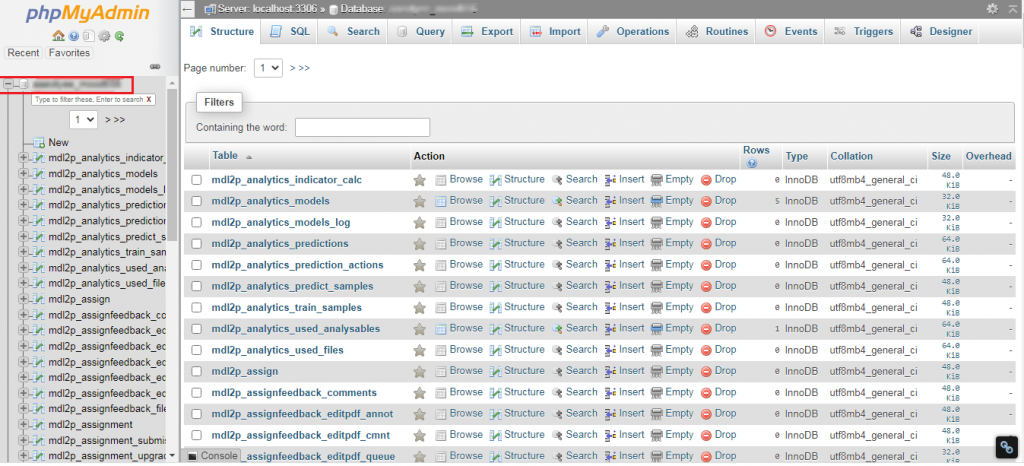
- Look at the list of tables. Click Check all at the bottom.
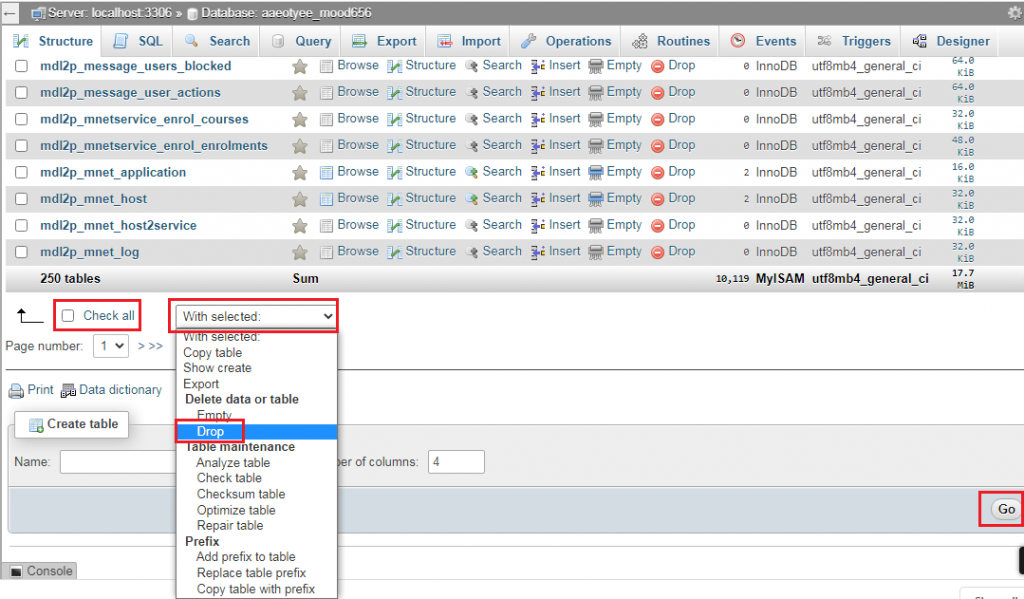
- Open the drop-down menu next to it. It says With selected.
- Choose Drop.
- phpMyAdmin asks if you are sure. Read the message. Click Yes to confirm.
The database is now empty. It has no tables.
Another choice: Empty instead of Drop
The menu also has an Empty option. It removes the rows inside each table, but keeps the tables. Use it when you want a fresh start with the same layout.
Using a command
If you have command line access, you can drop and re-create the database. You need your database name and a user with rights.
mysql -u username -p -e "DROP DATABASE dbname; CREATE DATABASE dbname;"This deletes the database named dbname and makes a new empty one with the same name. On shared hosting, this can remove user rights, so the phpMyAdmin method is safer.
If you cannot do it
Ask Hostvento support to help. You can open a support ticket.
Quick recap
- Emptying a database removes its tables or rows, not the database itself.
- Always take a backup first.
- In phpMyAdmin, select the database, choose Check all, then Drop.
- Use Empty if you want to keep the tables.
- Ask support if you are stuck.