

Why check a database?
A database is where your website keeps its data. Tables are the parts inside it, like drawers in a cabinet. Sometimes a table gets damaged. This can happen after a crash or a full disk. A damaged table can cause blank pages or database errors on your site.
cPanel has two tools for this: Check DB and Repair DB. Check finds problems. Repair tries to fix them.
Warning: Take a backup before you repair anything. Repairs usually work, but a backup keeps you safe.
Check a database
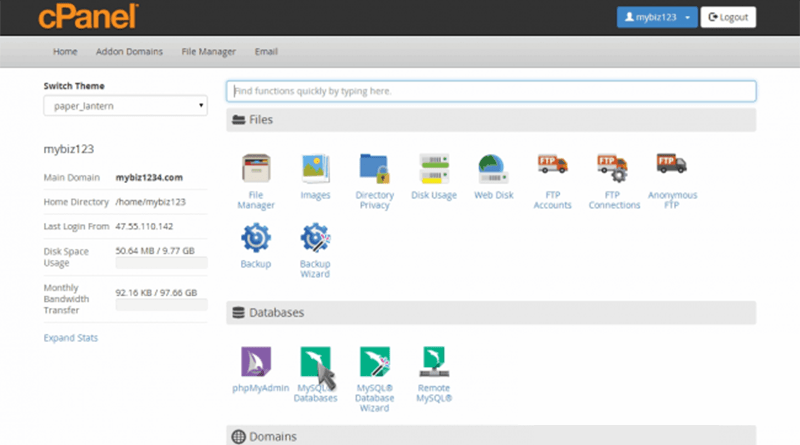
- Log in to your client area. Open your hosting service and log in to cPanel.
- Under Databases, click MySQL Databases.
- Scroll to the section named Modify Databases.
- Next to Check DB, open the drop-down list.
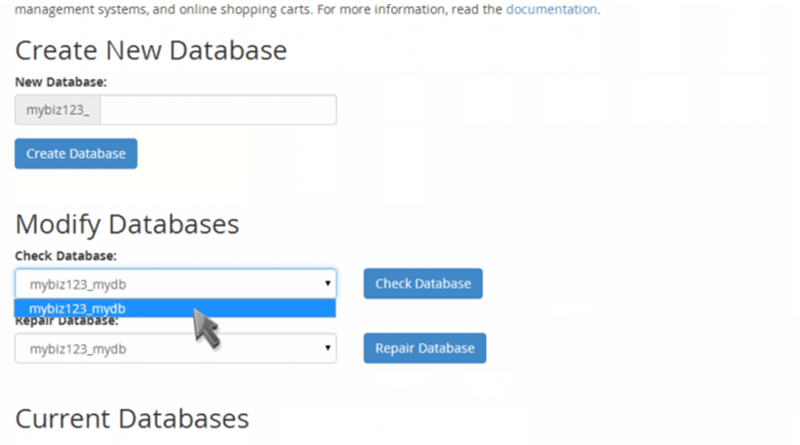
- Choose the database you want to test.
- Click Check DB.
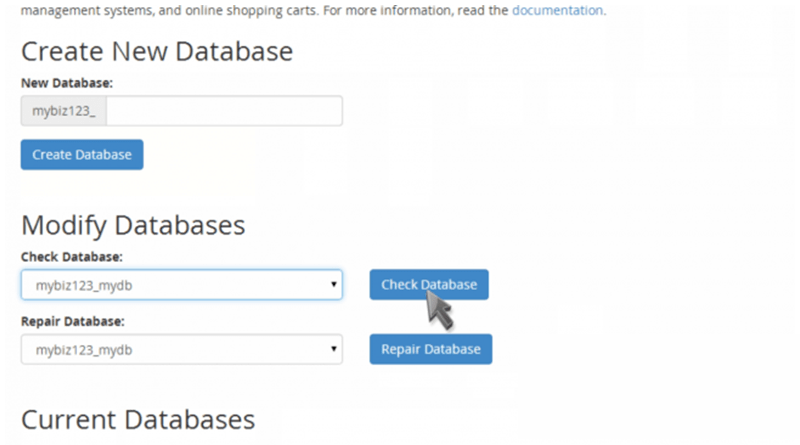
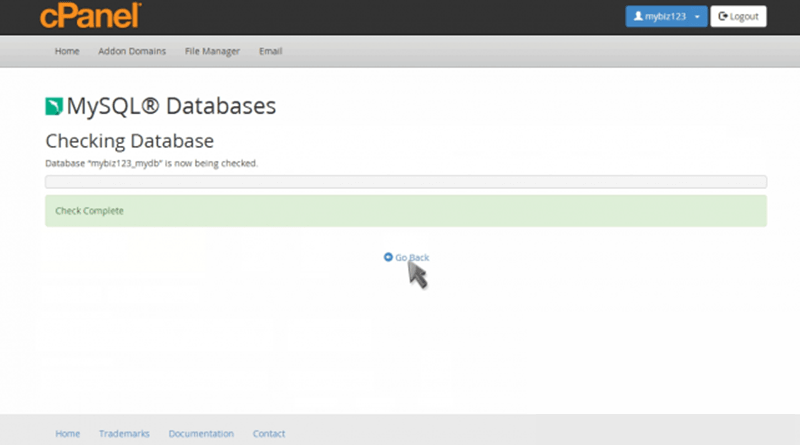
- Wait for the result. Each table shows a status. OK means it is healthy.
Repair a database
If any table shows an error, repair it.
- On the same page, find Repair DB.
- Choose the same database from the list.
- Click Repair DB.
- Read the result. Healthy tables show OK.
- Visit your website to see if the problem is gone.
Using phpMyAdmin instead
phpMyAdmin is a web tool to manage databases. You can open it from cPanel.
- Open phpMyAdmin in cPanel.
- Click your database name on the left.
- Tick Check all.
- In the With selected menu, choose Check table or Repair table.
Tip: Some table types, such as InnoDB, cannot be repaired this way. If repair does not help, send Hostvento support a ticket with the exact error.
Quick recap
- Damaged tables can break your site.
- Use MySQL Databases in cPanel, then Check DB and Repair DB.
- Back up first.
- phpMyAdmin offers check and repair as well.
- Ask support if errors stay.