

What is a backup?
A backup is a spare copy of your data. If something breaks or gets deleted, you can bring the data back. SQL Server is a database system made by Microsoft. It is often used on Windows servers. A database is the place where your site or app keeps its data.
A SQL Server backup is saved as a file that ends in .bak.
Steps with SQL Server Management Studio
SQL Server Management Studio, or SSMS, is a free Microsoft tool that gives you a window to manage databases.
- Open SSMS and connect to your server. Use the server name and login from your welcome email, or ask Hostvento support.
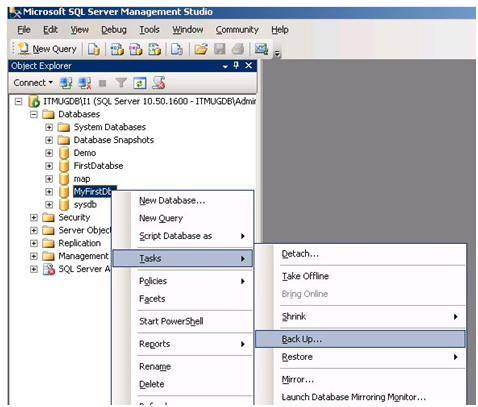
- In the Object Explorer on the left, open the Databases folder.
- Right-click the database you want to save.
- Choose Tasks, then Back Up.
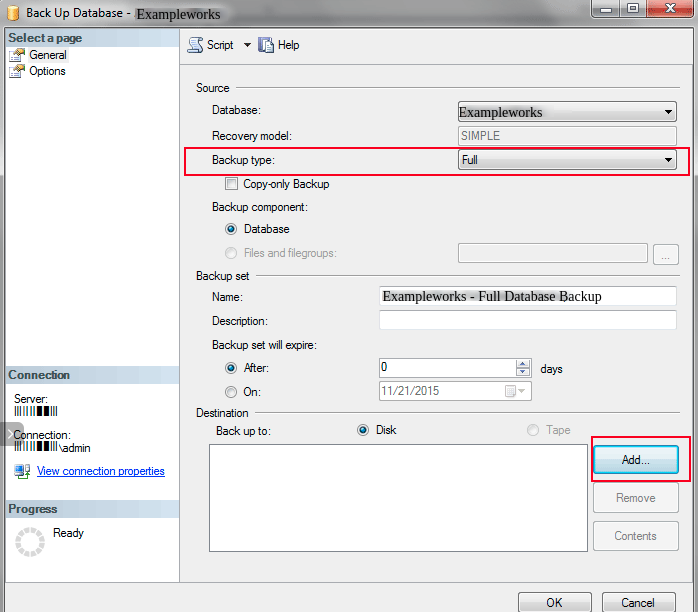
- Set Backup type to Full. A full backup copies everything.
- Under Destination, click Add.
- Pick a folder and type a file name that ends with
.bak.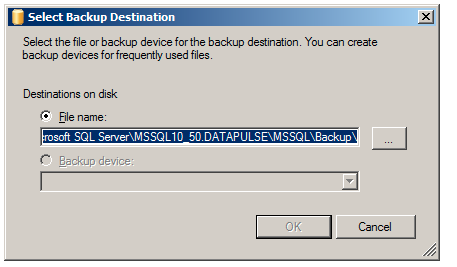
- Click OK, then click OK again in the main window.
- Wait for the message that the backup finished.
Steps with a command
You can also run this in a new query window:
BACKUP DATABASE MyDatabase
TO DISK = 'C:\Backups\MyDatabase.bak';
This saves a full backup of MyDatabase into the file. Change the names and the folder to match yours.
Keep it safe
- Copy the
.bakfile to another place, such as your computer or cloud storage.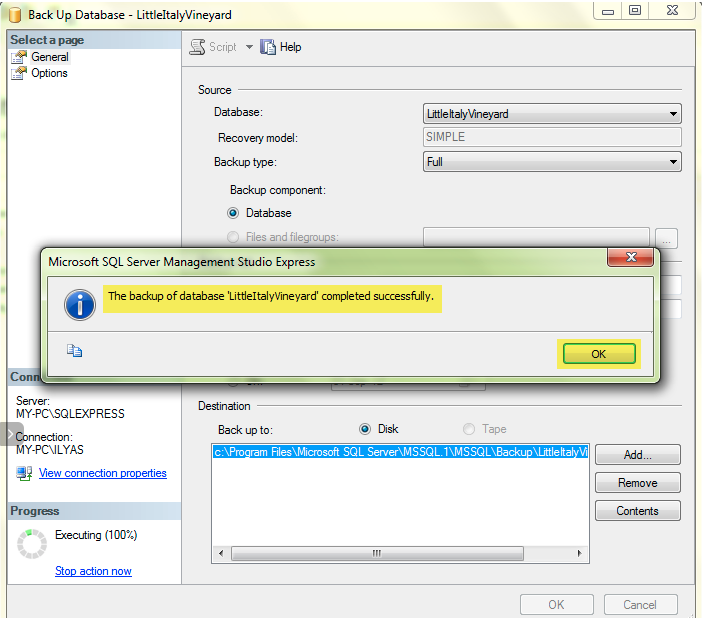
- A backup stored only on the same server may be lost if the server fails.
- Back up on a regular schedule.
Tip: Some hosting plans do not allow direct SQL Server access, or may place limits on backup folders. Ask Hostvento support what your plan allows. You can open a ticket.
Quick recap
- A backup is a spare copy saved as a
.bakfile.

- In SSMS, right-click the database, then Tasks and Back Up.
- Choose Full and pick a destination.
- Store a copy away from the server.